Fill in your Camp Profile
Your camp and teamWhat the Camp Profile asks, the ten answers your risk assessment waits for, how your answers save, and who on your team can change them.
The Camp Profile describes your camp: what you run, where you are, what’s on site, who works there and who you serve. The risk assessment reads it to decide which risks to suggest, so you start from the risks that apply to you rather than a blank page. Your reports and grant submissions draw on it too.
Where to find it
There are three ways in, and they all open the same answers:
- Open the camp menu at the top of the sidebar (it shows your camp’s name) and choose Camp Profile. On a phone, tap the navigation button at the top left first to open the sidebar.
- Open Camp Settings. On the Overview tab, the Camp Profile card shows how many questions are answered. Choose Open profile.
- Open Risk Assessment. The profile is its first stage, Profile.
If you’re in more than one camp, the profile belongs to the camp you have open. See Switch between your camps.
The six sections
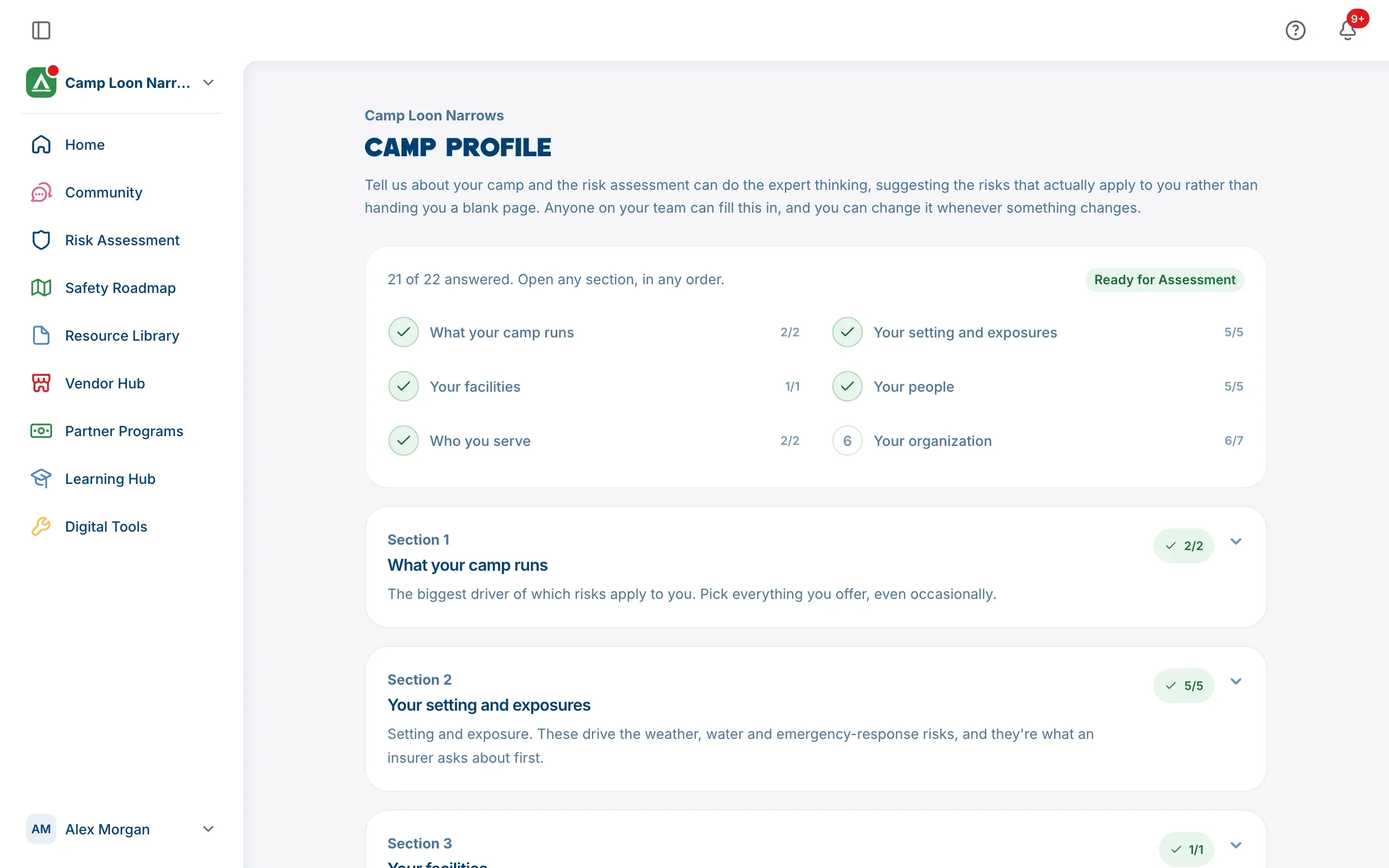
The card at the top of the page says how many questions you’ve answered and lists the six sections, each with its own count. Choose a section in that list to jump to it, or choose a section’s heading further down to open it. Work through them in any order.
- What your camp runs: your camp model, the age groups you serve, and your activities.
- Your setting and exposures: water exposures, flood exposure, wildfire exposure, emergency response and services, and climate and weather exposures.
- Your facilities: what’s on site, and how your site connects.
- Your people: medical coverage, how many staff you have, how many are 18 or under, whether you use volunteers, and your supervision model.
- Who you serve: how many campers you serve each year, and any communities you deliberately serve or support.
- Your organization: entity type, memberships, accreditation, agency and religious affiliation, season length and number of sites.
A section gets a tick once every question in it is answered. Two questions are marked optional (age groups served, and connectivity), and they don’t count toward the tick either way.
Answering the questions
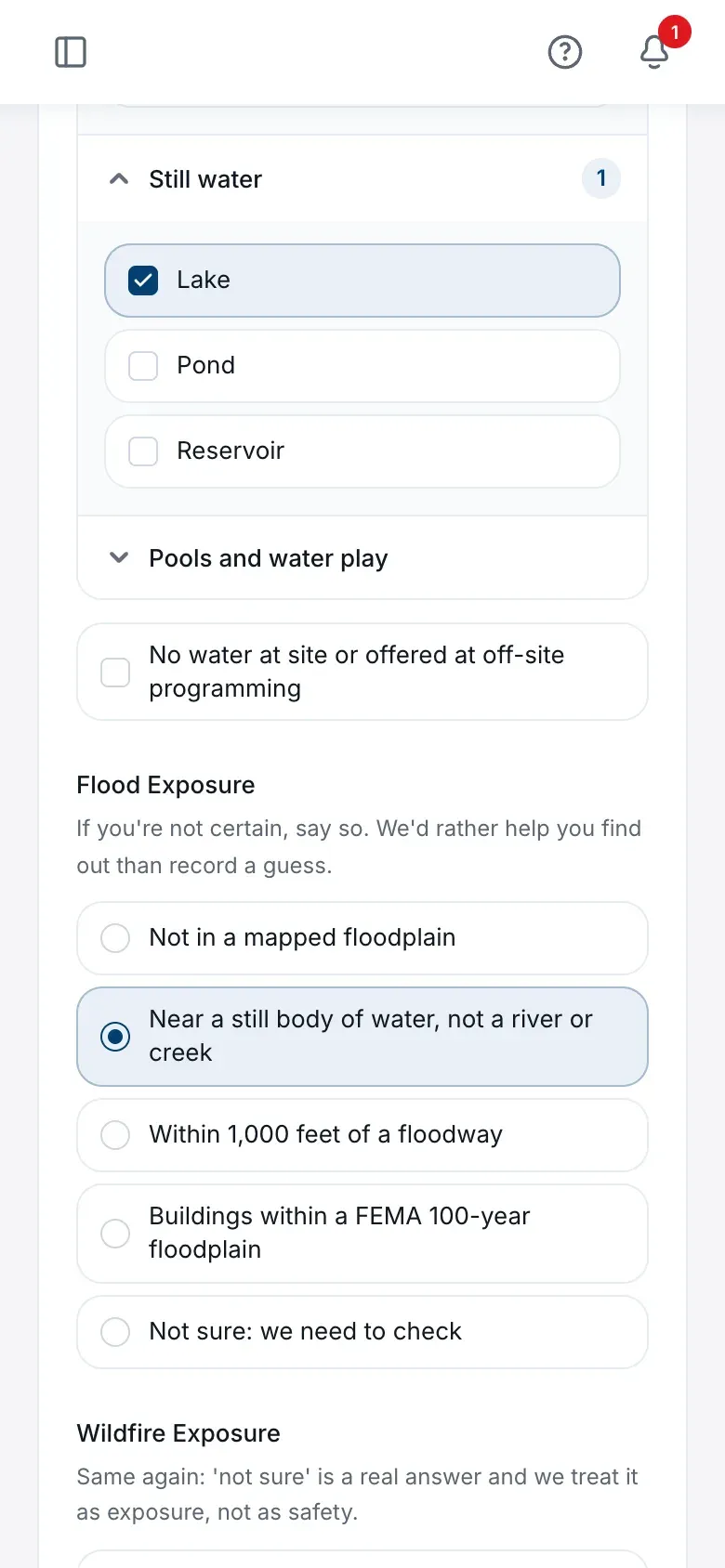
The hints under each question say what to include. A few answers are easy to get wrong:
- Pick everything that applies, not just your main program. For camp model, activities and water exposures, include anything you offer or campers could reach, even occasionally or on a trip.
- “None” is an answer. If none of the listed activities apply, choose None of the listed activities below the list. For water exposures, choose the answer that says there’s no water at your site or on your trips.
- Zero is an answer too. For Staff Aged 18 or Under, enter 0 if you have none. For Number of Sites, enter 0 if you run entirely off-site programming. A blank is not the same as 0.
- If you aren’t sure about flood or wildfire exposure, choose the “Not sure” answer rather than guessing. The platform treats “not sure” as exposure, not as safety, and it counts as an answer.
- Activities, water exposures and facilities are long lists. Use the search box above each one, or open a group.
The ten answers your risk assessment waits for
At the top of the page, a badge shows either Ready for Assessment or how many answers are still needed, such as 3 more for your assessment. The risk assessment opens its later stages once these ten are answered:
| Answer | Section |
|---|---|
| Camp model | What your camp runs |
| Activities | What your camp runs |
| Water exposures | Your setting and exposures |
| Flood exposure | Your setting and exposures |
| Wildfire exposure | Your setting and exposures |
| Emergency response and services | Your setting and exposures |
| Weather exposures | Your setting and exposures |
| Facilities | Your facilities |
| Staff aged 18 or under | Your people |
| Number of sites | Your organization |
Until they’re all in, the risk assessment shows what’s still to answer and links you back here. See Start your risk assessment.
The other questions are worth answering too. They don’t hold the assessment up, but they feed your reports, grant applications, insurance and accreditation.
It saves as you go
There’s no save button. A choice saves the moment you make it, and a number saves a moment after you stop typing. The top of the screen shows Saving… and then Saved (All changes saved on a wider screen). If it shows Not saved, check your connection and try again.
Who can change it
Every Camp Admin and Camp Member in your camp can fill in and change the profile. See Who can do what in your camp.
Several people can work on it at once. If two people answer different questions, both answers are kept. If two people change the same question, the last one saved is kept.
You can change any answer whenever something about your camp changes.
The Camp Profile is not your camp’s details
Your camp’s name, address, contact email and logo live in Camp Settings, and only Camp Admins can change them. See Change your camp’s name, details and logo.