Apply to a partner program
Resources and toolsStart an application, check the answers the platform fills in for you, save and come back, submit, and apply again in a later cycle.
Where The Safety Navigator runs a program’s applications, you apply on the platform. The form fills in what the platform already knows about your camp, saves as you go, and can be finished by anyone on your team.
An application belongs to your camp, not to you. Camp Admins and Camp Members can start and submit one. Everyone in the camp can read the camp’s applications. If you aren’t in a camp yet, Apply asks you to join or set one up first. See Join your camp with a camp code.
Start an application
- Choose Partner Programs in the sidebar and open the program.
- Check Who qualifies and the dates on the program’s page.
- Choose Apply. The number of questions in the form is shown under the button.
The form opens over the page, with the partner’s name, the application window (for programs that run in cycles) and the category at the top.
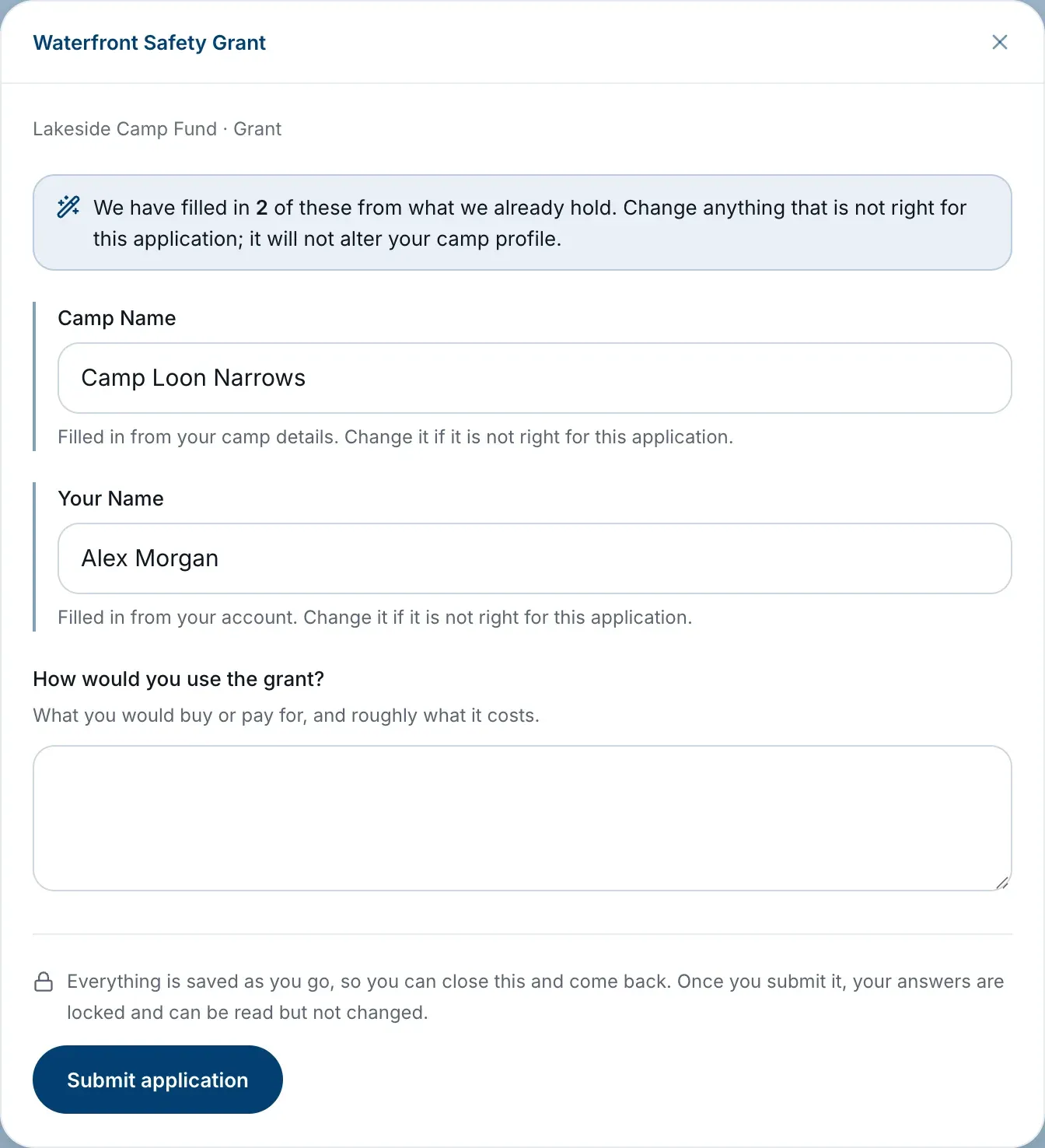
Answers filled in for you
Where a question asks for something the platform already holds, such as your camp’s name or details from your camp profile, the answer is filled in. A note at the top of the form says how many: We have filled in a number of these from what we already hold.
- Answers you can change. These say Filled in from your camp details, your account or your camp profile. Change one if it isn’t right for this application. Changing it here doesn’t change your camp profile.
- Answers you can’t change here. These show the value and say where it comes from. To change one, update it in your camp details, your account or your camp profile, and the application will follow.
If a question would normally be filled in but isn’t, it says the answer isn’t filled in where it would come from yet. Answer it in the form, and fill it in there too so it’s ready next time.
It saves as you go
Every answer saves the moment you give it, so you can close the form and come back. The program’s page then offers Continue your application, and the form says Picking up where this was left. Nothing has been submitted yet.
Your camp has one unsubmitted application per program, shared by everyone on the team. A colleague who opens the same program sees Continue your application too, and can finish what you started.
A draft stays available even if the program closes before you submit, so you can always open it and see what you wrote.
Submit
When every question is answered, choose Submit application. If a required question is still empty, the form marks it and says how many still need an answer.
Once submitted, the form confirms that your application is in, then choose Done. Your answers are locked: you can read them back, but nobody can change them by accident.
To see what happens next, and what each status means, see Partner programs and grants.
Read back what you sent
On the program’s page, choose View your application, or Read it back under Your applications in the panel beside the description. You can also do this from the Your applications tab in Partner Programs, or from the Applications tab in Camp Settings.
Apply again
Whether you can apply more than once depends on the program:
- Once only. After your camp submits, the button changes to View your application.
- Once per cycle. When a new window opens, the button says Apply for this cycle.
- Any time. The button says Apply again.
Applying again doesn’t affect an application you already have in, and your earlier applications stay listed on the program’s page.