Fix a camp that was set up by mistake
Your camp and teamTwo colleagues each set up the same camp, or you set one up before finding your team's. Here's how to get everyone into the right camp and close the extra one.
It happens: two people at the same camp each set it up, or someone sets up a camp and then finds their team was already on the platform. You can fix it yourself in a few minutes.
You can belong to more than one camp, so you don’t have to leave the extra camp before joining the right one. Join first, then tidy up.
First, decide which camp to keep
Agree with your colleagues which copy is the real one. Usually it’s the one with more people in it, or the one where more of the Camp Profile and risk assessment is filled in. Everyone should end up in that camp.
Work can’t be moved from one camp into another. If both copies have answers in them, keep the fuller one and re-enter anything that’s missing.
Join the right camp
Ask a Camp Admin of the camp you’re keeping for its code, then:
- Open the camp menu at the top of the sidebar.
- Choose Join another camp.
- Enter the code.
You land in the right camp, and you’re still in the extra one until you close it or leave it. See Join or create another camp.
If you’re the only person in it: close it
- Open the extra camp. If you’re in more than one camp, choose it in the camp menu at the top of the sidebar.
- Open the camp menu again and choose Camp Settings.
- Open the Team tab.
- On the Close this camp card, choose Close followed by the camp’s name.
- Read what closing does, then type the camp’s name in Camp Name to confirm.
- Choose Close followed by the camp’s name. Choose Keep the camp to cancel.
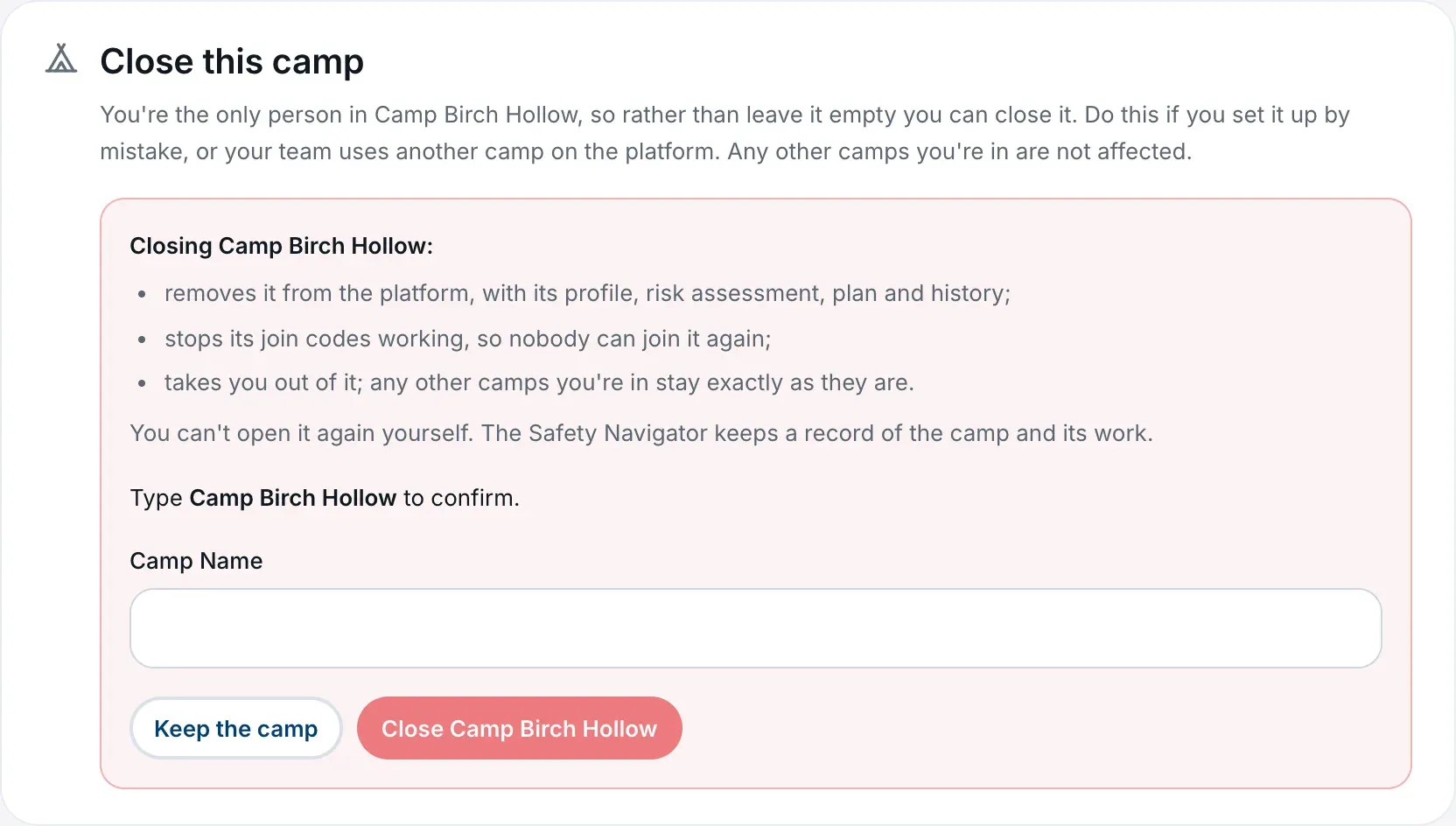
Closing a camp:
- removes it from the platform, with its profile, risk assessment, plan and history;
- stops its join codes working, so nobody can join it again;
- takes you out of it. Any other camps you’re in stay exactly as they are.
You can’t reopen a closed camp yourself. The Safety Navigator keeps a record of the camp and its work, so if you close one by accident, email us and we can help.
If other people are in it: everyone leaves
The Close this camp card only appears for the last person in a camp. Until then, each person leaves on their own:
- Join the right camp first, as above.
- Open the extra camp’s Camp Settings, then the Team tab.
- On the Leave this camp card, choose Leave followed by the camp’s name, then confirm.
If you’re the extra camp’s only Camp Admin and others are still in it, you’ll be asked to choose who becomes Camp Admin, and the button reads Hand over and leave. Whoever is last out can then close the camp as above. See Leave a camp.
When someone leaves, any actions they owned and hadn’t finished lose their owner. In a camp that’s about to close, that doesn’t matter.
Stop it happening again
- Ask before you set anything up. If you aren’t sure whether your camp is already on the platform, ask your director or whoever looks after safety.
- Have more than one Camp Admin in the real camp, so someone can always share the code. See Who can do what in your camp.
The platform also won’t let you set up a second camp with the same name and postcode as one you’re already in.
When to contact us
Email contact@thesafetynavigator.org if you need a closed camp reopened or permanently deleted, or if you get stuck partway through.