Take a course in the Learning Hub
Resources and toolsFind a course, join it, work through its lessons and questions, track your progress, and download your certificate of completion.
The Learning Hub has short courses on camp safety, made up of modules and lessons with text, video and templates to match. Courses are free, and anyone with an account can take them, whether or not they’re in a camp. Choose Learning Hub in the sidebar to open it.
The hub has two views, switched at the top right: My learning, for the courses you’re taking, and Course catalog, for everything on offer. Camp Admins also see My team. See Ask your team to complete a course.
Find a course
Open Course catalog.
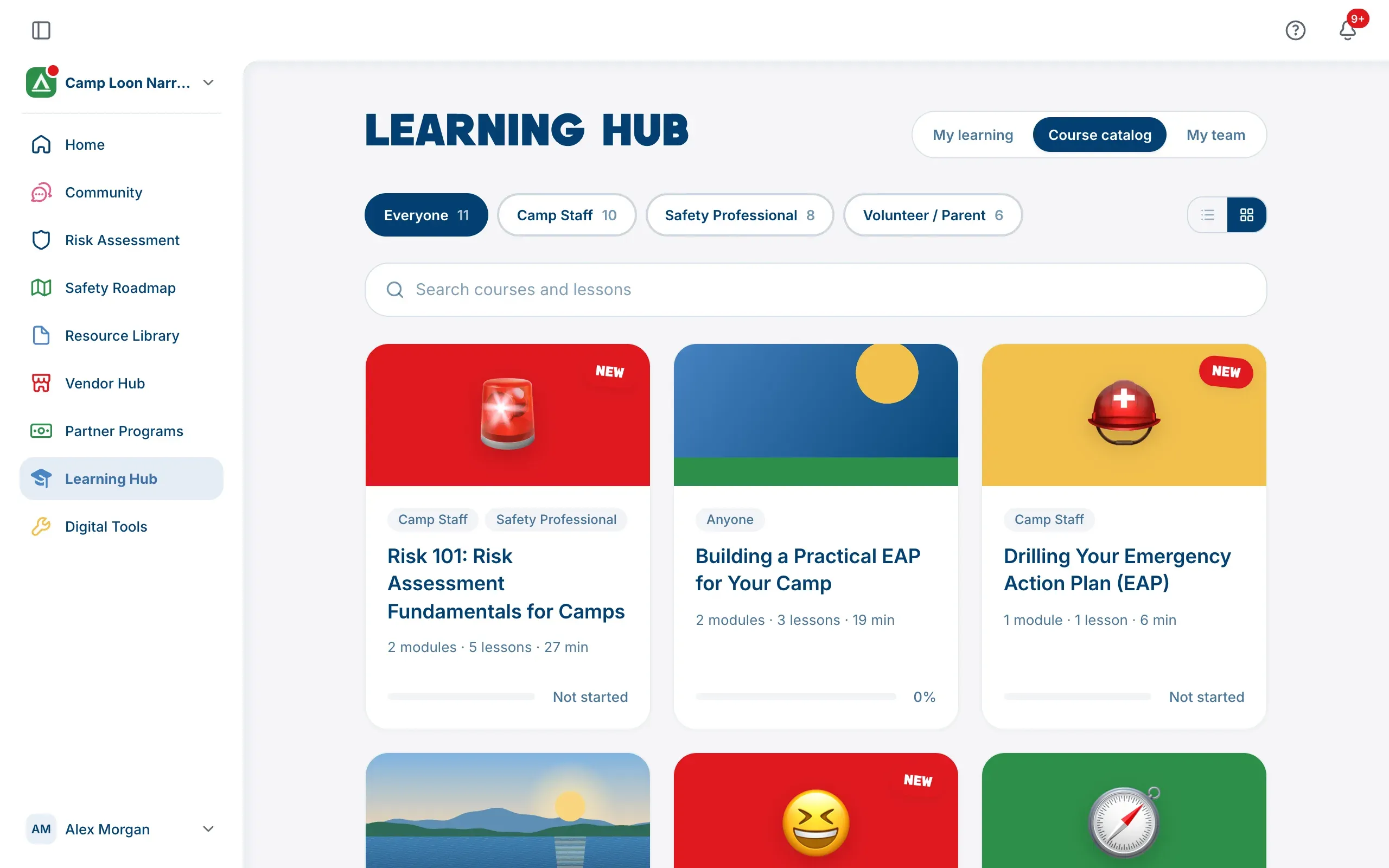
- The buttons along the top show who each course is written for: Everyone, Camp Staff, Safety Professional or Volunteer / Parent, each with a count. Choose one to see only those courses.
- Search courses and lessons searches course titles and descriptions, and the titles of their modules and lessons.
- The two small buttons on the right switch between Grid view and List view.
A course card shows the course’s picture, who it’s for, its title, how many modules and lessons it has, and where you are with it: Not started, a percentage, Complete, or Left if you left it. You may also see:
- New: a course published in the last 30 days that you haven’t joined yet.
- Not taking new learners: joining is paused for a while. If you’ve already joined, you can carry on.
- Upcoming with a date, a countdown or Coming soon: the course hasn’t opened yet. You can see its outline, and join when it opens.
Join a course
Choose a course to open its page. You’ll see who it’s for, a summary, About this course, and its Curriculum: each module and its lessons, how long each lesson takes, and an icon on lessons that have a video. Certificate of completion appears near the top when the course awards one.
Choose Start course. This joins the course and opens its first lesson in one step. Lessons only open once you’ve joined.
Work through a lesson
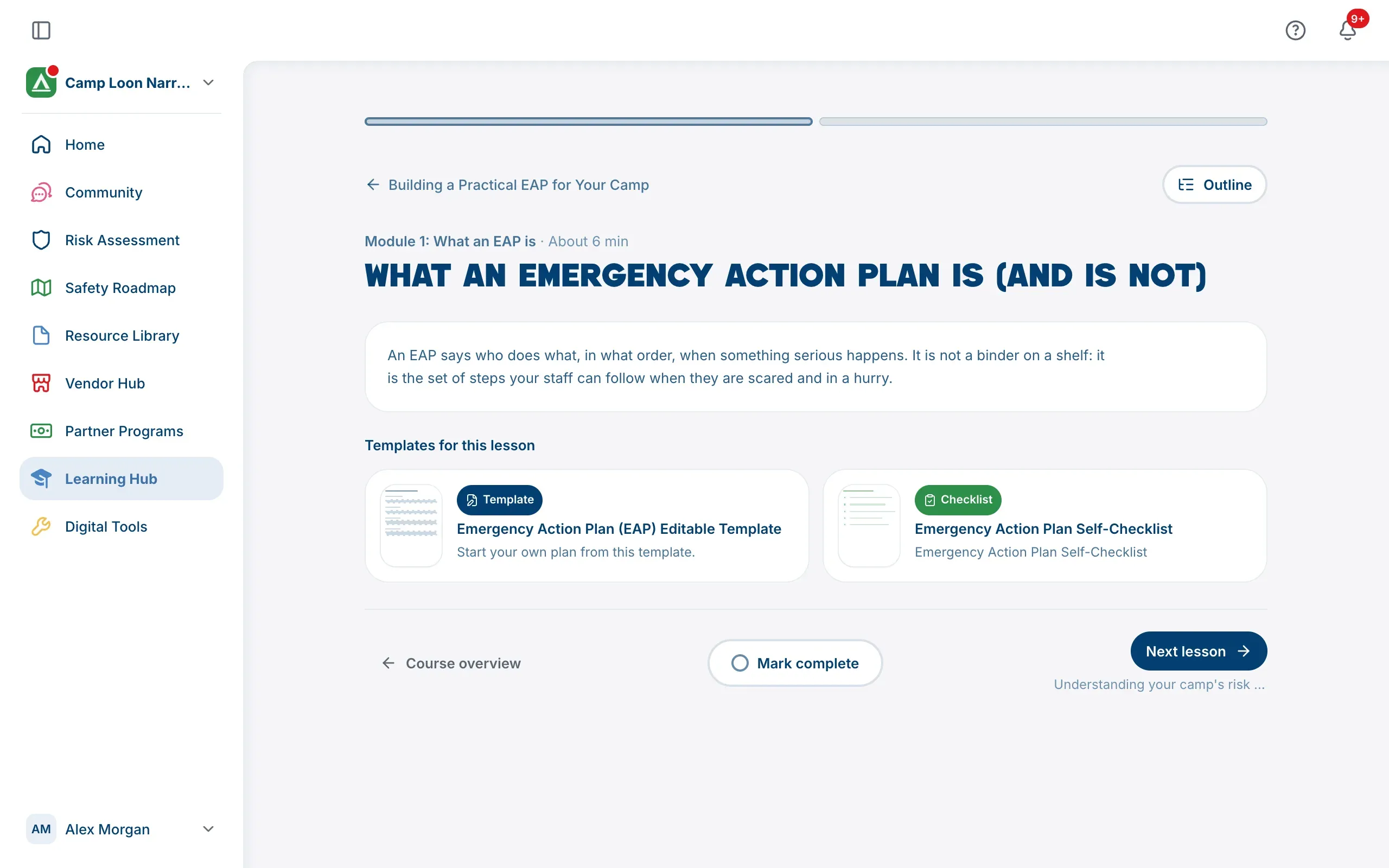
A lesson can have a video, written content, and Templates for this lesson: resources from the Resource Library that open right there on the page.
- Outline, at the top, shows the whole course and marks where you are with You’re here.
- At the bottom, Mark complete records that you’ve done the lesson. Choose it again to undo it.
- Next lesson, Next module and Finish course move you on; Previous lesson and Course overview take you back. Moving between lessons doesn’t mark anything complete.
Lessons with questions
Some lessons end with one or more multiple-choice questions. Choose an answer, then Check answer.
- If it’s right, the lesson says so, with an explanation where there is one.
- If it isn’t, look back over the lesson. You can try again after 30 seconds, as many times as you need.
The heading above the questions tells you what they’re for:
- Check your understanding: optional. Use Mark complete as usual.
- Answer to complete this lesson (with several questions, for example Answer all 3 questions to complete this lesson): answering correctly is what completes the lesson, and Mark complete waits until you have.
- Answer to complete this lesson, or mark it done (or Answer all 3 to complete this lesson, or mark it done): either way works.
Your progress
Your progress saves as you go. On a course’s page you’ll see how many lessons are complete and which one is next, and Continue takes you there.
A lesson counts as complete when you mark it complete (or answer its questions, where that’s how it completes). Watching a video or reading to the end doesn’t count on its own.
Once you’ve finished a course, it stays finished. If The Safety Navigator adds a lesson later, the course shows Complete with the number of new lessons, so you can catch up if you want to.
My learning brings it together:
- the course you’re closest to finishing, with Resume or Start lesson to go straight to your next lesson;
- courses your camp has asked you to complete, under From followed by your camp’s name (or From your camps, if more than one of your camps has asked);
- In progress and Completed;
- Picked for your role (or roles): up to three courses you haven’t joined, written for the roles on your profile.
A course The Safety Navigator has retired is marked Retired in My learning. It can’t be joined any more, but if you started or finished it, it stays in your list, with your certificate if you earned one.
Your certificate
When you finish every lesson of a course, you’ll see a Course complete! card. If the course awards a certificate, the card says You’ve earned a certificate of completion, and the course’s page offers Download your certificate (PDF). Finished courses under Completed in My learning have a Certificate button too.
Your certificate shows the name on your profile, so add your first and last name first. See Your profile and roles. It’s a certificate of completion: it records that you finished the course, not a certification of safety or compliance.
Who can see your progress
The Learning Hub says this at the foot of every page: your progress is visible to you and The Safety Navigator team, and, on courses your camp asks you to complete, to your camp’s Camp Admins. They see your progress on those courses only, including anything you did on a course before they asked. They never see anything else you learn.
Leave a course
On the course’s page, choose Leave course while you’re part way through, then confirm. Your progress is kept, and Rejoin course picks up where you were. A finished course can’t be left: it’s yours to keep.