Record your controls
Risk assessmentStage 4. For each risk, say which suggested controls you have, partly have, need or don't need, and add your own.
A control is something that makes a risk less likely to happen, or less serious if it does. In Control, stage 4, the platform lists the best practice controls for every risk on your register, and you say where your camp stands on each one.
Your gaps become the actions you choose from in the next stage, so the more accurate your answers, the more useful your plan.
Answer each control
Controls are grouped by category, then sub-category, then risk. Open a risk to see its controls. Each control has four answers:
| Answer | What it means |
|---|---|
| We have this | In place and working |
| Partially in place | There, but needs strengthening |
| We need this | Not in place yet |
| Doesn’t apply | Not relevant to our camp |
Click an answer and it saves straight away. You can change it at any time.
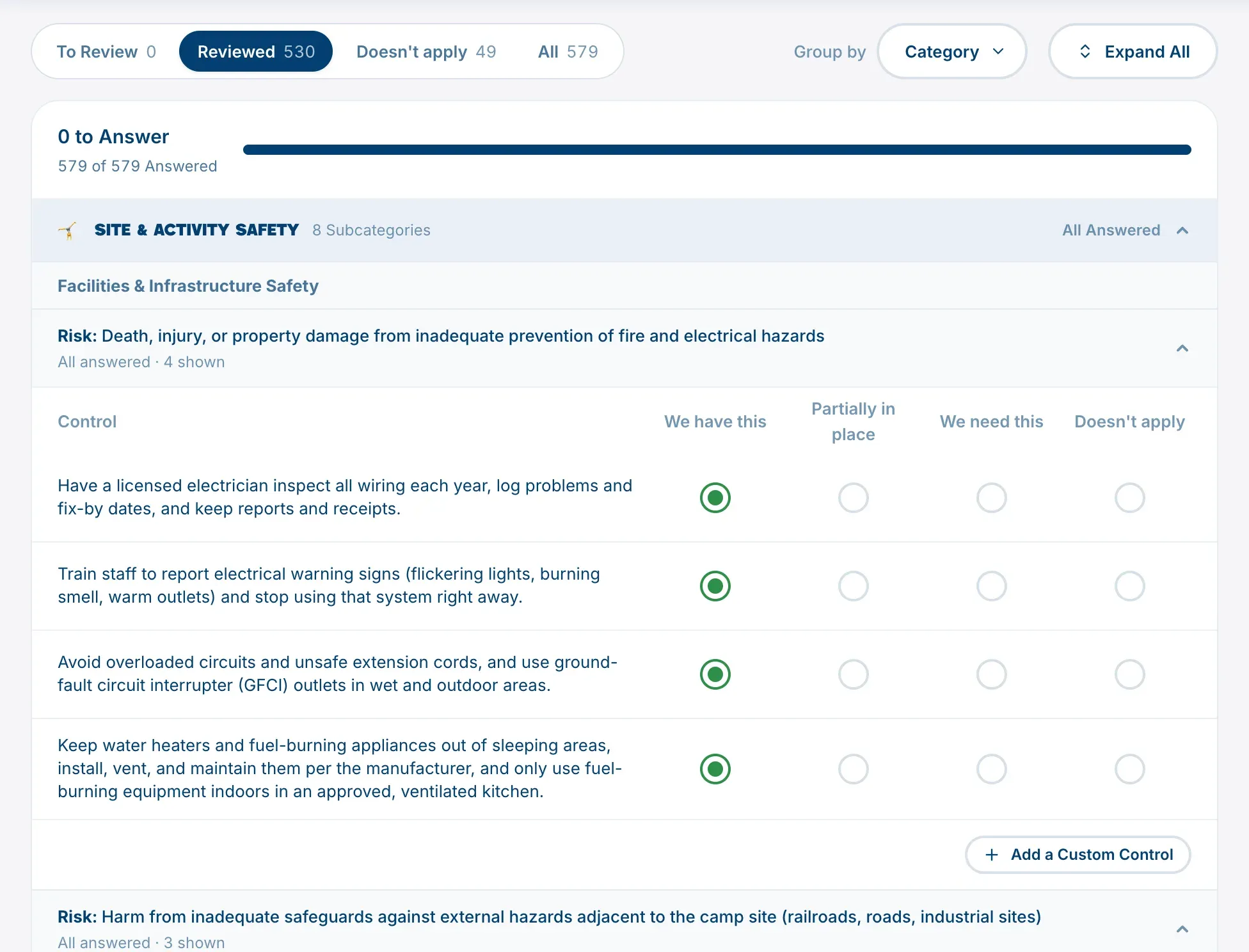
Within each sub-category, risks you’ve rated come first, highest score first. A risk you haven’t rated yet sits below them with a note to assess it in stage 3.
Find your way around
- Tabs: To Review (controls without an answer), Reviewed, Doesn’t apply and All. The count at the top, such as “40 to Answer”, goes down as you work.
- Group by: Category, or Control Status to see your answers side by side.
- Expand All opens every group and risk at once.
Add a control of your own
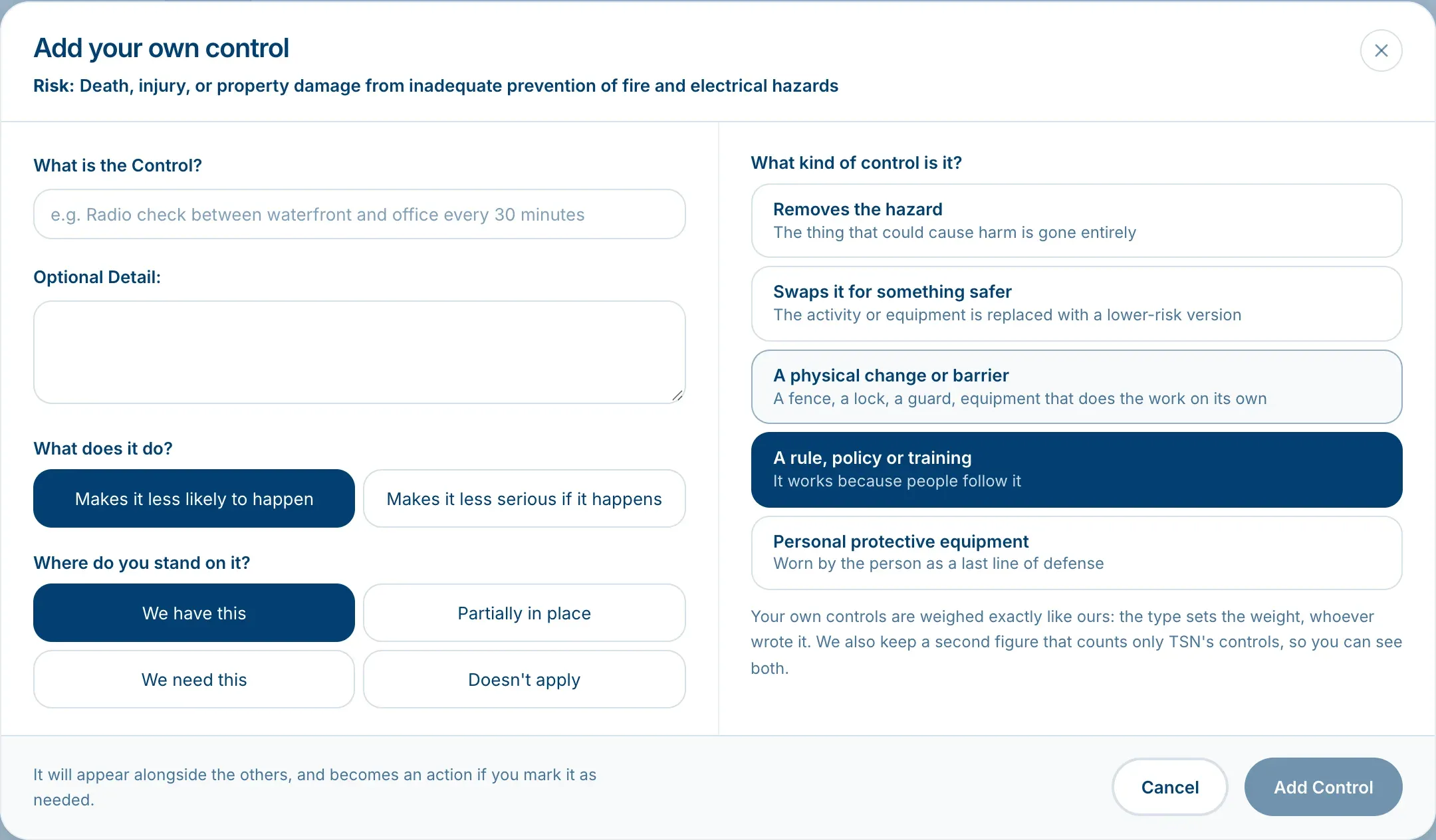
If your camp does something that isn’t listed, open the risk and choose Add a Custom Control. In Add your own control:
- Under What is the Control?, describe it. Add more under Optional Detail: if you like.
- Under What does it do?, choose Makes it less likely to happen or Makes it less serious if it happens.
- Under Where do you stand on it?, choose one of the four answers.
- Under What kind of control is it?, choose the type that fits best.
- Choose Add Control.
Your control appears with the others, marked Yours. If you mark it as needed, it becomes an action like any other.
What your answers do
- Partially in place or We need this creates an action, titled Control to Strengthen or Control to Implement followed by the control’s name. You choose which actions to take on in Build your safety plan.
- Changing that answer to We have this or Doesn’t apply removes the action, as long as nobody has started on it (no owner, date, description or status). If someone has, the action is kept.
- Marking an action Done later sets its control to We have this for you.
How your controls change the score
Your answers here bring each risk’s score down, and the platform shows the result as its score with controls.
- We have this counts in full. Partially in place counts for half. We need this and Doesn’t apply count for nothing.
- A control that makes a risk less likely lowers its likelihood. One that makes it less serious lowers its impact.
- Each control’s type sets how much it counts. From most to least: Removes the hazard, Swaps it for something safer, A physical change or barrier, A rule, policy or training, and Personal protective equipment. Controls you add yourself are weighed exactly like TSN’s, by their type.
- Controls add up, but no combination takes a risk all the way to nothing.
When this stage is done
Control is done when every control on every risk on your register has an answer. Doesn’t apply counts as an answer. If TSN adds a control to a risk you hold, it appears here unanswered.
Next, choose what to work on in Build your safety plan.