Notifications
Account and sign-inWhat the bell shows, how it works when you're in more than one camp, the Notifications page, and what you get notified about.
The bell at the top right of every page tells you when something happens that concerns you or your camp. A red count on it shows how many notifications you haven’t read.
Open your notifications
Choose the bell. The latest notifications appear in a list, newest first, with a blue dot beside each one you haven’t read. Each one says what happened and when.
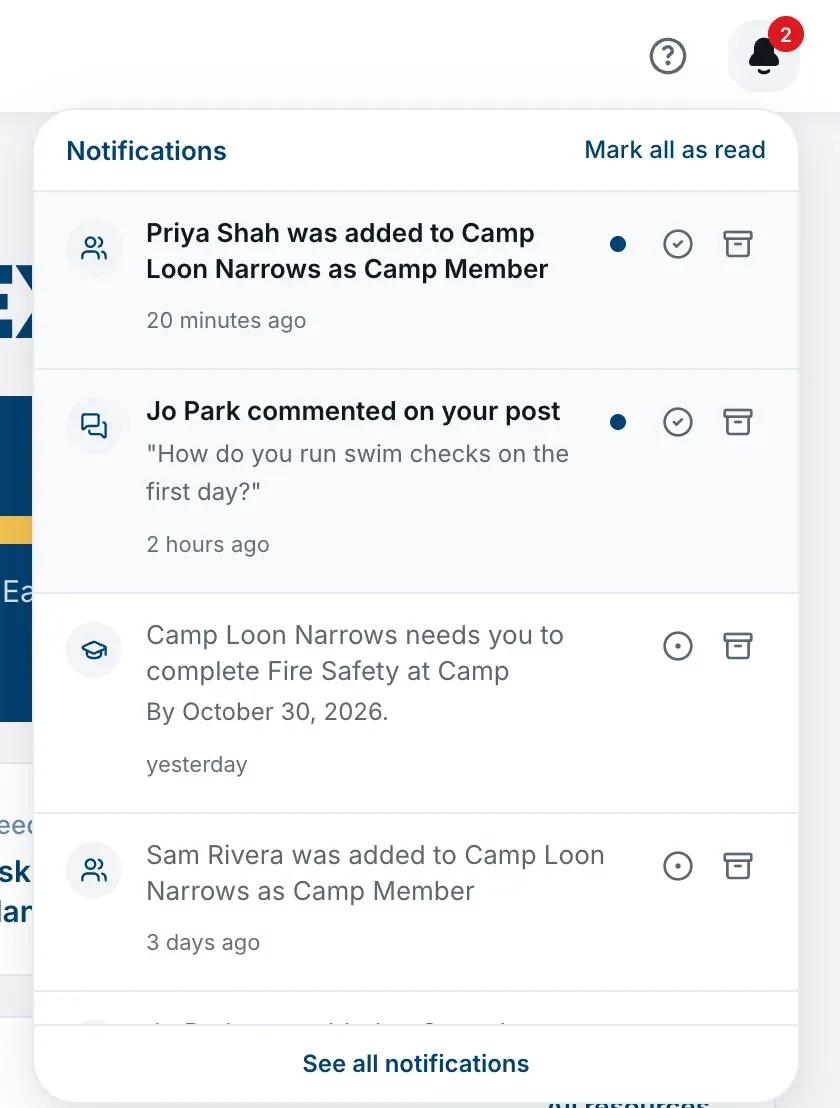
- Choose a notification to go to what it’s about. That also marks it read.
- Mark read (the tick in a circle) marks one read without opening it.
- Mark unread (the dotted circle) puts a read one back to unread.
- Clear (the box) takes it out of your list.
- Mark all as read at the top marks everything read at once.
The Notifications page
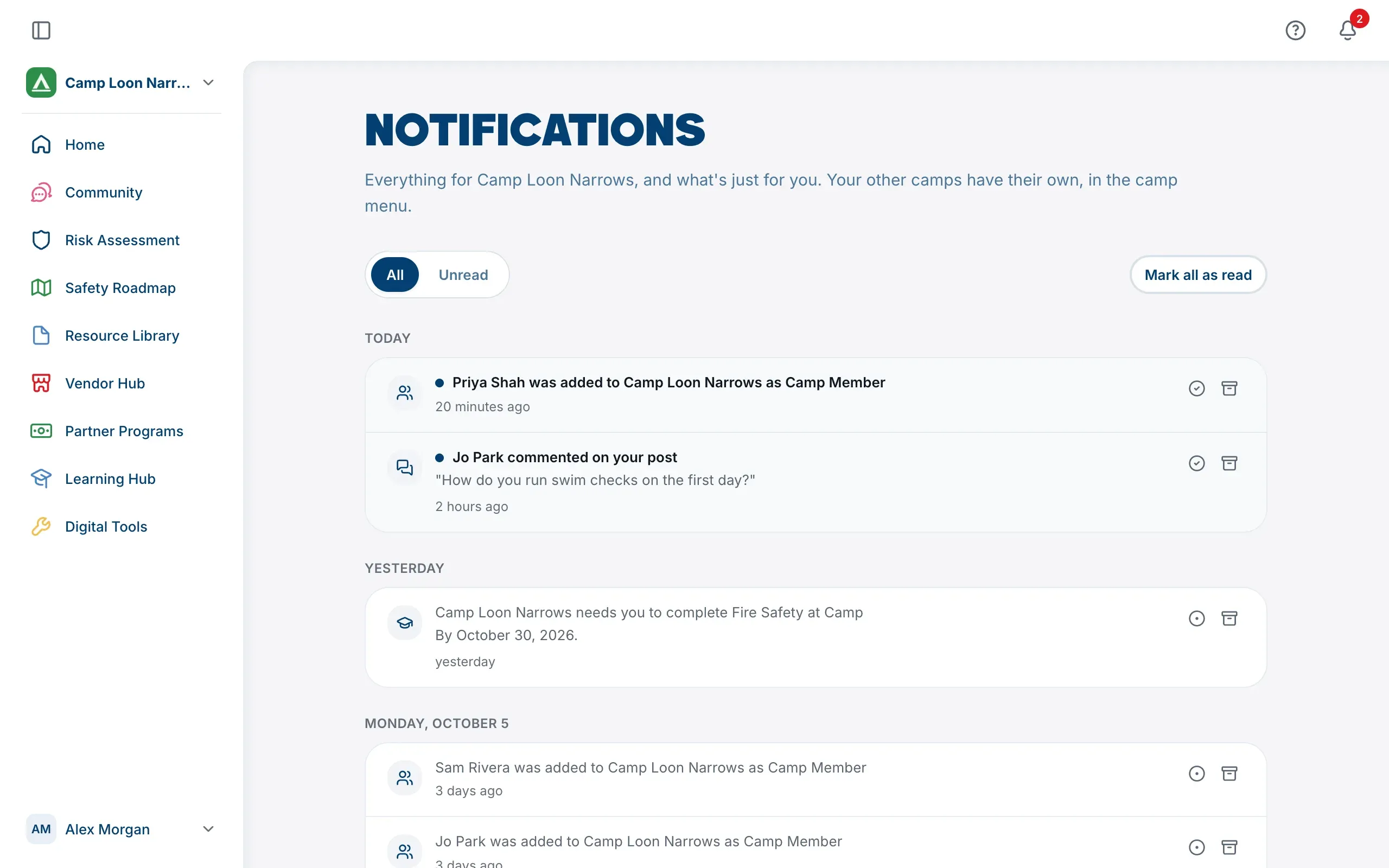
At the foot of the bell’s list, choose See all notifications. The Notifications page shows everything, grouped by day, not just the latest. Use All and Unread at the top to choose what to show, and Show older at the bottom to go further back.
One bell per camp
If you’re in more than one camp, the bell shows notifications for the camp you have open, plus the ones that are just for you, such as replies to your posts. When you switch camp, the bell switches with it.
If another of your camps has something you haven’t read, a red dot appears on the camp badge at the top of the sidebar, and the camp menu shows a count beside that camp. See Work in more than one camp.
When you leave a camp, its notifications leave your bell too.
What you’re notified about
Your camp’s team (Camp Admins only): when someone joins your camp, is added, leaves, is removed, or has their role changed. Choosing one takes you to Camp Settings.
You and your camps: when you’re added to a camp, when your role in a camp changes, and when you’re removed from one.
Changes to the safety framework (everyone in the camp): when The Safety Navigator updates the risks and controls in a way that affects your camp, such as new risks to review or new controls to answer. Choosing it shows exactly what changed.
Partner program applications (everyone in the camp): when your camp’s application to a program changes status, for example when it’s under review or approved.
Courses: when your camp asks you to complete a course in the Learning Hub, with the date if there is one.
Community: when someone comments on your post, when your answer is selected, and when The Safety Navigator’s staff hide one of your posts or comments.
You aren’t notified about things you did yourself.