Use the Community forums
Resources and toolsRead and search the forums, start a post, comment and react, mark the answer to your question, report a problem, and what moderation looks like.
Community is where camp directors, staff, safety professionals and parents share questions, ideas and what has worked. Choose Community in the sidebar to open it.
The forums have one rule above all: be kind, and leave out anything that could identify a child.
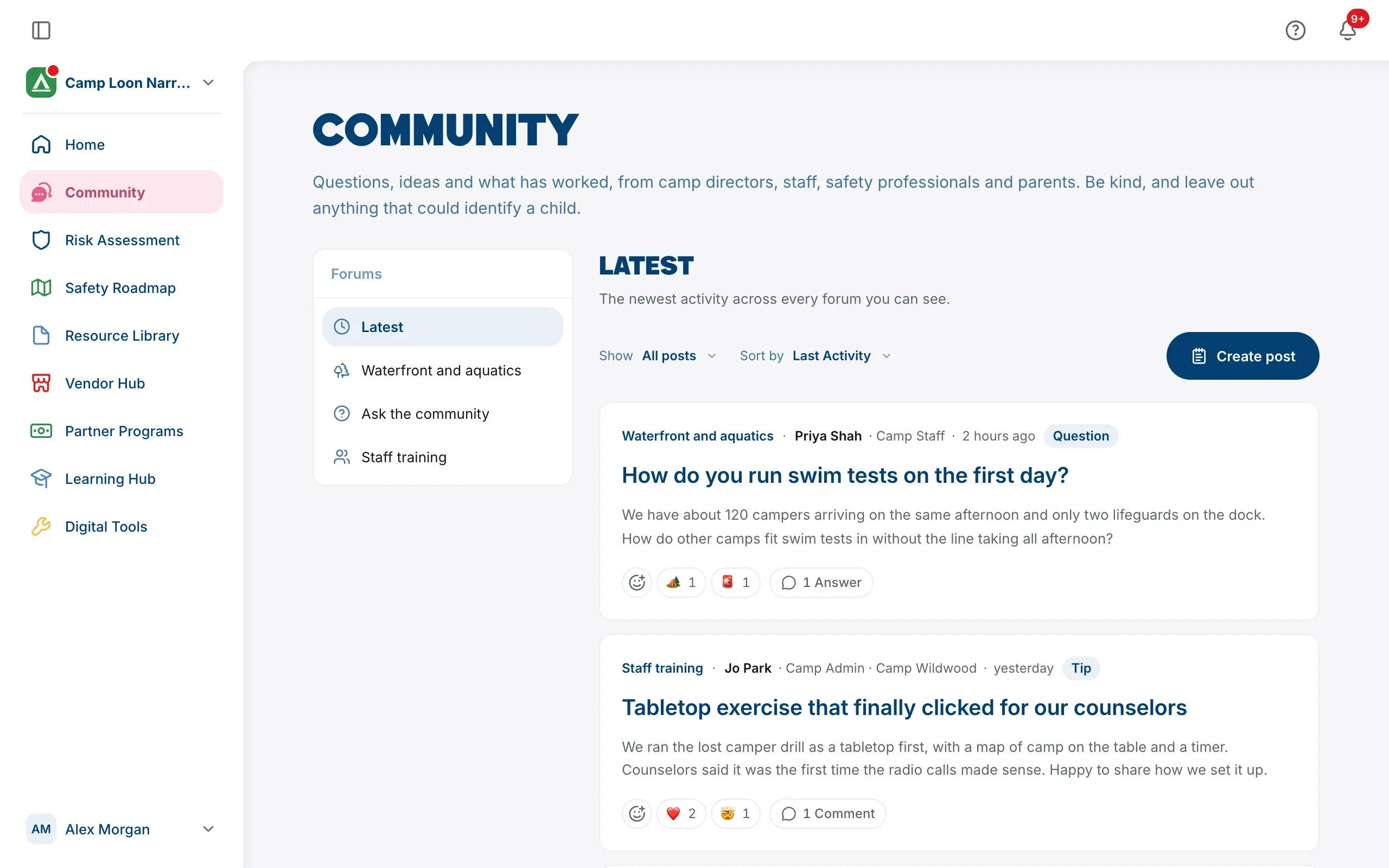
Find your way around
On a wide screen, the Forums list on the left has Latest, which shows the newest activity across every forum you can see, and then each forum. On a phone or other narrower screen, choose a forum from the Forum menu at the top instead.
- A dot beside a forum means someone else has posted or commented there since your last visit.
- Forums that have closed are listed under Archived. You can read them, but not add to them.
Which forums you see depends on who each one is for, which The Safety Navigator decides. Some are open to everyone, and some are for particular groups, such as Camp Admins, anyone in a camp, people who chose a particular role on their profile, or people The Safety Navigator picked. If you can’t see a forum a colleague mentions, it’s for a group you aren’t in.
Read and search
Each forum shows its name and description, and a Forum rules link if it has rules.
- Search followed by the forum’s name searches titles and text in that forum. Search works inside one forum at a time, not in Latest.
- Show filters by type of post: All posts, General, Question, Tip, Lessons learned or Resource.
- Sort by sets the order: Last Activity (newest post or comment first, the default), Popular Now, Newest or Oldest.
In a forum, pinned posts come first, marked Pinned. Choose Load more posts at the bottom to see older ones. Posts you haven’t seen since your last visit are marked New, and a post’s comment count shows how many comments are new.
Before you post
Anyone with an account can read the forums. To post, comment or react, your profile needs your name, and you need to have agreed to the Terms. If something’s missing, the Community page tells you and links to your profile.
Next to your posts and comments, other people see your name, your position and camp (for example, Camp Admin and your camp’s name), or the roles on your profile if you aren’t in a camp. If you’re in more than one camp, it’s the camp you had open when you wrote it. They never see your email address. The Safety Navigator’s own team are marked TSN staff.
Start a post
- Open the forum you want, or stay in Latest.
- Choose Create post. It opens right there on the page.
- If you started from Latest, choose the Forum to post in.
- Give it a title, and write what you want to say.
- To make it a question, tip, lessons learned or resource, choose Add a tag and pick one. Posts without a tag are General. A post’s tag is set when you post it and can’t be changed later.
- Choose Post.
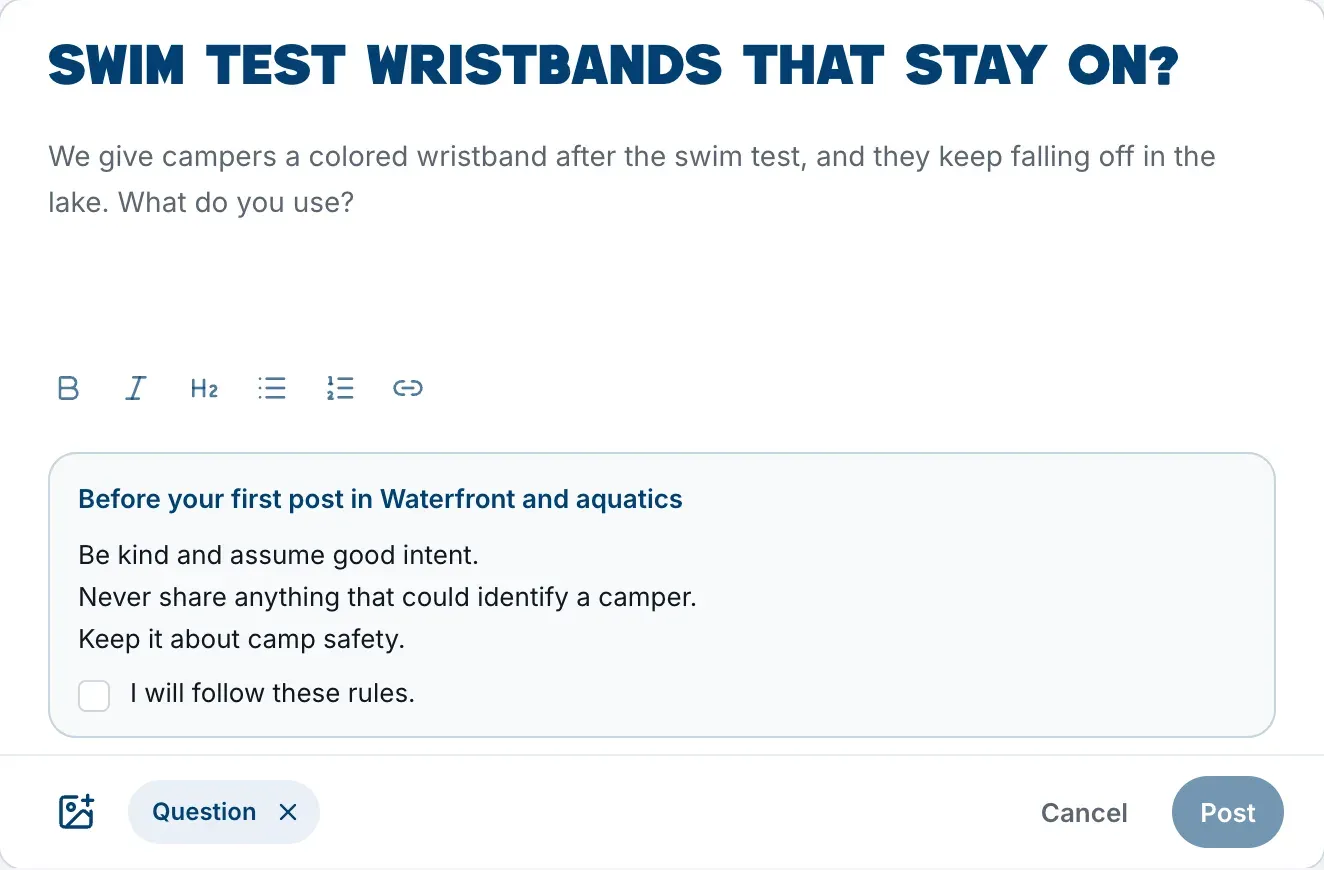
If you close the box or reload before posting, what you wrote comes back the next time you start a post in that forum in the same browser tab. Signing out clears it.
Some forums are for announcements. They say TSN staff start posts here; everybody can comment, and you can comment and react on their posts but not start one.
Forum rules
Some forums have their own rules. The first time you post in one, the rules appear above the Post button, and you need to tick I will follow these rules. before you can post. If the rules change, you’ll be asked again. You can read them at any time with Forum rules.
Add a picture
Each post can have one picture. Choose Add a picture, the picture icon at the bottom of the box, and pick a JPEG, PNG, WebP, GIF or HEIC file.
- The platform makes it smaller and takes out the location and camera details before it’s shared. A GIF is shared as a still of its first frame.
- You can describe the picture for people using a screen reader. This is optional.
- You need to tick No child can be identified in this picture, by face, name or anything else, and it is mine to share. before you can post it.
Comment and react
Open a post to read it in full. Type in Add a comment and choose Comment. On a question, these are answers: Add an answer and Answer.
Under each post and comment, choose React to pick one of five reactions: ❤️ Love this, 🤯 Mind blown, 😄 Made me smile, 🏕️ Camp spirit or 🚨 Heads up. You can give one reaction to each post or comment. Choose yours again to take it back.
Answers to your question
If you posted a question, choose Select as answer on the reply that helped. It’s marked Poster selected answer and moves to the top, and the question shows Answered. Choose Unselect answer to take it back. You can’t select your own reply.
The Safety Navigator’s team can also mark a Staff selected answer, or an Official TSN answer written by their team.
Edit or remove what you wrote
On your own post or comment, choose Edit to change it, then Save changes (or Save for a comment). Edited posts and comments show edited beside the time.
Choose Remove to delete it. Removing a post takes it away for everybody, with its comments and its picture, and it can’t be put back.
Notifications
The bell at the top of the page tells you when (see Notifications):
- someone comments on your post (one notification per post, brought back to the top by each new comment);
- your answer is selected on someone’s question;
- The Safety Navigator hides something you posted, with the reason.
Report a post or comment
If something breaks the rules, choose Report on it. Pick what’s wrong (Child safety, Personal information, Harassment, Spam, Unsafe advice or Something else), add a note if it helps, and choose Send report. The Safety Navigator’s team reviews every report, and nobody else is told who reported it.
How the forums are moderated
The Safety Navigator’s team looks after the forums. What you might see:
- Hidden. The team can hide a post or comment, with a reason. Its author is told why, and only the author and the team can still see it.
- Pinned. The team can pin up to three posts to the top of a forum.
- Comments closed. The team can close a post to new comments. Reactions still work.
- Posting paused. The team can pause someone’s posting, with a reason, until a set date or until they lift it. The Community page then says TSN staff have paused your posting. While it’s paused, you can still read the forums and report posts.
There are also limits on how many posts, comments, pictures and reactions anyone can add in a short time. If you reach one, wait a while and try again.