Find and download resources
Resources and toolsSearch and filter the Resource Library, open a resource to see what it is and which of your controls it supports, and download its files.
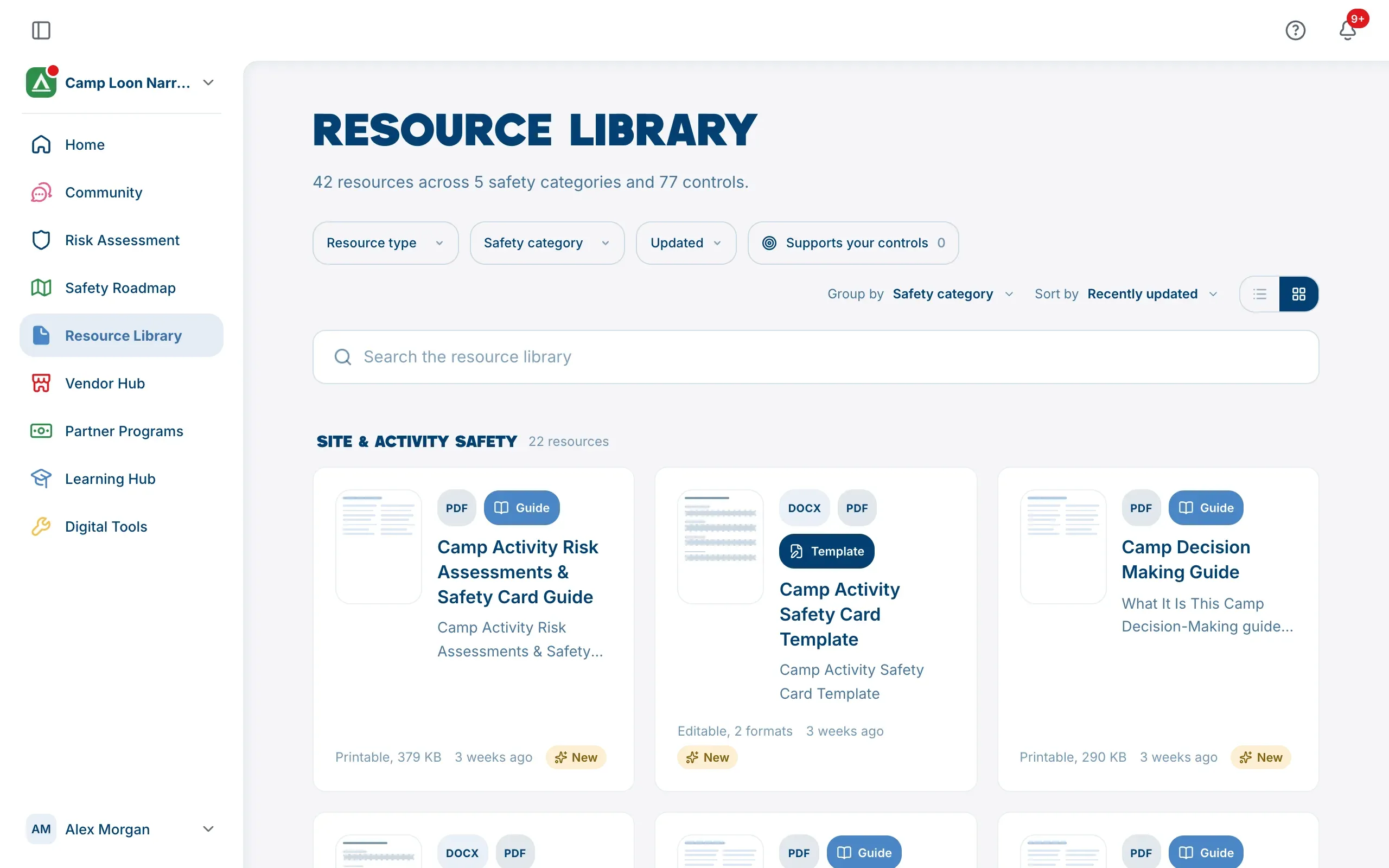
The Resource Library holds the policies, plans, checklists and other templates The Safety Navigator has written for camps, ready to adapt to your own. Choose Resource Library in the sidebar to open it.
Anyone with an account can browse the library and download from it, whether or not they’re in a camp. Being in a camp adds one thing: the library can show which resources support the controls your camp is still working on.
Browse the library
The top of the page says how many resources there are, across how many safety categories, and how many controls they support.
Resources are grouped by safety category, the same categories your risk assessment uses. Each resource shows its type (such as Template or Checklist), its file formats, a short description, and a line at the bottom saying whether it’s Editable or Printable and when it was last updated. A resource published in the last 90 days is marked New.
Use the two small buttons in the toolbar, next to Sort by, to switch between Grid view and List view. The list fits more on the screen and shows each resource’s Type, Formats, Category and Updated date in columns, where there’s room.
Search
Type in Search the resource library to search titles, descriptions, types, categories and tags. Results update as you type.
Filter
The buttons above the search box narrow what you see:
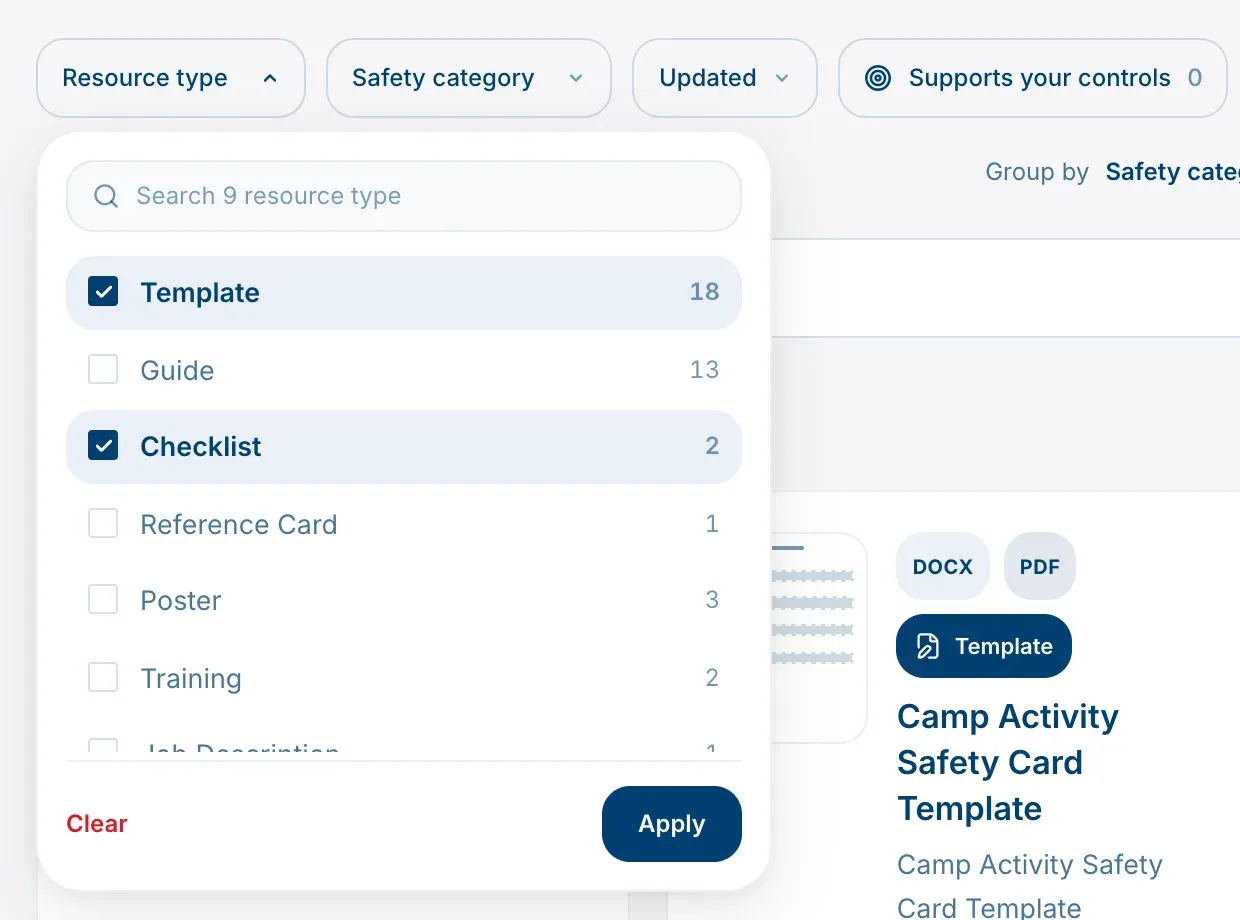
- Resource type: templates, guides, checklists and so on.
- Safety category: one or more areas of risk.
- Updated: Last 30 days, Last 90 days or Last year. A resource with no date doesn’t appear when this is set.
- Supports your controls: only resources that cover a control your camp marked as missing or partly in place. This appears once your camp has rated controls in the risk assessment, and the number beside it is how many resources match.
To use Resource type or Safety category, open it, tick what you want, then choose Apply. Clear unticks everything in that menu.
Each filter you turn on appears as a tag in the search box. Select the x on a tag to remove it, or choose Clear all to remove every filter at once.
If nothing matches, the library says Nothing matches all of that and offers to drop the one filter that would find the most, or Show all to clear everything.
Group and sort
Group by sets how the library is grouped: Safety category (the default), Resource type or Nothing. Sort by sets the order within each group: Recently updated (the default), Title or Resource type.
Your search, filters, grouping, sorting and view are all kept in the page’s web address, so you can bookmark a view or send it to a colleague.
Open a resource
Choose a resource to open it. You’ll see its title, every type it belongs to, when it was updated, and up to three short sections: What it is, Why it matters and How to use it. If The Safety Navigator hasn’t written the description yet, it says so.
Open Categories to see the risk categories and resource categories the resource is filed under.
To share a resource, use the link button at the top of the window (Copy a link to this resource). The link opens the same resource for anyone who has an account.
Download the files
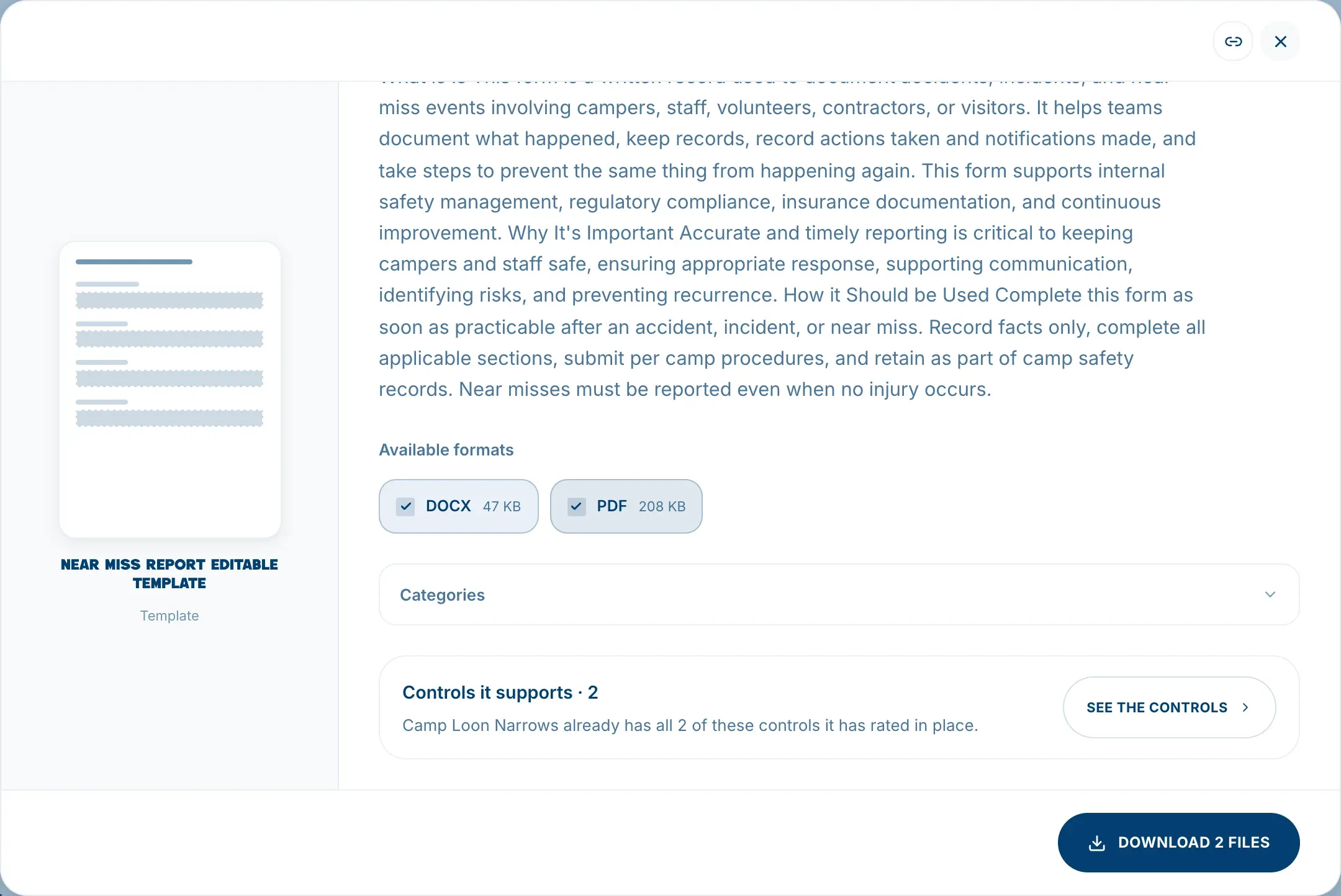
Under Available formats you’ll see each file the resource comes in, such as a Word document and a PDF, with its size. Every format is ticked to start with.
- Untick any format you don’t want. If you’ve unticked some, Select all ticks them again.
- Choose Download 1 file or Download 2 files (the number matches what’s ticked) at the bottom of the window.
Each file downloads separately. If something goes wrong, a message appears beside the button, and you can choose it again.
Some resources aren’t ready to download yet. A format that isn’t ready is marked not yet available, and a resource with no files at all says No file yet in the library and explains in its window that the files will appear when they’re ready.
See which of your controls a resource supports
If you’re in a camp, each resource’s window has a Controls it supports box. It says how many of the framework’s controls the resource is linked to, and how many of those your camp is still working on, based on your answers in the risk assessment. In the library, a resource that supports controls your camp is still working on shows Supports and the number of those controls at the bottom of its card.
Choose See the controls to list them, grouped by risk. Each control shows your own answer from the assessment: In place, Partly, Needed or Doesn’t apply. Controls your camp is still working on are listed first, and you can switch between All and Still working on. Choose Open in assessment to go to that stage of your risk assessment, or the back arrow to return to the resource.
If your camp hasn’t rated any controls yet, the box says so and links you to the assessment. A resource that isn’t linked to any controls yet says that too; it’s a gap in the linking, not a sign the resource isn’t useful.