Camp Pinboard
Your camp and teamWhere to find your camp's pins, how your camp earns each one, who sees them, and the Recent pins on Home.
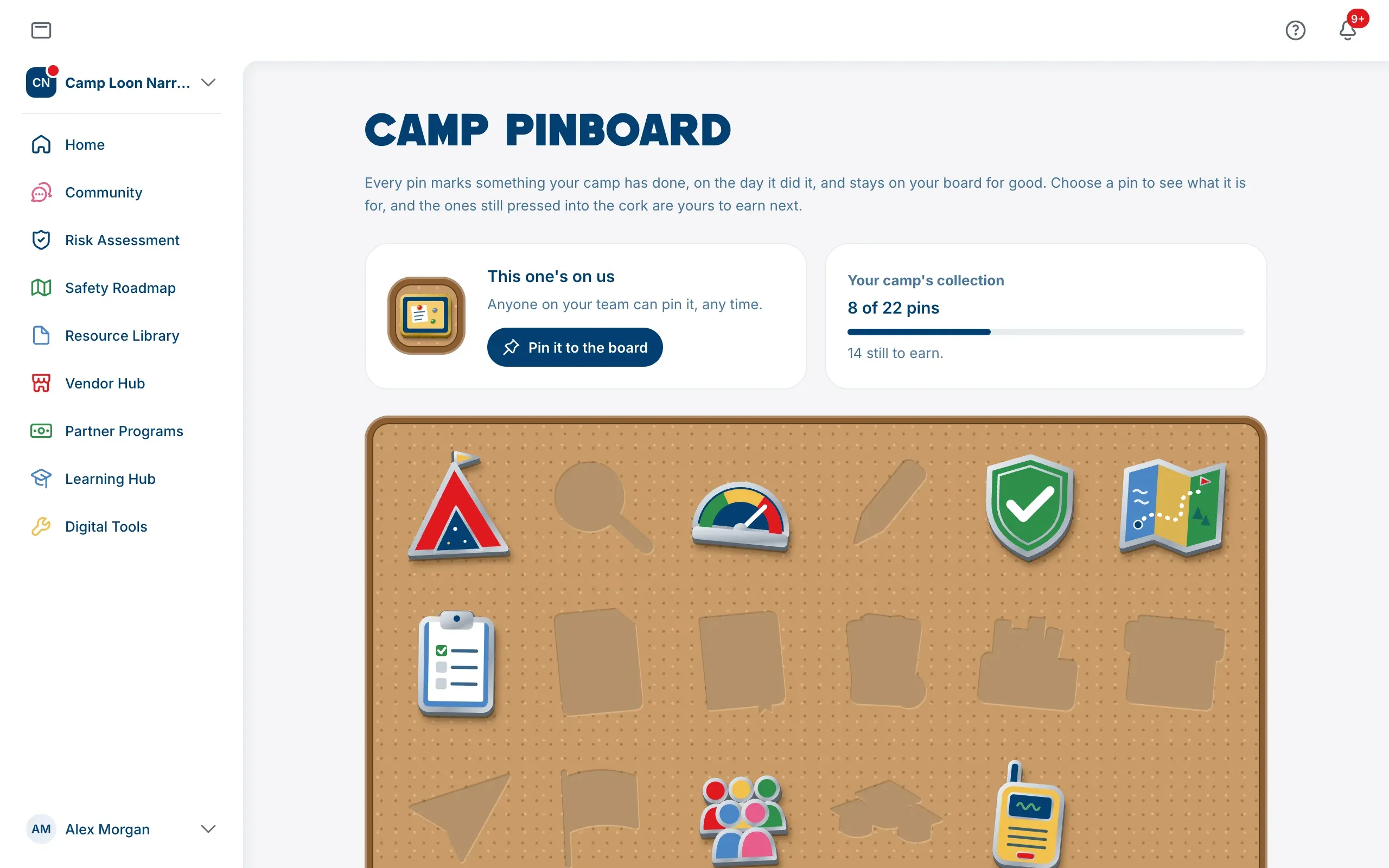
Camp Pinboard is where your camp keeps its pins. Each pin marks something your camp has done, on the day it did it, and stays on your board for good.
Pins belong to the camp, not to one person. Everyone in the camp, Camp Admins and Camp Members, sees the same board.
Find Camp Pinboard
Open the camp menu at the top of the sidebar and choose Camp Pinboard. It sits with Camp Profile and Camp Settings, because it belongs to your camp.
You can also choose Pinboard beside Recent pins on your Home page. See Recent pins on Home.
If you aren’t in a camp yet, Camp Pinboard asks you to join one or set one up first. See Join your camp with a camp code.
What’s on the board
At the top of the page:
- This one’s on us has a pin anyone on your team can press in. Choose Pin it to the board. The first time anyone in your camp does this, your camp earns Found the Pinboard. You can press it again any time, just for fun. It doesn’t add anything more.
- A count of how many pins your camp has, such as 5 of 22 pins, with how many are still to earn.
Below them are two boards:
- The main board holds the pins for your camp’s work on the platform, in the order a camp usually earns them.
- Special pins, in a gold frame, holds pins for moments in your camp’s story, such as joining in the first season.
A pin your camp has earned shows in full color. A pin still to earn is a dark shape pressed into the cork, in the place it will go.
Open a pin
Choose any pin to see it up close.
- An earned pin shows whether it’s Gold or Silver, what it’s for, and when it was earned, such as Earned November 3, 2026 by followed by the person’s name. Pins your team earns together, such as Team of five formed, don’t name anyone.
- A pin still to earn says Still to earn and, under How to earn it, what your camp needs to do. A seasonal pin also says how long until its season comes round.
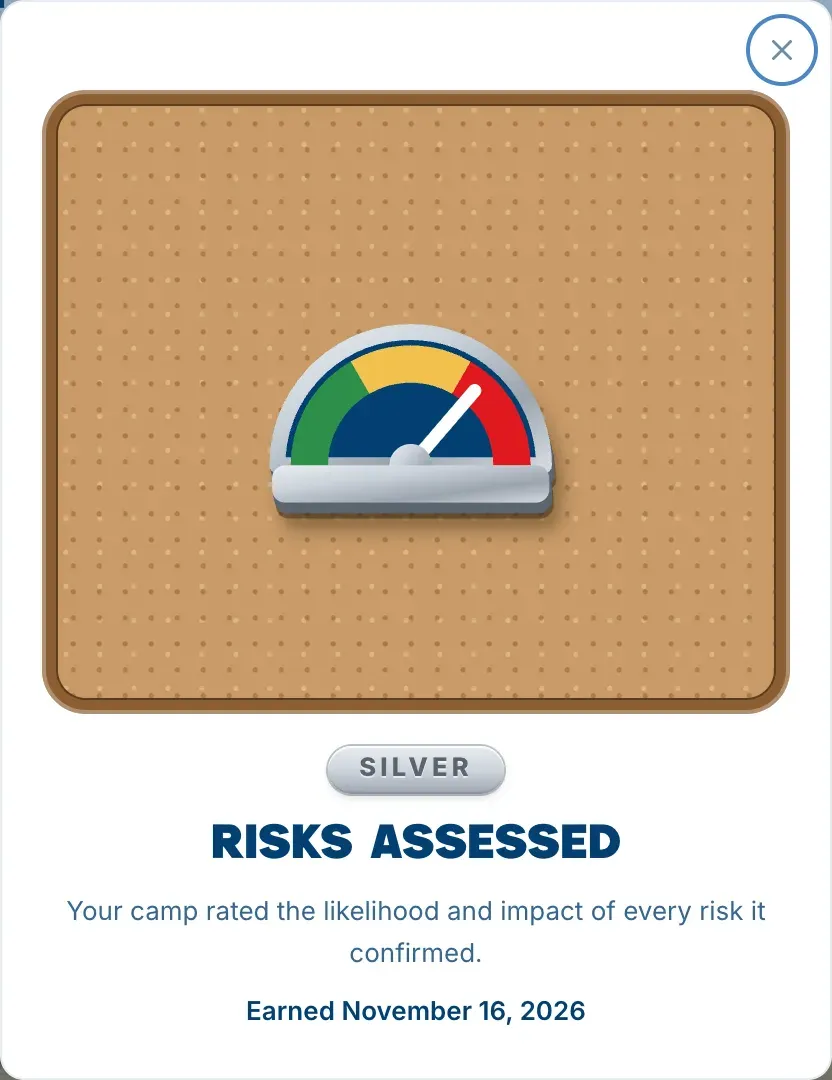
Some pins were earned before The Safety Navigator kept a dated history of camps’ work. Those dates say around, and the pin says the date is close rather than exact.
How your camp earns each pin
Your camp earns a pin the moment it does the thing, whoever on your team does it. Pins for work done before Camp Pinboard existed were added for you, dated as closely as the platform could tell.
The main board
| Pin | How your camp earns it |
|---|---|
| Camp Profile finished | Answer every question in your Camp Profile. See Fill in your Camp Profile. |
| Risks identified | Confirm or dismiss every suggested risk in your risk assessment, with none left waiting. |
| Risks assessed | Rate the likelihood and impact of every risk you confirmed. |
| Own risk added | Add a risk of your own to your risk assessment. See Add a risk of your own. |
| Controls reviewed | Answer every control suggested for the risks you confirmed. |
| Plan made | Add your first action to your safety plan. See Build your safety plan. |
| First action done | Mark an action as Done. |
| First report exported | Open one of your reports and choose Print or save as PDF. See Export your reports. |
| First resource downloaded | Download a file from the Resource Library. |
| 10 resources downloaded | Download 10 files from the Resource Library. Every download by anyone on your team counts. |
| 25 resources downloaded | Download 25 files from the Resource Library, counted the same way. |
| First vendor explored | Choose a link on a vendor’s listing in the Vendor Hub, such as their website or contact details. |
| Applied to a program | Submit an application to a partner program. See Apply to a partner program. |
| Logo added | Add your camp’s logo in Camp Settings. Only Camp Admins can. See Change your camp’s name, details and logo. |
| Team of five formed | Have five people in your camp, counting whoever set it up. See Invite your team with a camp code. |
| Whole team trained | Everyone in your camp, two or more of you, has earned a certificate of completion from at least one Learning Hub course. Each person can choose their own course. Only courses that award a certificate count, and a certificate needs the person’s first and last name on their profile. See Take a course in the Learning Hub. |
| First conversation started | Post or comment in Community while your camp is the one you have open. See Use the Community forums. |
Special pins
| Pin | How your camp earns it |
|---|---|
| Found the Pinboard | Choose Pin it to the board at the top of Camp Pinboard. |
| Founding Camp | Your camp was set up on The Safety Navigator by December 15, 2026, Pacific time. |
| One year with The Safety Navigator | A year has passed since your camp was set up. |
| Happy Halloween | Anyone in your camp signs in during Halloween week, October 25 to 31, Pacific time. |
| 12 Days of Safety | Your team signs in on 12 different days in December, Pacific time, counting everyone together. |
Happy Halloween and 12 Days of Safety come round every year, and your camp can earn each once a year. Each one shows its year, such as Halloween 2026.
Pins that depend on the calendar, such as One year with The Safety Navigator and the seasonal pins, arrive the next time someone in your camp opens Home or Camp Pinboard.
Pins are never taken away
A pin marks a moment, so it stays even if things change later. If your camp earned Risks identified and new suggested risks appear afterwards, the pin stays on your board. Nobody can take a pin away.
When your camp earns a pin
Everyone who was in the camp when a pin was earned sees it arrive, once each: the pin floats in and is pressed into a small cork board.
- The person who earned it sees it straight away, headed You earned followed by the pin’s name.
- Everyone else sees it the next time they’re in the camp, headed Your camp earned, with who earned it where a person did.
Choose See your pin board to open Camp Pinboard, or Close. If you’re already on Camp Pinboard, choose Done. If several pins arrive at once, they arrive one after another on the same cork.
Someone who joins your camp later doesn’t see the arrival of pins earned before they joined. They find them on the board instead.
Found the Pinboard is the one pin that doesn’t arrive this way, because pressing Pin it to the board plays its own arrival.
Recent pins on Home
Your Home page has a Recent pins section, under Featured resources. It shows the six pins your camp earned most recently. Choose a pin to see what it’s for, or Pinboard to open Camp Pinboard.
If your camp hasn’t earned a pin yet, the section is called Your first pin and shows the first one to go for. Choose it to see how to earn it.
If you’re in more than one camp
Each camp has its own board. Camp Pinboard and Recent pins show the pins of the camp you have open. To see another camp’s pins, switch camp at the top of the sidebar. See Join or create another camp.