Change someone's role or remove them
Your camp and teamHow Camp Admins change a teammate's role, remove someone from the camp, and what happens to that person's work and the codes they used.
Camp Admins manage the team from the Team tab in Camp Settings. Everything here is for Camp Admins. A Camp Member who opens the tab sees a note asking them to talk to a Camp Admin.
See who’s in your camp
- Open the camp menu at the top of the sidebar and choose Camp Settings.
- Open the Team tab.
The Team card shows how many people are in the camp, grouped under Camp Admins and Camp Members, each with a count. Each row shows the person’s name and email, and your own row says you.
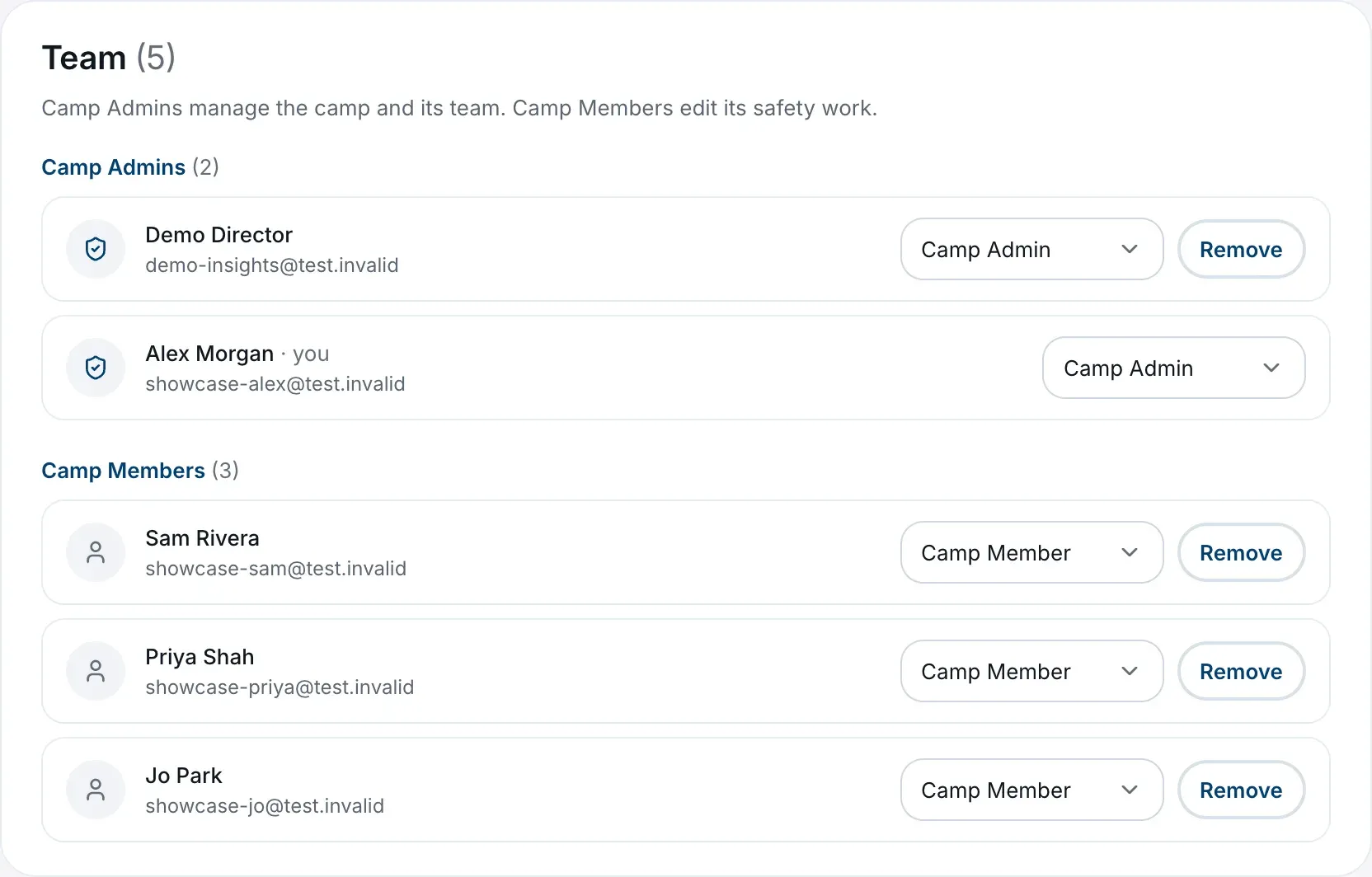
Change someone’s role
- On the Team tab, find the person.
- Use the role menu on their row to choose Camp Admin or Camp Member.
The change happens straight away and the person moves to the other group. They get a notification saying what their role is now, and if they have the camp open, a note at the bottom of their screen tells them too when they next come back to it. Your camp’s other Camp Admins are notified as well.
Step down as Camp Admin
You can change your own role in the same way. Because you’d lose the Camp Admin tools and only another Camp Admin could give them back, the platform asks you to confirm first.
If you’re the camp’s only Camp Admin, the platform won’t let you step down. Make someone else a Camp Admin first.
Remove someone
- On the Team tab, choose Remove on the person’s row.
- Read the message and choose Remove to confirm, or Keep them to cancel.
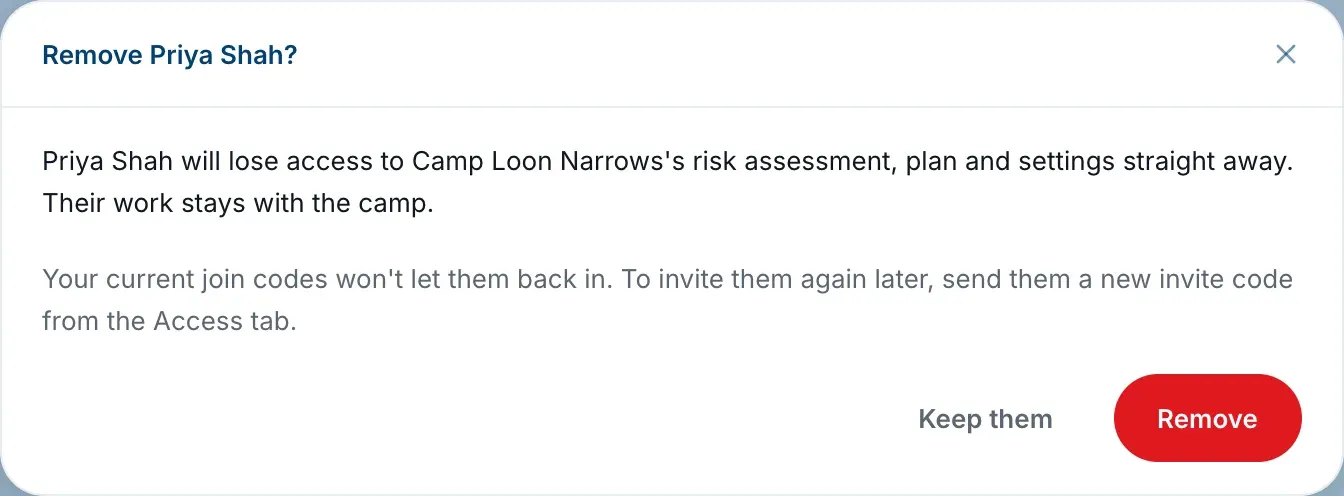
They lose access to the camp’s risk assessment, plan and settings straight away. They’re told by a notification that they were removed, and the camp’s other Camp Admins are notified too. Any other camps the person belongs to aren’t affected.
There’s no Remove on your own row. To take yourself out, use Leave this camp further down the tab. See Leave a camp.
You can’t remove the camp’s last Camp Admin.
What happens to their work
- Everything they did stays with the camp: profile answers, risk assessment work, plans and history.
- Actions they owned and hadn’t finished lose their owner. The plan shows them as needing someone, so give each one a new owner.
- Finished actions keep their name, as the record of who did the work.
Let someone back in
A person you removed can’t rejoin with any code that existed before you removed them, even a code they never used. They’ll see You were removed from this camp, so this code no longer works for you.
To invite them back, give them a code made after the removal. Either works:
- An extra join code, which leaves your main code alone. A Use Limit of 1 makes it a code for them only. See Invite your team with a camp code.
- A new main code, with Generate a new code. This replaces the code for everyone, so anyone else waiting to join will need the new one too.
They rejoin as a Camp Member, and you can change their role again once they’re in.
This only applies to people who were removed. Someone who left on their own can rejoin with your current code.