Assign and track actions
Risk assessmentStage 6. Say what each action involves, give it an owner and a due date, publish it, and keep its status up to date until it's done.
In Action, stage 6, you turn each action on your safety plan into real work: what you’re going to do, who owns it and when it’s due. Then you keep its status up to date as it moves.
Only actions you added to your plan in Build your safety plan appear here.
The three stages of an action
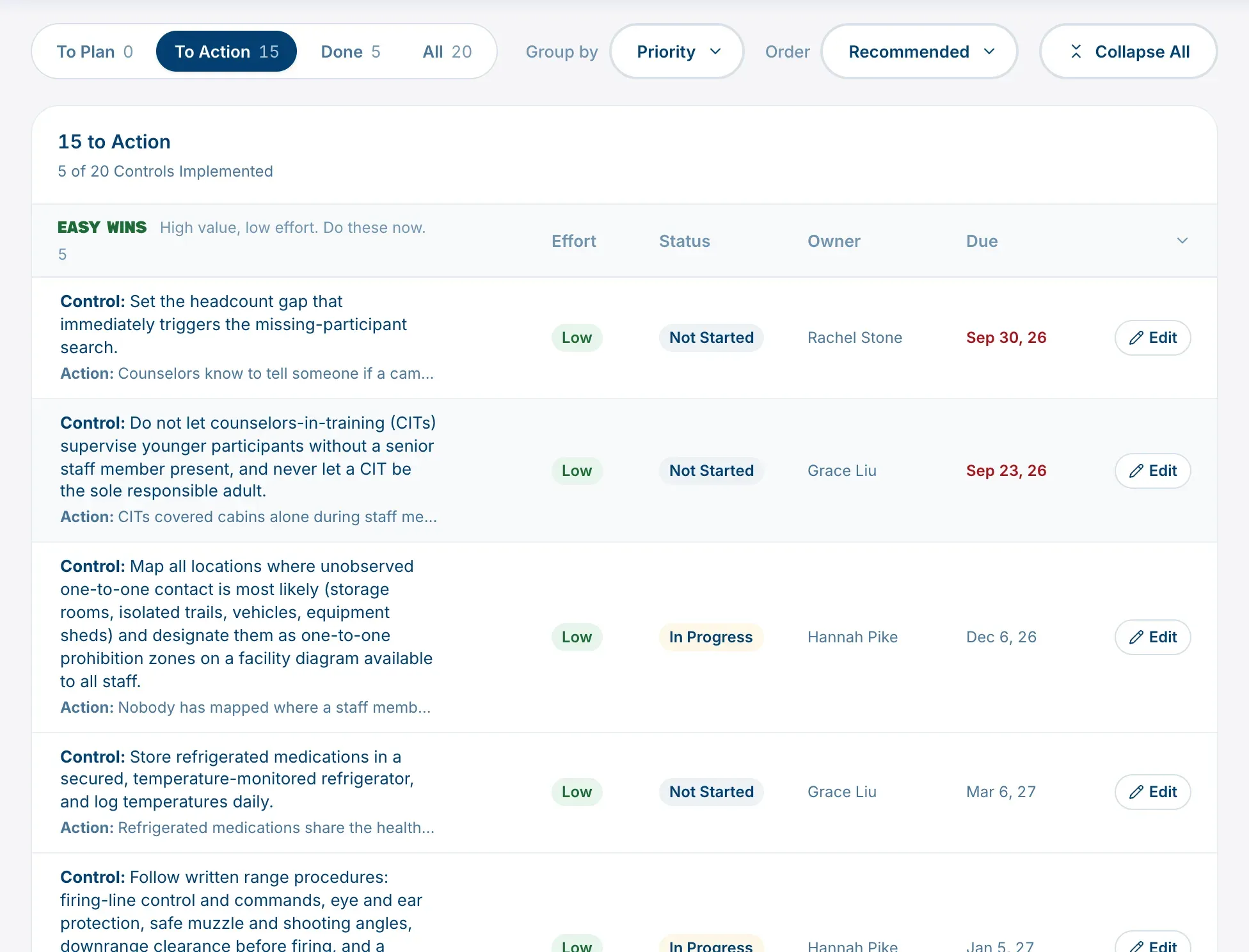
The tabs follow an action from start to finish. Every action is in exactly one of the first three:
- To Plan: drafts. The action still needs a description, an owner or a due date, or hasn’t been published yet.
- To Action: published and not done yet.
- Done: finished.
- All: everything on your plan.
A row still being planned shows a Draft chip and an Add Action button. A published one shows Edit.
Plan an action
- Click Add Action on a row in To Plan. The Plan your action window opens.
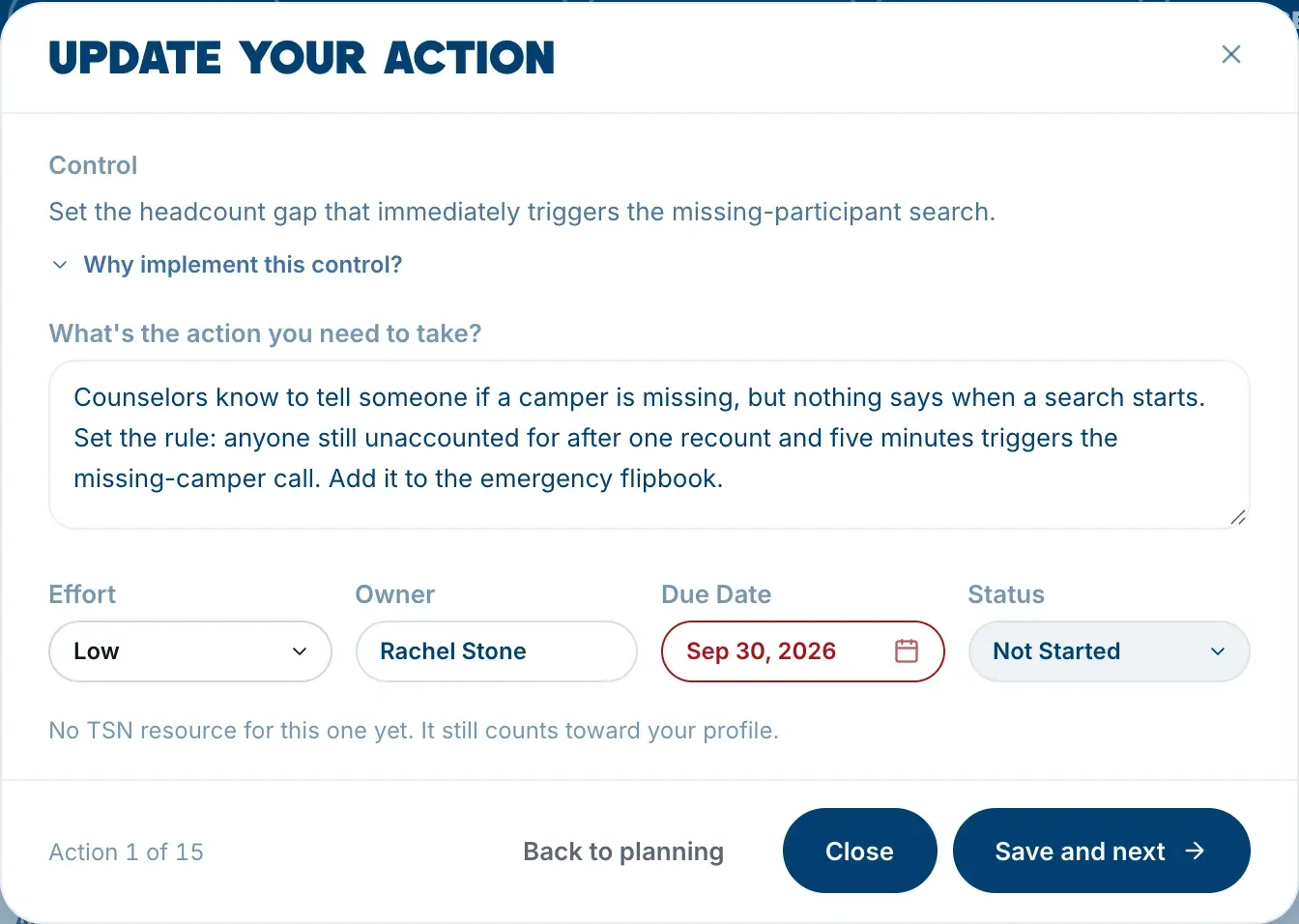
- Read the Control at the top. Why implement this control? shows the risk it reduces and roughly how much this action would take off its score.
- Under What’s the action you need to take?, write what you’re going to do, who it involves, and anything that might get in the way.
- Set the Owner. Type the person’s name; it doesn’t have to be someone with an account.
- Set the Due Date.
- Check the Effort: Low, Medium or High. TSN suggests one for each control; change it if your camp’s situation is different. Effort decides which priority group an action falls in, not your score.
- Choose Publish action.
Publish action stays unavailable until the description, owner and due date are all filled in, and the window tells you what it Still needs. To leave without publishing, choose Keep as draft. Whatever you’ve typed is saved either way.
After publishing, the window moves straight to the next draft, so you can work down the list. Action 3 of 12, at the bottom, shows where you are.
Resources for the action
Where TSN has templates or guides for a control, the window lists them under a heading such as 2 TSN Resources Support This Control, each with a link to it in the Resource Library. If there isn’t one yet, the window says so.
Keep statuses up to date
Each action has a Status: Not Started, In Progress or Done. Change it whenever the work moves, here or on the Actions tab of your Safety Roadmap.
- Marking an action Done sets its control to We have this, which raises your Safety Roadmap progress.
- Moving it off Done puts the control back to Partially in place or We need this.
- Moving between Not Started and In Progress doesn’t change your score.
To change a published action, click Edit. The window is headed Update your action, and Save and next moves to the next one. To move a published action back to drafts, choose Back to planning.
Find your way around
- Group by: Priority, Risk, Owner or Nothing.
- Order: Recommended, Biggest Risk Reduction or Due Date.
- If any open actions have no owner, a note above the list says how many, with a link to show them.
- A due date that has passed shows in red.
When this stage is done
Action is done when everything on your plan is marked Done. You can keep coming back to update statuses all season, and your Safety Roadmap shows the actions grouped by when they’re due.
Owners aren’t notified by the platform when you assign them an action, so let them know yourself.