Signing in, your email and your password
Account and sign-inSigning in with Google or an email and password, resetting your password, changing your email, and what the sign-in messages mean.
You can sign in to The Safety Navigator in two ways: with your Google account, or with your email address and a password. Both lead to the same account, and all your camps are there whichever you use.
Sign in
- Go to thesafetynavigator.app and choose Sign in.
- Continue with Google, or enter your email address and password.
You’ll land back where you were going, usually your camp’s Home page.
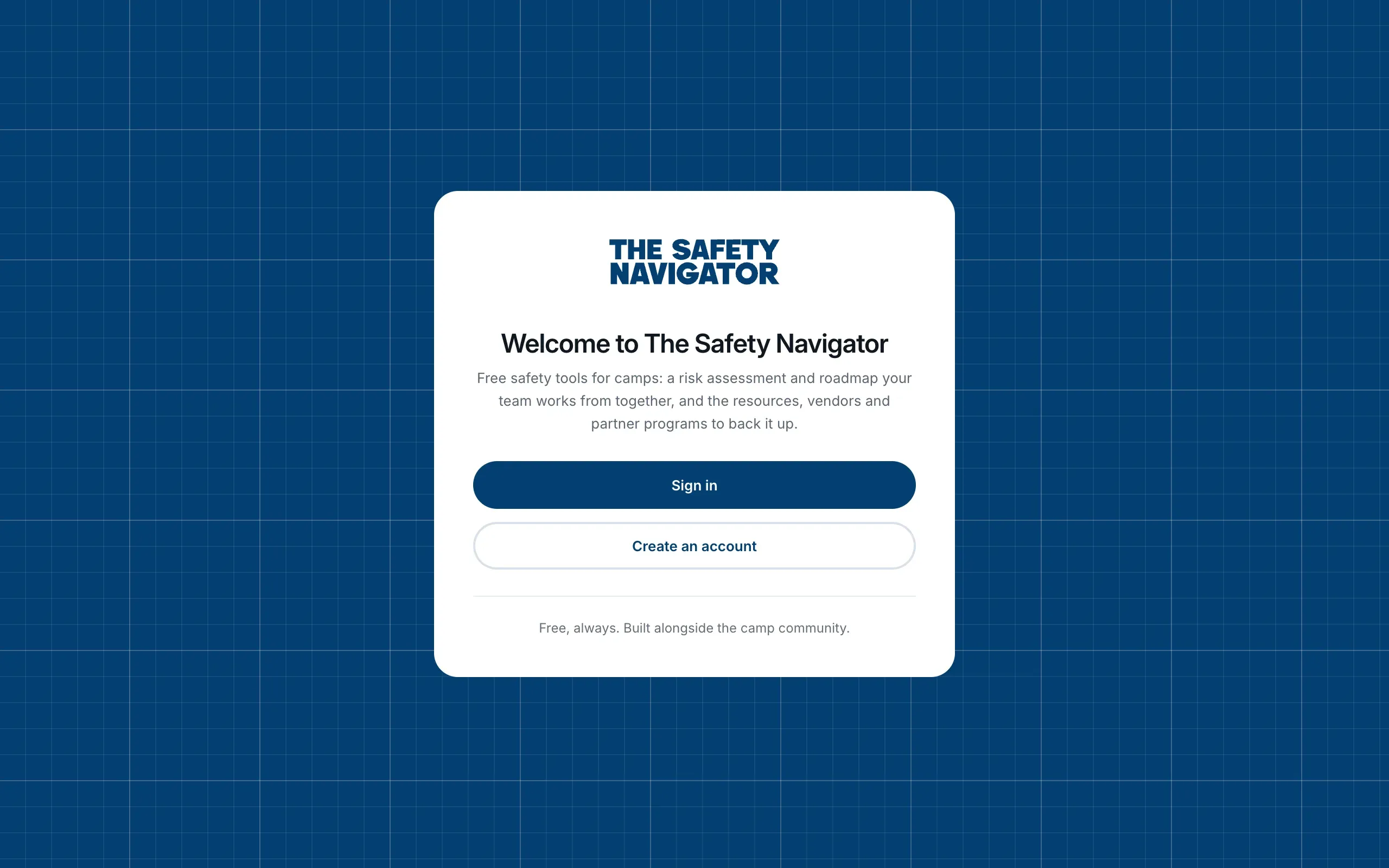
New here? Choose Create an account instead. See Create your account.
Confirm your email address
If you signed up with an email and password, you need to confirm the address before you can use the platform. Until then you’ll see Check your email. Click the link in the email we sent, come back and choose I’ve clicked the link.
Can’t find it? Check your spam folder. If it isn’t there, email contact@thesafetynavigator.org and we’ll send it again.
Google and a password with the same email
If you’ve used both Google and an email and password with the same address, the platform joins them into one account when you sign in with a confirmed email. You don’t need to do anything.
If you see This email already has an account, the joining didn’t happen. The message says which way you signed in before. Choose Sign out, then sign in that way. Your camps are there. If you aren’t sure how you signed in before, or you’d like both ways to work, email contact@thesafetynavigator.org and we’ll join them into one account.
Forgotten your password
- On the sign-in page, use the forgotten password link under the password field, and we’ll email you a reset link.
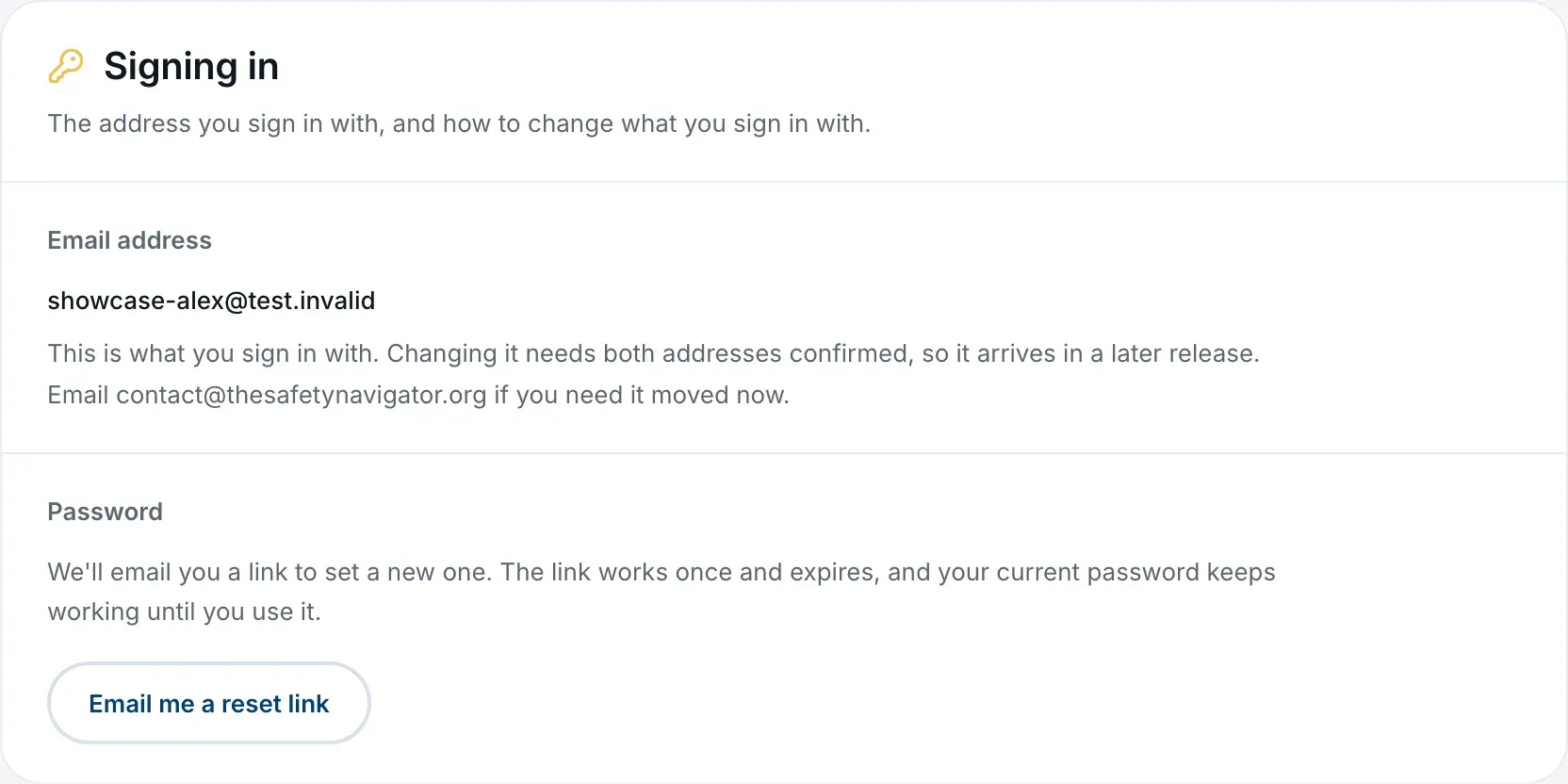
- Already signed in? Open your name at the foot of the sidebar, choose Profile, and in the Signing in card choose Email me a reset link.
The link works once and expires, and your current password keeps working until you use it.
If you sign in with Google, your password is managed by Google, not by us.
Change your email address
You can’t change your email address yourself yet, because both the old and new addresses need confirming. Email contact@thesafetynavigator.org from your current address and we’ll move it for you.
To change your name, see Your profile and roles.
Sign out
Open your name at the foot of the sidebar and choose Sign out. On a phone, open the sidebar first with the button at the top left.
Messages you might see
- Another account has signed in. Someone signed in with a different account in another tab of the same browser. The tab stops so nothing is saved under the wrong account. Choose Reload to carry on as the account that’s signed in now. Only one account can be signed in on a browser at a time.
- Please sign in again. The platform couldn’t load your account, usually because your session ran out while the tab was open. Choose Sign in again to pick up where you left off.
- We can’t reach The Safety Navigator. Your connection dropped while the platform was loading. Check you’re online and choose Try again. You’re still signed in.
- That sign-in link had already been used. Sign in again to carry on.
- This account has been paused. If you think that’s a mistake, email contact@thesafetynavigator.org.
None of these change anything about your camps.
Closing your account
There’s no button to close your account. Email contact@thesafetynavigator.org and we’ll remove your account from the platform. If you want to leave a camp but keep your account, you can do that yourself. See Leave a camp.