Identify your risks
Risk assessmentStage 2. Go through the risks suggested from your camp profile, put the ones that apply on your register, and set the rest aside.
In Identify, stage 2, you decide which risks apply to your camp. The platform suggests them from your camp profile. Nothing is chosen for you: every suggestion waits for a yes or a no.
Only the risks you put on your register go on to the next stages, where you rate them, record your controls and plan your work.
Why these risks were suggested
The suggestions come from your answers to the camp profile. Under each group of risks, a line starting Suggested because your profile says shows the answers that brought them in, such as the activities or water you told us about, so you can check them. Some risks apply to every camp and carry no reason.
If a suggestion looks wrong, check the matching answer in your profile. See Your camp profile.
Decide on each risk
Risks are grouped by category, then sub-category. Click a category to open it, or use Expand All.
Each risk has two circles on the right:
- ✓ This applies puts the risk on your register.
- ✕ Not for us sets it aside. A link, Add a reason, lets you note why it doesn’t apply. The reason is optional.
Clicked the wrong one? Click the same circle again and the risk goes back to waiting for a decision.
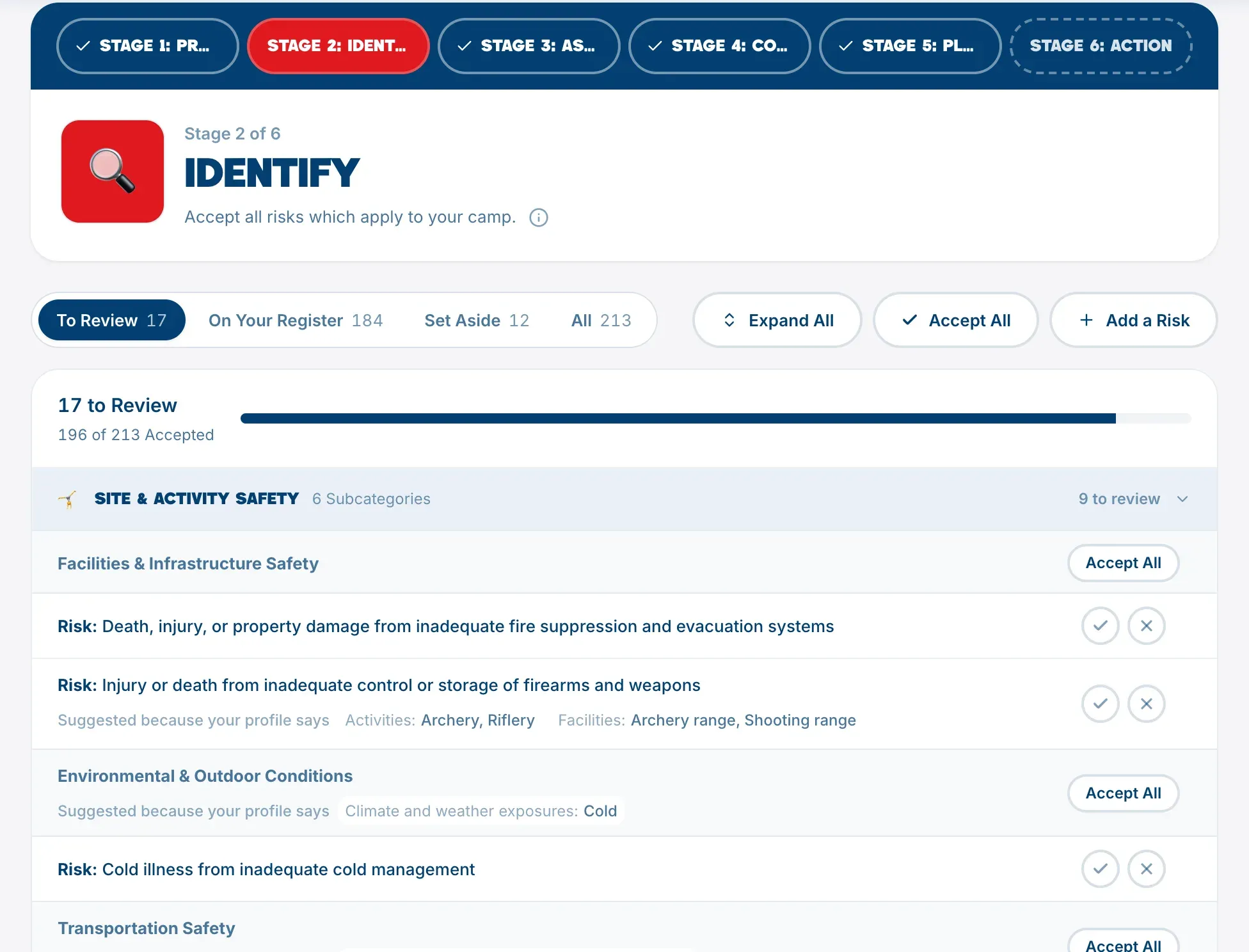
Accept a whole group at once
- Accept All beside a sub-category puts every risk in it on your register. Once they’re all on, the same button reads Remove All and moves them back to review.
- Accept All in the bar above the list puts everything still waiting on your register in one go. It asks first, because it covers every risk you haven’t decided on yet.
Moving risks back to review keeps any ratings you already gave them.
The four tabs
- To Review: risks still waiting for a decision. This is where you start.
- On Your Register: risks you’ve said apply.
- Set Aside: risks you’ve said don’t apply. Restore all moves them all back to review.
- All: everything.
The count at the top, such as “14 to Review”, goes down as you work.
Risks you didn’t see suggested
Choose Add a Risk to add one from TSN’s library or write your own. See Add your own risk.
When your profile changes
Changing your profile can bring in new suggestions. When it does, Identify shows a note such as 3 new suggestions from your profile, with an Add them button. Adding them puts them in To Review. Nothing you’ve already decided changes.
A risk on your register that your profile no longer points to is never removed. It’s marked No longer matches your camp profile, keeps everything you recorded, and the decision to keep it or set it aside is yours.
If a risk has actions on your plan
If you set aside a risk that already has actions on your safety plan, or move it back to review, the platform asks what to do with them:
- Keep them on the plan leaves them as they are.
- Take them off the plan removes them. If you put the risk back on your register later, those actions come back with their owners, dates and progress.
Retired risks
TSN occasionally updates its risk library. A risk marked Retired is no longer part of it. It no longer counts toward your progress, but everything you recorded is kept, and it stays in view if you have actions against it.
When this stage is done
Identify is done when every suggestion has a decision and there are no new suggestions waiting. Then move on to Assess likelihood and impact.