Your Home page
Getting startedWhat your camp's Home page shows, from the next step in your risk assessment to featured resources, courses and partner programs.
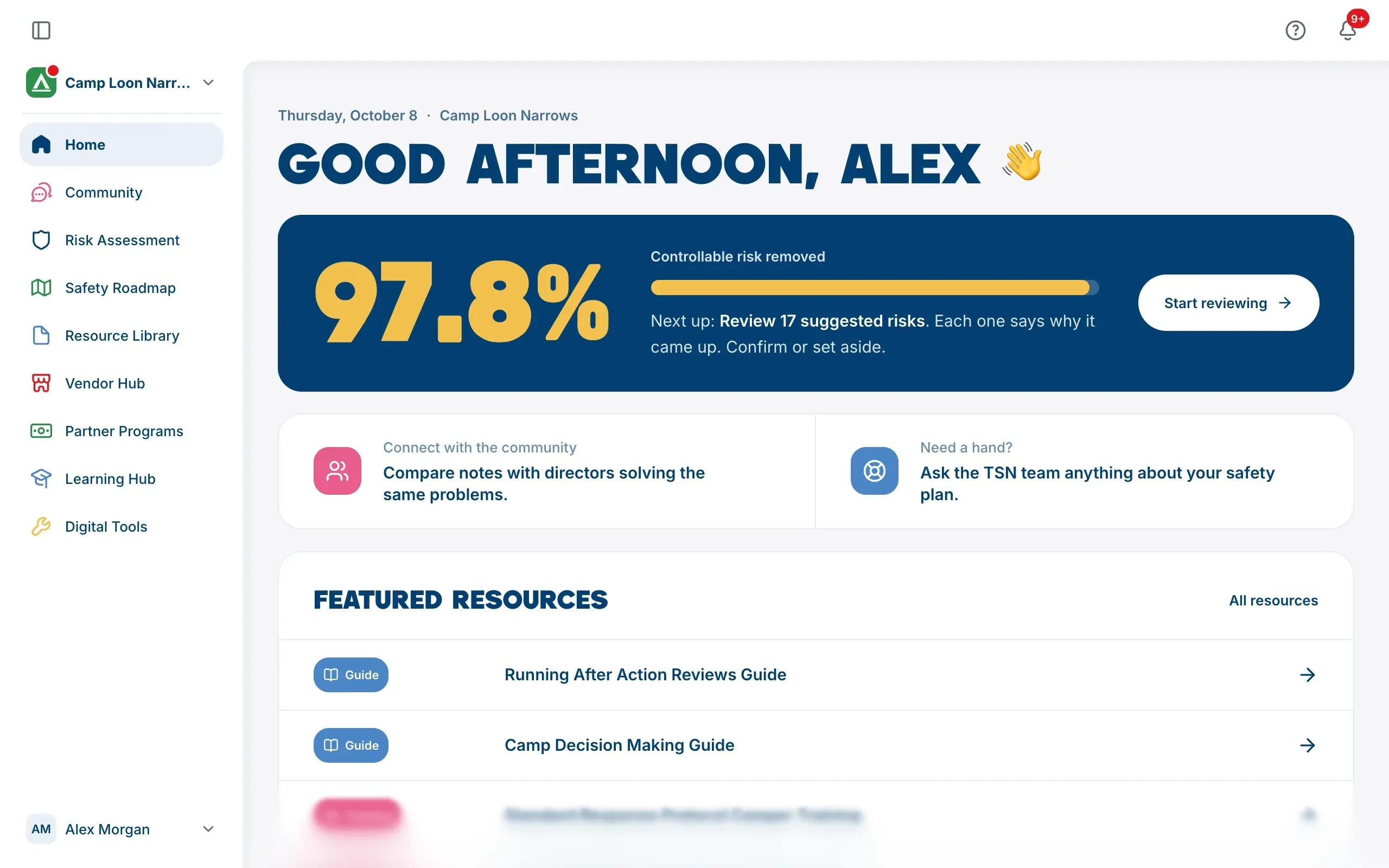
Home is the first page you see when you sign in. It shows where your camp is up to and the one thing worth doing next, with a few shortcuts into the rest of the platform. To get back to it at any time, choose Home at the top of the sidebar.
The greeting
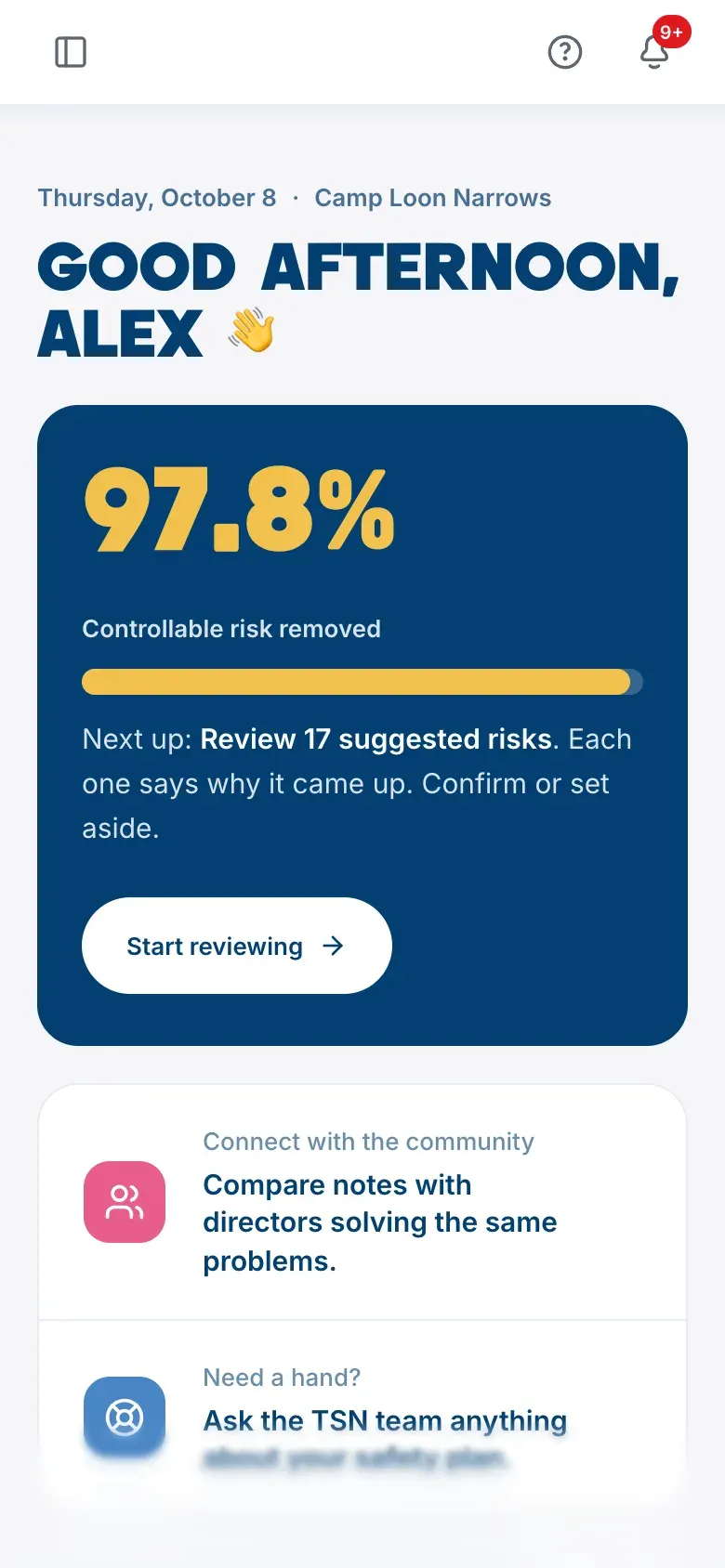
The top of the page shows today’s date and your camp’s name, then greets you by your first name. If you belong to more than one camp, check the camp’s name here to make sure you’re looking at the right one. See Work in more than one camp.
Your next step
The dark banner under the greeting tells you what to do next in your risk assessment, with a button that takes you straight there. It changes as your camp makes progress:
| What the banner says | The button |
|---|---|
| Tell us about your camp | Start the questions |
| See the risks that apply to you | Show me the risks |
| Review a number of suggested risks | Start reviewing |
| Rate a number of more risks | Rate them |
| A number of actions are open | Pick the next one |
| Choose what you’ll work on | Build your plan |
| Your roadmap is up to date | Open your roadmap |
Once your camp has rated at least one risk, the banner also shows a large percentage labeled Controllable risk removed, with a bar beside it. Before then, it’s labeled Do this next.
Everyone in your camp sees the same banner, because it reads your camp’s shared work. See Start your risk assessment for what each stage involves.
Community and help
Under the banner are two shortcuts:
- Connect with the community opens the Community forums. See Use the Community forums.
- Need a hand? opens the Help page, where you can ask The Safety Navigator team a question. See Get help and send feedback.
Featured resources
Featured resources lists four templates, guides or checklists from the Resource Library. They’re picked from recently published resources, so you’ll see a different set on different visits. Choose one to open it, or choose All resources to browse the whole library. See Find and download resources.
Featured courses
Featured courses shows up to three courses from the Learning Hub, fewer on a smaller screen. Courses you’ve started and not finished come first, closest to done first, then courses you could start, with those written for the roles on your profile ahead of those written for everyone. Choose All courses to see the full catalog. See Take a course in the Learning Hub.
Partner programs open now
Partner programs open now shows up to three of the partner programs and grants that are taking applications today. Choose a program’s See the program to read about it and apply, or All programs to see everything. See Partner programs and grants.
Sections that aren’t there
A section only appears when it has something in it. If no partner programs are open, for example, that section is left out rather than shown empty.
Other things you might see
- A green note after you set up a camp. It confirms your camp is set up and, for Camp Admins, shows the camp code to share with your team. Choose Got it to put it away. You can find the code again in Camp Settings, on the Access tab.
- Changes to the safety framework. When The Safety Navigator updates the framework your risk assessment uses, a window lists what changed for your camp the next time you come back. Choose OK once you’ve read it.
- Checking for duplicates. Camp Admins of a newly set up camp may see a note that The Safety Navigator is doing a quick check on new camps. Nothing is waiting on you, and you have full use of the platform.
Change the color behind your greeting
You can choose a background color for the top of your Home page. Open your name at the foot of the sidebar, choose Profile, and pick a color in the Home Color card on the Details tab. Only you see it.