Light and dark mode
Account and sign-inSwitch the platform between light and dark from Appearance in your account menu. Until you choose, it follows your device.
The Safety Navigator comes in light and dark. Until you choose, it follows your device’s own setting, and changes with it if your device switches at sunset.
Switch between light and dark
- Open your name at the foot of the sidebar. On a phone, open the sidebar first with the button at the top left.
- Choose Appearance. The word at the end of the row says which you’re on: Light or Dark.
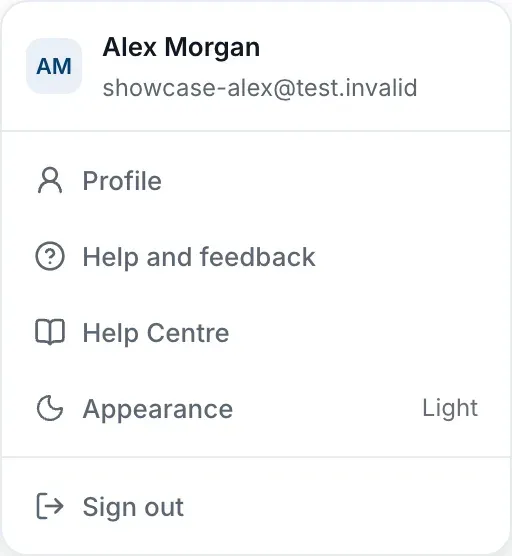
The platform changes straight away, and the menu stays open so you can switch back if you didn’t mean to.
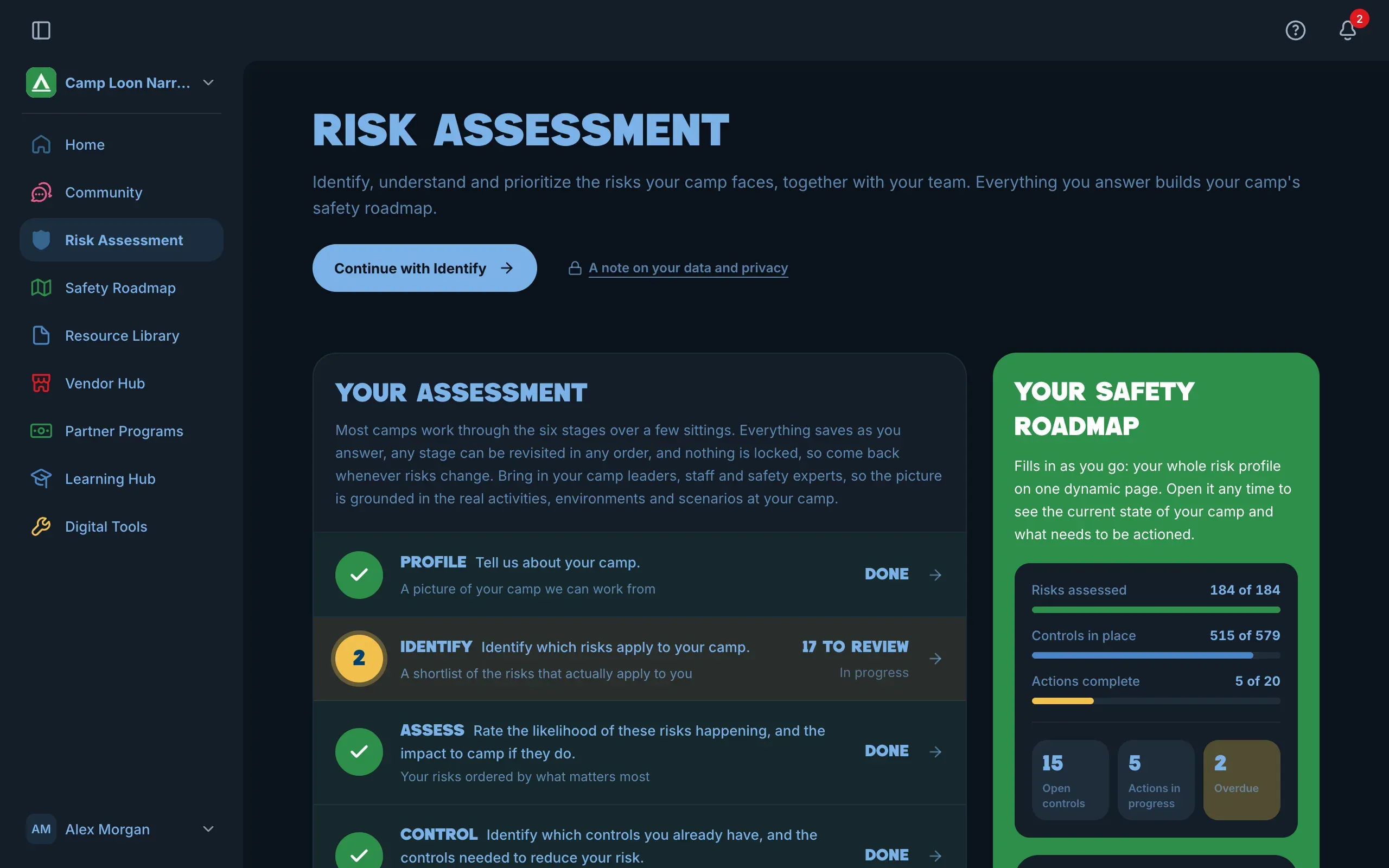
Once you’ve chosen
After you choose, the platform stays light or dark whatever your device does.
Your choice is remembered by the browser you made it in, so if you use the platform on a phone and a computer, set it on each.
Your Home color is separate
The color behind the welcome on your Home page is set on your profile, in the Home Color card. See Your profile and roles.