A tour of the platform
Getting startedWhat each part of the sidebar is for, where your camp and account menus are, and what the buttons at the top of the screen do.
Everything on The Safety Navigator is reached from the sidebar down the left of the screen. Here’s what each part of it is for.
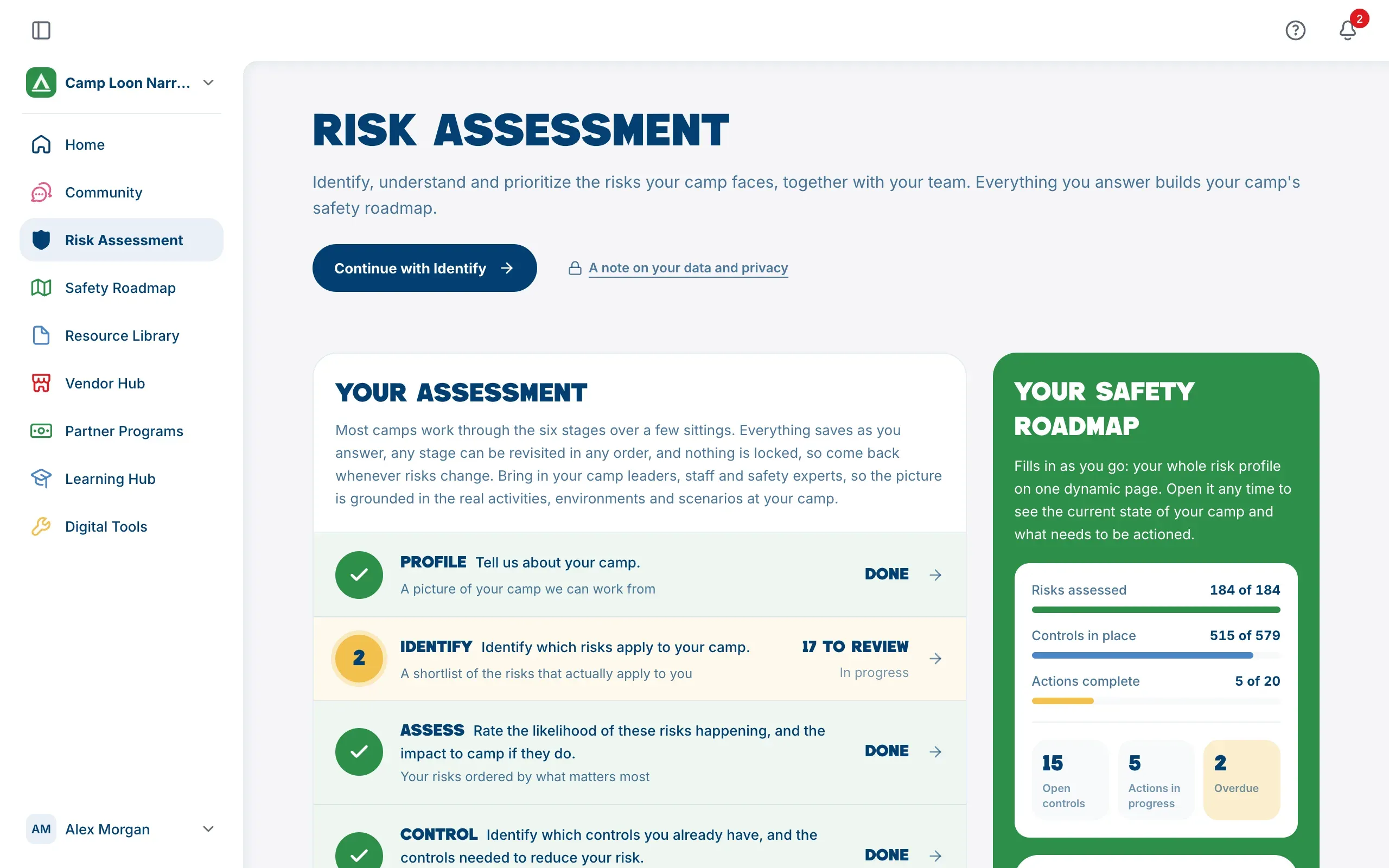
Opening and closing the sidebar
On a computer, the sidebar is always on screen. The button at its top left widens it to show the page names, or narrows it to icons only. When it’s narrow, point at an icon to see its name. The platform remembers which you prefer.
On a phone, the sidebar is tucked away. Tap the button at the top left of the screen to open it, and the cross to close it.
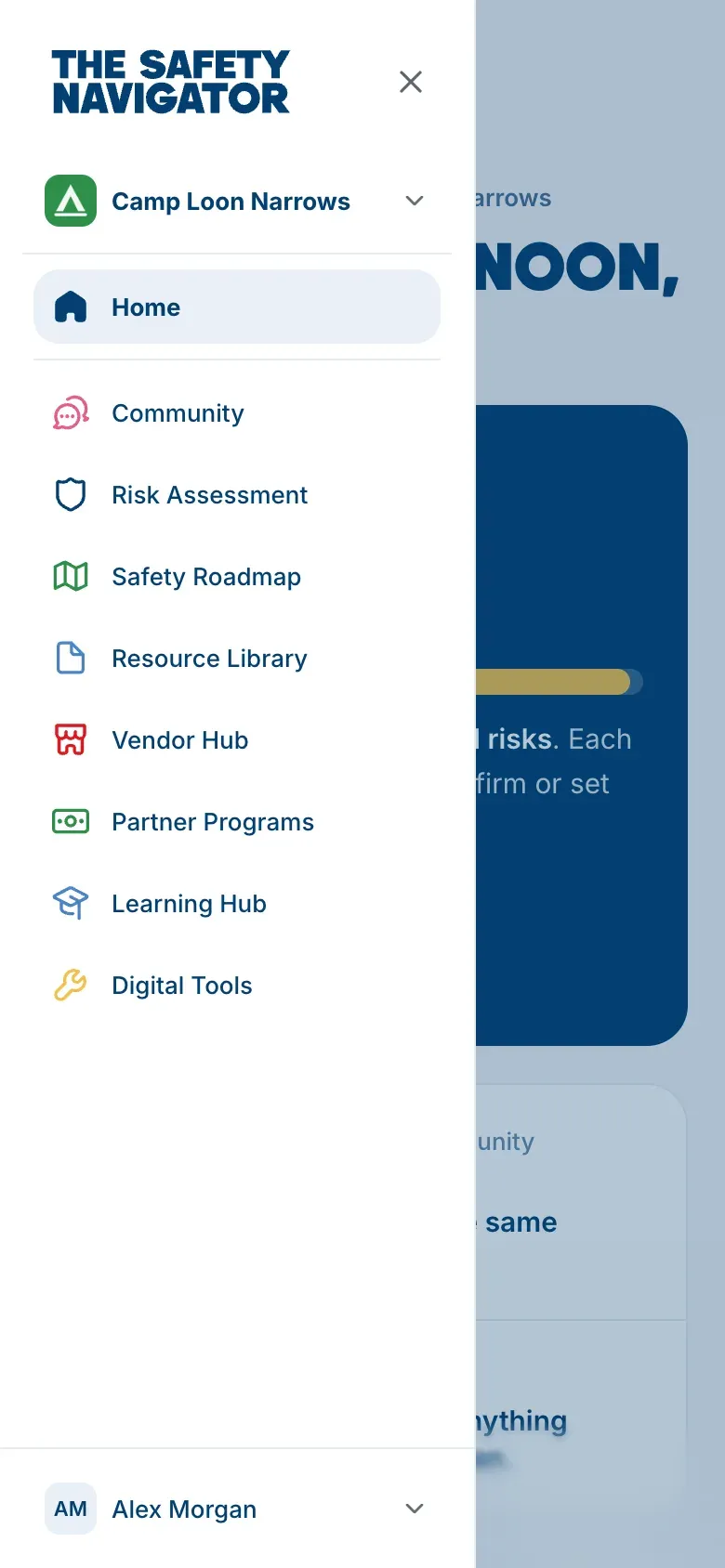
The camp menu, at the top
The top of the sidebar shows the camp you’re working in, with its logo or initials. Open it to:
- see every camp you’re in, with your role in each, and switch between them
- open Camp Profile, your camp’s answers about its programs and site
- open Camp Settings, for your camp’s details, its team and its join code
- Join another camp or Create another camp
If you aren’t in a camp yet, it says Join or set up a camp. See Work in more than one camp.
The pages
- Home: your camp’s front page. It shows where your safety roadmap stands and what to do next, with featured resources, courses and partner programs. See Your Home page.
- Community: forums where camp directors, staff, safety professionals and parents share what works. See Community.
- Risk Assessment: your team works through the risks your camp faces, how serious they are, and what you have in place. It needs a camp. See Start your risk assessment.
- Safety Roadmap: what your risk assessment produces. Where your camp stands, what you’ve committed to next, and whether it’s moving, plus reports to share. It needs a camp. See Your Safety Roadmap.
- Resource Library: ready-to-use policies, plans and checklists, with guidance on adapting each one to your camp. See The Resource Library.
- Vendor Hub: equipment and technology suppliers that camps use. It’s opening soon, and until then the page shows a countdown. See The Vendor Hub.
- Partner Programs: grants, partner programs and discounts open to your camp, with one place to apply and see where your application stands. See Partner Programs.
- Learning Hub: short courses on camp safety, with lessons, video and the templates to match. See The Learning Hub.
- Digital Tools: builders that start from what you’ve already told us about your camp, so you edit a draft rather than a blank page. They’re coming soon, and the page says so.
If you aren’t in a camp, Risk Assessment and Safety Roadmap show a small lock. See Look around before you join a camp.
Your account menu, at the foot
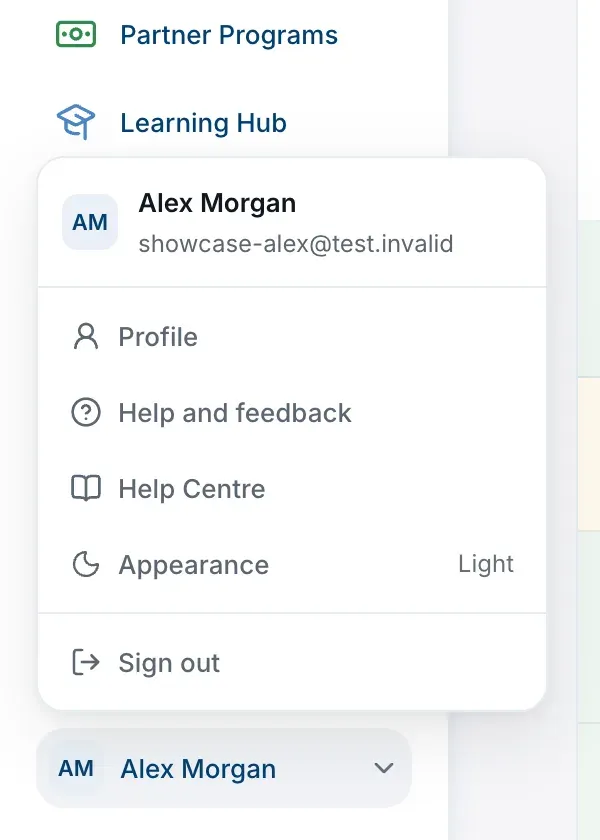
Your name is at the bottom of the sidebar. Open it for:
- Profile: your name, how you sign in, your roles and your camps. See Your profile and roles.
- Help and feedback: tell the team about a problem or an idea. See Get help and send feedback.
- Help Centre: these articles, in a new tab.
- Appearance: switch between light and dark. See Light and dark mode.
- Sign out.
The top of the screen
At the top right of every page:
- Saving… and then All changes saved (or Saved on a phone) appear as your answers save. In the risk assessment and your camp profile there’s no save button: answers save as you go. If you see Couldn’t save, check your connection (or Not saved on a phone), check you’re online.
- The question mark button opens Help and feedback.
- The bell shows your notifications, with a red count when something is new. See Notifications.