Partner programs and grants
Resources and toolsWhat Partner Programs holds, how to find a program that's open, what a program's page tells you, and what each status means.
Partner Programs lists grants, partner programs and discounts that The Safety Navigator has arranged on behalf of camps. Some you apply for on the platform, using what it already knows about your camp. Others are information only, with a link to the partner. Choose Partner Programs in the sidebar to open it.
Anyone with an account can read every program. Applying needs a camp. See Apply to a partner program.
Find a program
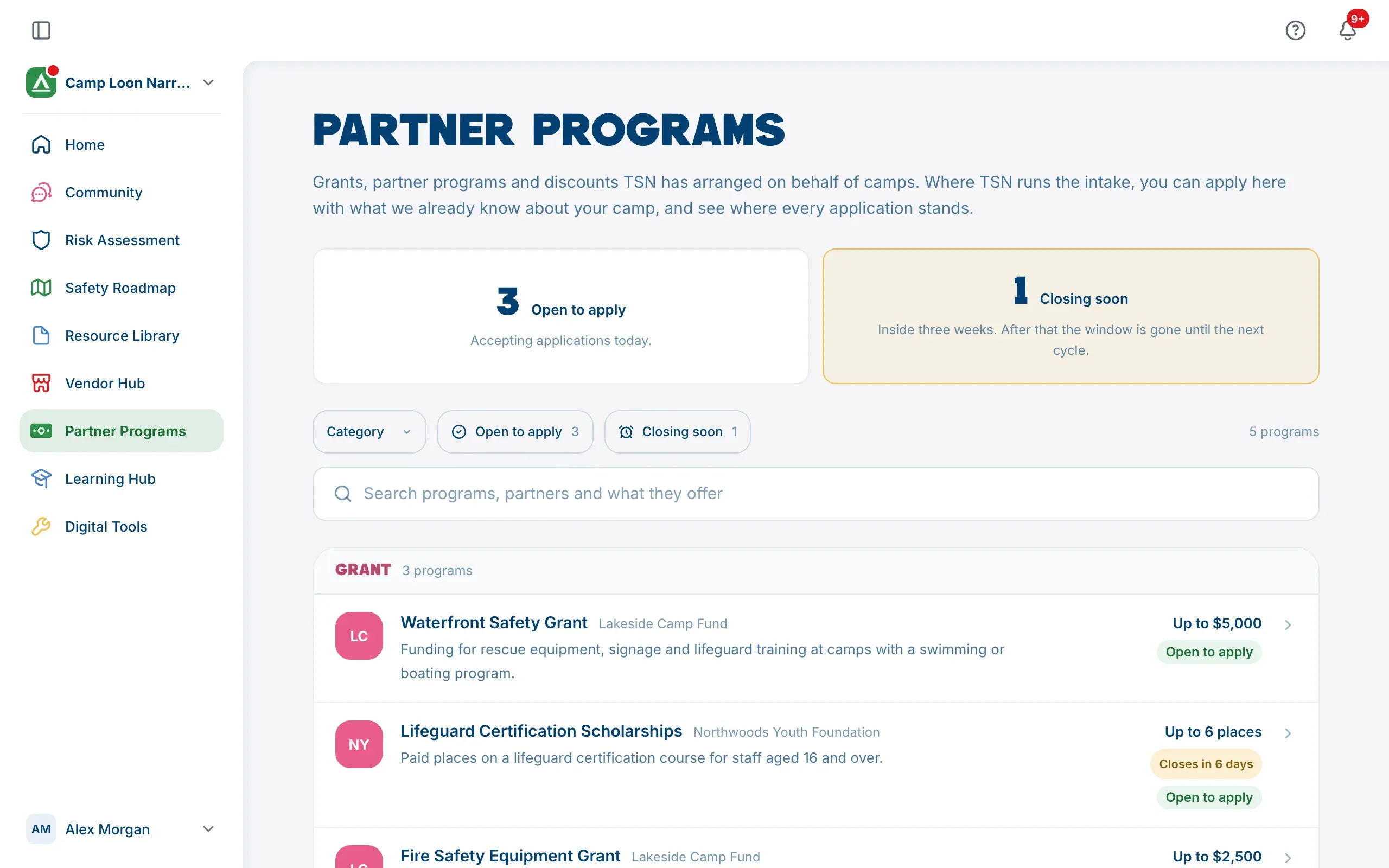
At the top of the page, two figures show how many programs are Open to apply today and how many are Closing soon (inside three weeks).
Programs are grouped by category. Each row shows the partner, the program’s name and summary, what it’s worth where the partner has said, its dates, and a status. On a phone, the row keeps to the partner, the name and the summary: open the program to see the rest.
When there are enough programs to need them, a toolbar appears above the list:
- Category: tick one or more categories, then choose Apply. This only appears when programs are in more than one category.
- Open to apply: only programs taking applications today.
- Closing soon: only programs that are open and close within three weeks.
- Search programs, partners and what they offer: searches names, partners, summaries, values and categories.
Clear all removes every filter.
If nothing is listed at all, the page says Nothing open just yet. Programs run in cycles, so an empty page is normal between them.
The status on each program
| Status | What it means |
|---|---|
| Open to apply | Taking applications today, and your camp can apply. |
| Between cycles | The program runs in windows, and none is open today. It will reopen. |
| Closed | Not taking applications. It stays listed so you can find it when it opens again. |
| Form coming | Open, but its application form is still being written. Check back shortly. |
| Information | There’s nothing to apply for here. The program’s page has the details and, where there is one, a link to the partner. |
| Not open | Not taking applications right now. |
Once your camp has started an application, the row shows that application’s status instead (see below).
Beside the status, the dates say when the current window closes or the next one opens, for example Closes in 12 days, Closes tomorrow, Opens followed by a date, or Open, no closing date.
Read a program’s page
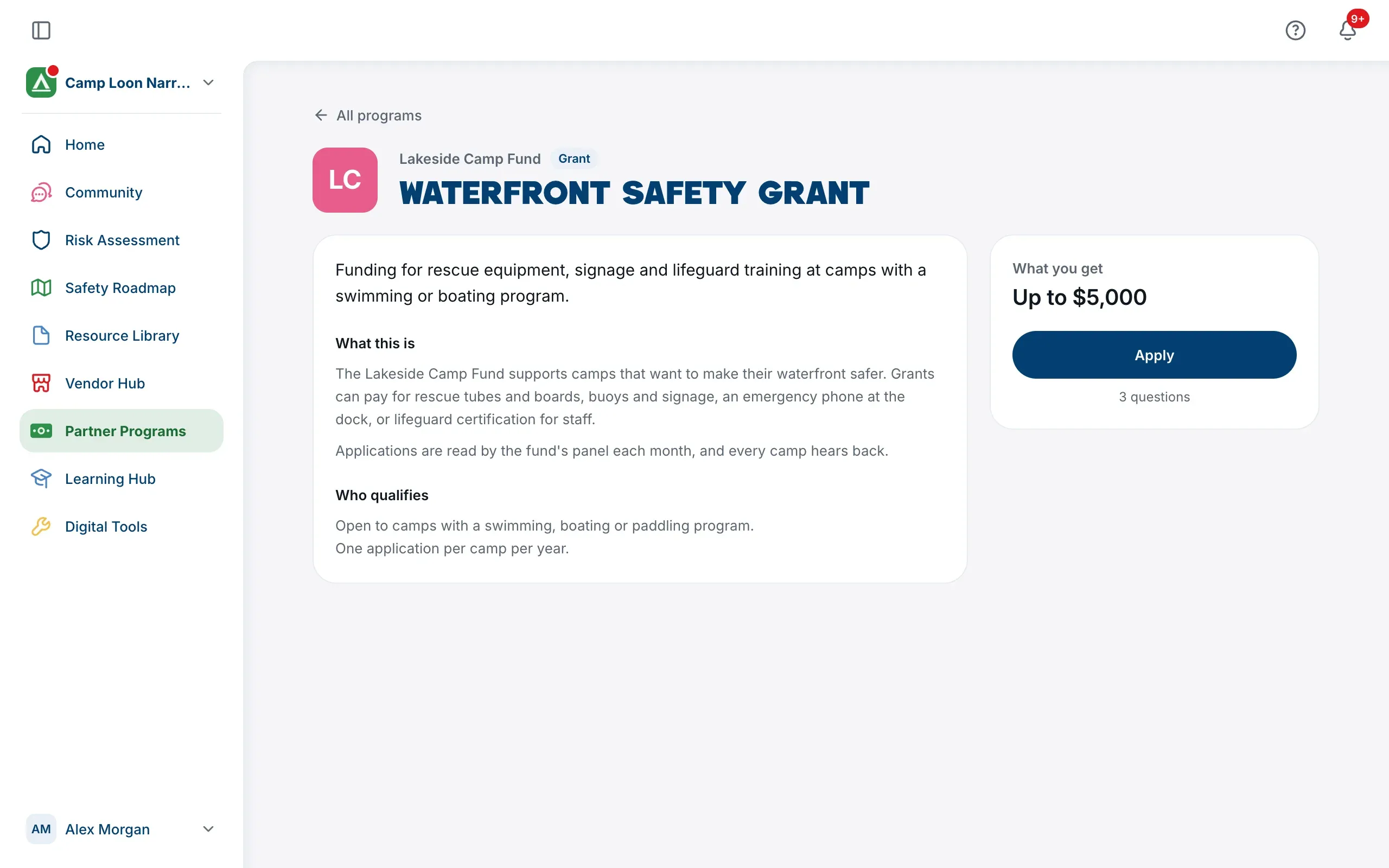
Choose a program to open its page. It has:
- the partner, the program’s name and its category;
- a summary, What this is, and Who qualifies where the program has eligibility rules;
- Dates or Cycles: each application window, with Open now beside the current one;
- Questions camps ask, where there are any.
On a computer, a panel on the right shows What you get (or Applying, where the partner hasn’t put a value on it) and the deadline, such as Closes in 12 days with the closing date. On a phone, this panel comes first, under the program’s name. Its button depends on where your camp stands: Apply, Continue your application, View your application, Apply for this cycle or Apply again. The number of questions in the form is shown under it. If The Safety Navigator stops offering a program your camp applied to, the button says Read your application instead.
When there’s nothing to apply for, the panel says why instead, for example that the cycle has ended. For an information-only program, Go to followed by the partner’s name opens the partner’s own website.
Track your applications
There are two places to see every application your camp has made:
- In Partner Programs, a Your applications tab appears next to Partner Programs once your camp has started an application.
- In Camp Settings, the Applications tab lists the same thing under Partner programs and grants. To get there, open the camp menu at the top of the sidebar and choose Camp Settings.
Each application shows its program, partner, the date it was sent or started, and its status. Choose Read it back to see what your camp sent, or Finish it to carry on with one that hasn’t been submitted.
| Status | What it means |
|---|---|
| Not submitted yet | Saved, but not sent. Nothing happens until someone submits it. |
| Submitted | With The Safety Navigator. Nothing is needed from you. |
| Under review | The Safety Navigator is working through it. If they need anything else, they’ll be in touch directly. |
| Approved | It succeeded. The partner or The Safety Navigator will take it from here. |
| Not this time | It didn’t succeed. It doesn’t affect anything else on your roadmap, and it doesn’t count against a future application. |
Everyone in your camp gets a notification when an application changes status, except the person who made the change. Open the bell at the top of the page to see it. If you’re in more than one camp, it’s in that camp’s bell. See Notifications.
If a program is taken down after you applied, your application stays in your list, marked no longer on offer, and you can still read it back.