Create your account
Getting startedSign up with Google or an email and password, confirm your email, add your name, accept the Terms, and tell us what describes you.
The Safety Navigator is free. Creating an account takes a couple of minutes: you sign up, add your name, and pick what describes you. What you pick decides the next screen, and nothing about it is permanent.
Sign up
- Go to thesafetynavigator.app. You’ll see Welcome to The Safety Navigator.
- Choose Create an account.
- Continue with your Google account, or enter your email address and a password of at least 10 characters.
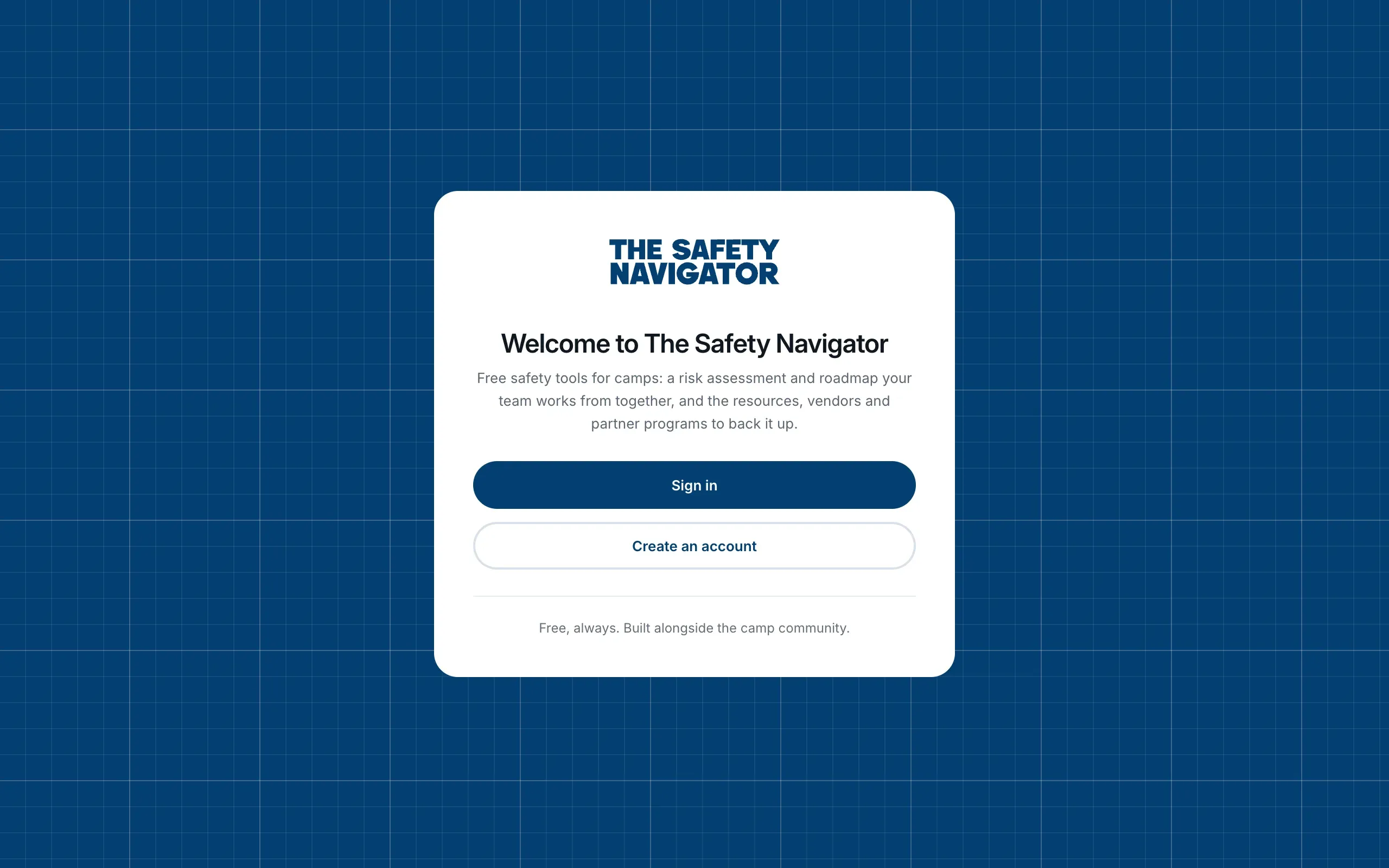
If you already have an account, choose Sign in instead. See Signing in, your email and your password.
Confirm your email address
If you signed up with an email and password, we send you a link to confirm the address is yours. Until you click it, the platform shows Check your email.
- Open the email and click the link.
- Come back to the platform and choose I’ve clicked the link.
Can’t find the email? Check your spam folder. If it isn’t there, email contact@thesafetynavigator.org and we’ll send it again.
If you signed up with Google, there’s nothing to confirm and you go straight on.
Add your name and accept the Terms
The first screen asks First, What Should We Call You?
- Enter your First Name and Last Name. Both are needed.
- Tick I have read and agree to The Safety Navigator’s Terms & Conditions. The words Terms & Conditions open the full Terms if you want to read them first, with an I agree button at the end.
- Choose Continue.
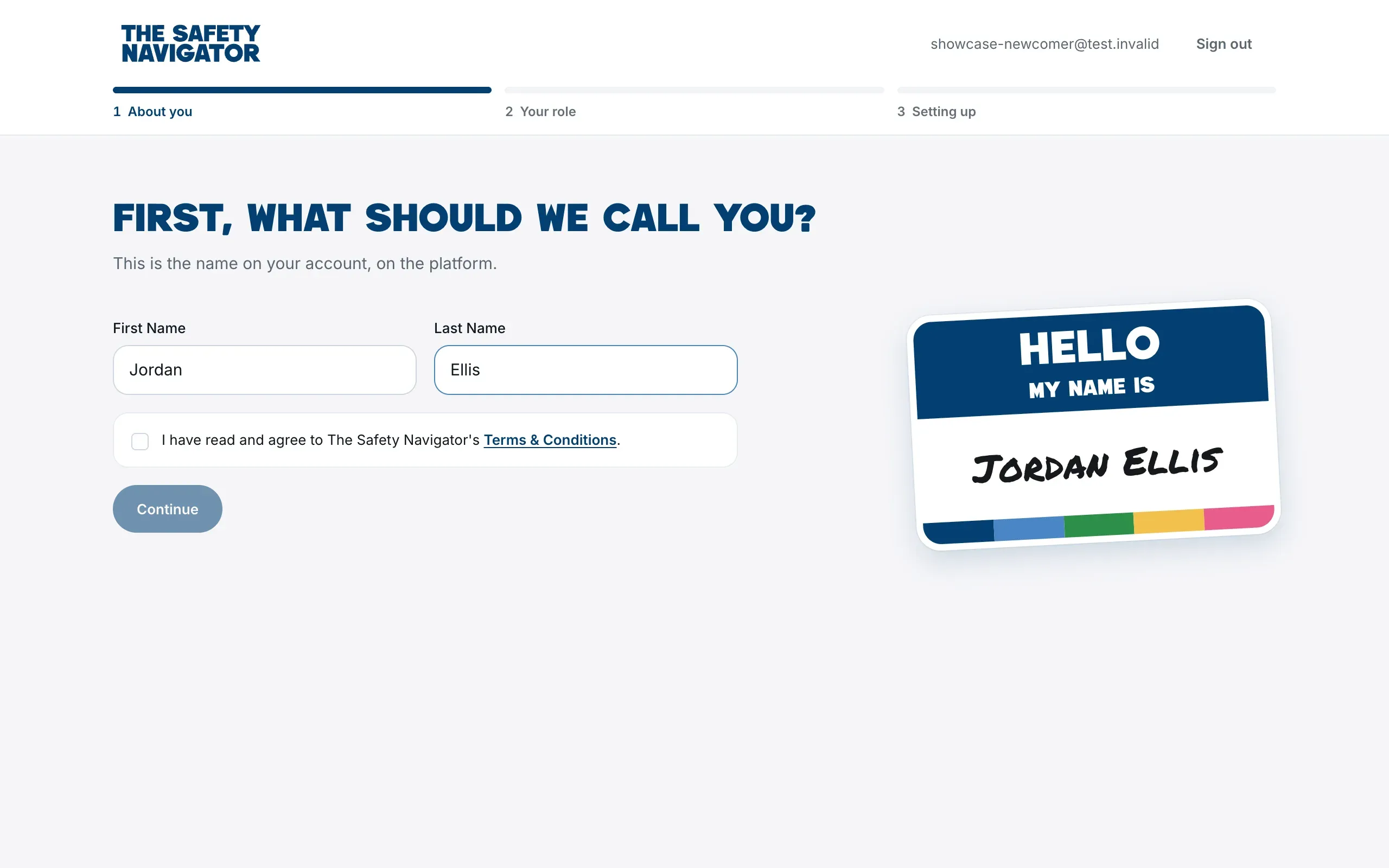
This is the name on your account. You can change it later on your profile. See Your profile and roles.
Tell us what describes you
The next screen asks Which best describes you? Pick the one that fits best:
- Camp Staff: you run or work at a camp or program, such as a director, staff, a nurse or a counselor.
- Safety Professional: you advise camps or programs on safety, risk or compliance.
- Volunteer / Parent: you volunteer with a camp, or you’re a parent looking into one.
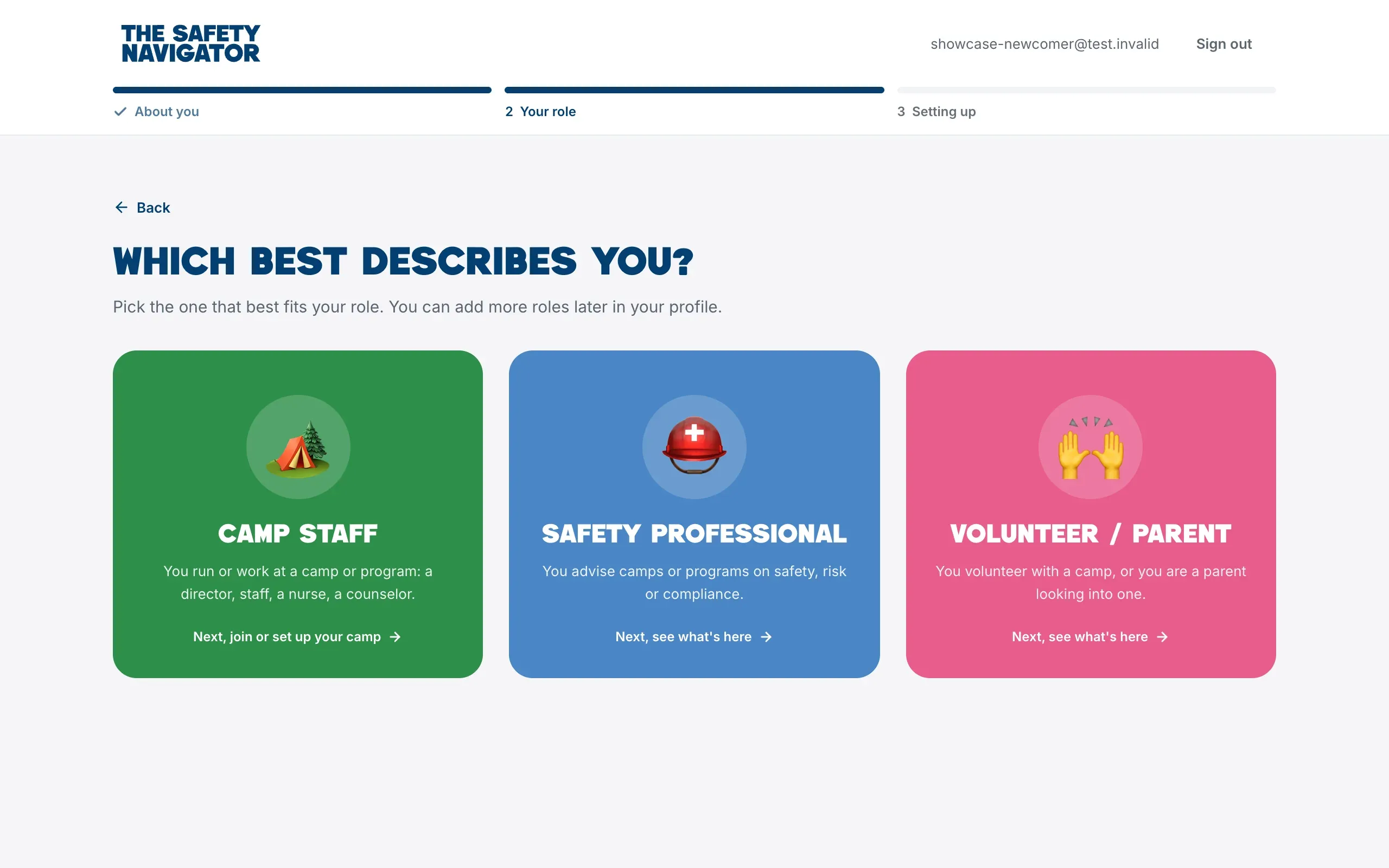
You can add more roles later on your profile. Your pick doesn’t decide what you can do inside a camp. That’s your camp role, Camp Admin or Camp Member, which your camp gives you. See Who can do what in your camp.
What happens next
If you chose Camp Staff, you’ll see Let’s Find Your Camp, with three ways forward:
- I’m joining a camp: someone has already added your camp and given you a six-character code. See Join your camp with a camp code.
- I’m setting one up: nobody has added your camp yet. You’ll be its Camp Admin. See Set up your camp.
- Not ready to join or set up yet? Look around first. You’re waiting on a code, or want to see the platform first. See Look around before you join a camp.
If you chose Safety Professional or Volunteer / Parent, you’ll see Here’s What You Can Use: the parts of the platform open to you, and, under Opens when you join a camp, the parts that need a camp. Choose Set up my account, and after a few seconds you’re on your Home page.
If you work at a camp after all, choose Work at a camp? Choose Camp Staff instead. on that screen to go back to the roles.
Picked the wrong role?
Use Back to return to the roles and pick again. While you aren’t in a camp, a new pick replaces the old one, so you won’t end up holding both. You can also add or remove roles at any time on your profile.
Stuck?
The Let’s Find Your Camp and Enter Your Camp Code screens have a Stuck? bar with our email address. Write to contact@thesafetynavigator.org and we’ll help you get set up. You can also choose Sign out at the top of the screen and come back later; you’ll pick up where you left off.