Ask your team to complete a course
Resources and toolsCamp Admins can ask everyone at camp, or chosen people, to complete a Learning Hub course, and follow their progress on it.
Camp Admins can ask their team to complete a course in the Learning Hub, as required or recommended, with a date if you need one. You then see how each person is getting on with that course, and nothing else they learn.
This is for Camp Admins only. If you’re a Camp Member, see Take a course in the Learning Hub for how a course your camp asks for shows up for you.
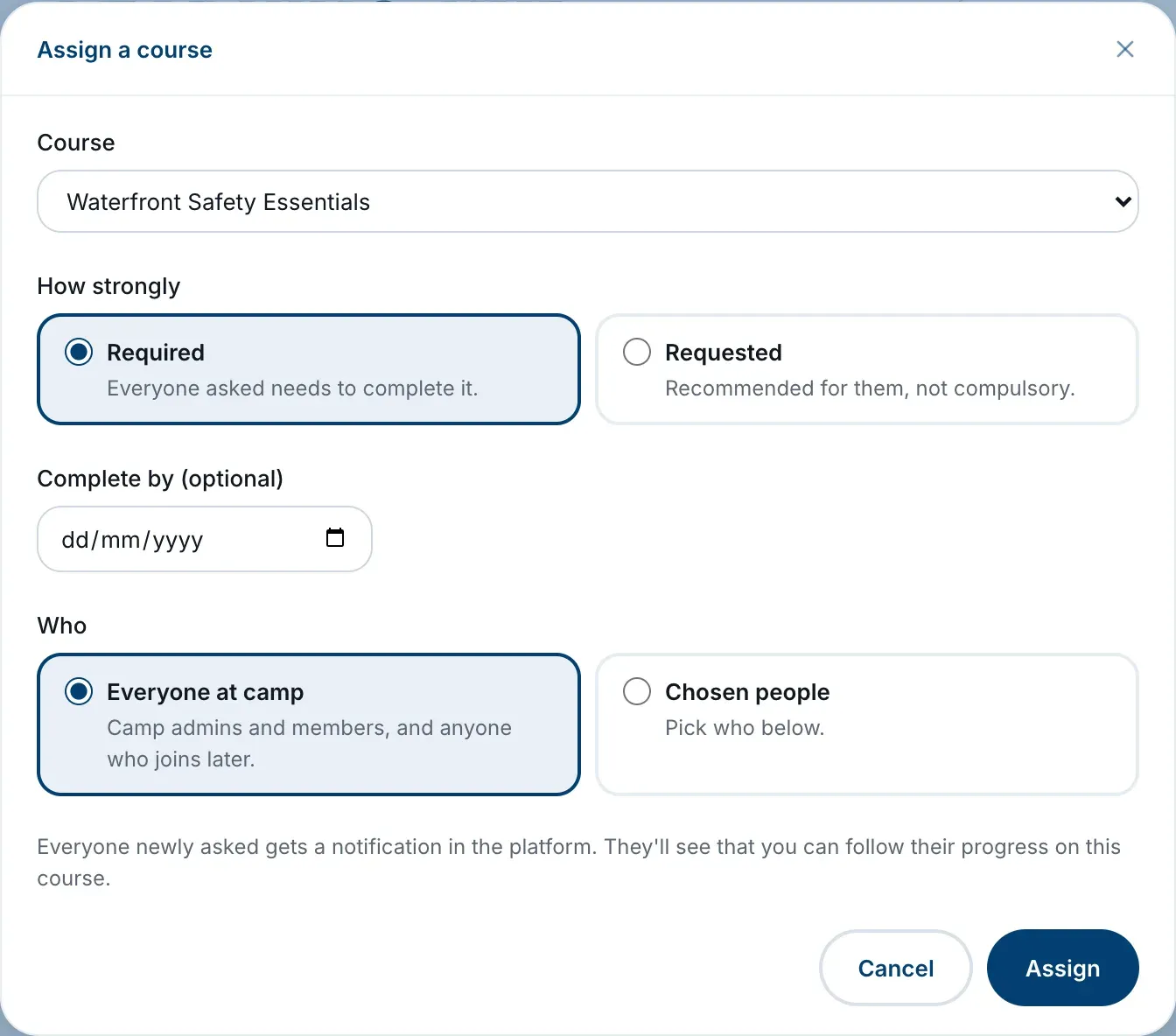
Assign a course
- Choose Learning Hub in the sidebar, then open the My team tab.
- Choose Assign a course.
- Pick the Course. Only courses that are open to new learners, and not already assigned by your camp, are listed.
- Under How strongly, choose Required (everyone asked needs to complete it) or Requested (recommended for them, not compulsory).
- If you need a date, set Complete by (optional) to a day from today on.
- Under Who, choose Everyone at camp (Camp Admins and Camp Members, including anyone who joins later) or Chosen people, then tick the people you want.
- Choose Assign.
What your team sees
Everyone newly asked gets a notification in the platform saying your camp needs them to complete the course (for Required) or has asked them to (for Requested), with the date if you set one.
The course appears in their My learning under From and your camp’s name, with Required or Requested, the date, and a line telling them that their camp’s admins can see their progress on it. They aren’t joined to the course until they start it.
Follow their progress
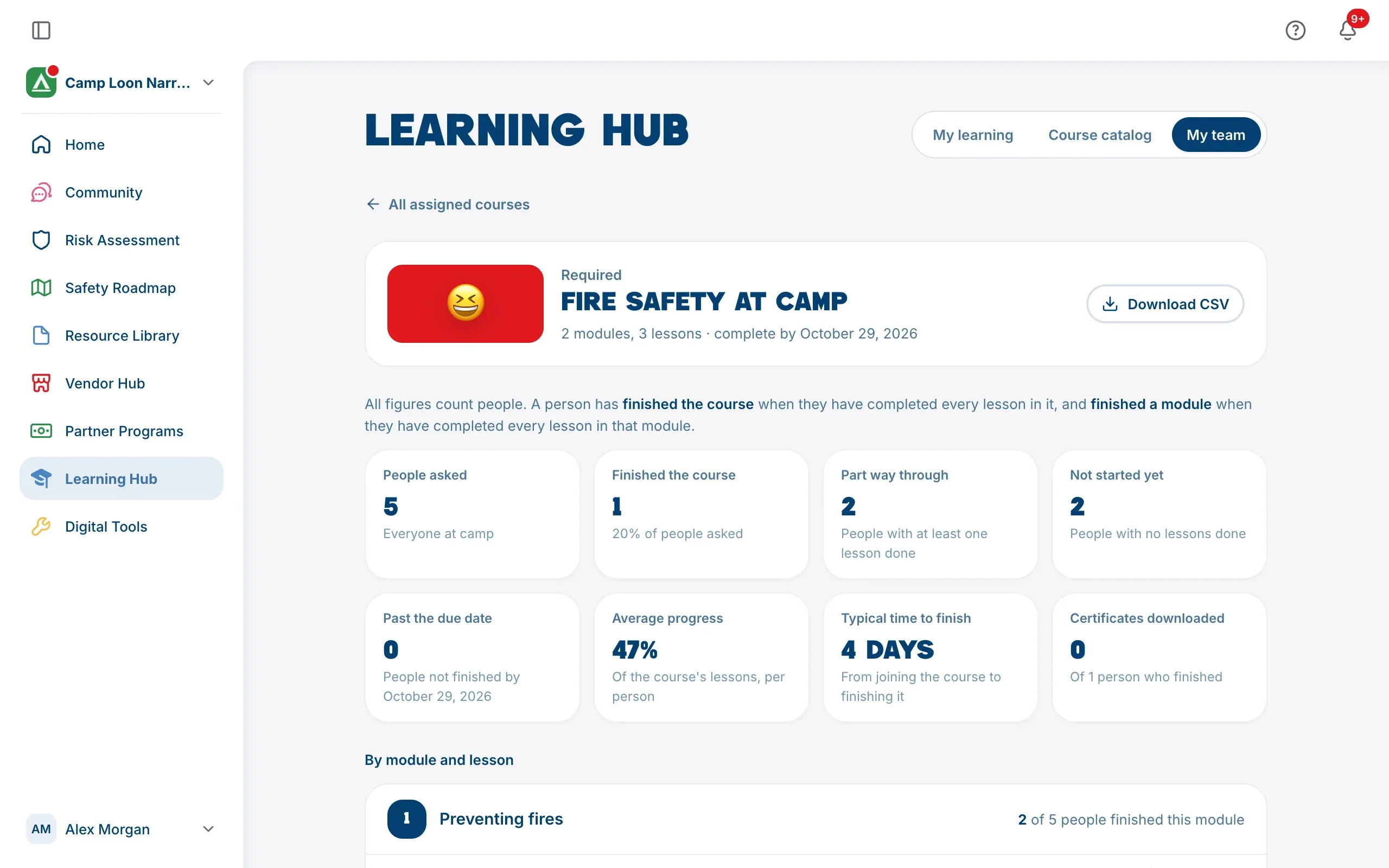
The My team tab lists every course your camp has assigned. Each shows Required or Requested, who was asked, the due date, and how many people have finished.
Choose a course to see the detail:
- figures for People asked, Finished the course, Part way through, Not started yet, Past the due date, Average progress and Typical time to finish, plus Left part way if anyone left the course before finishing, and Certificates downloaded where the course awards a certificate;
- By module and lesson: how many people opened and completed each lesson, and answered its questions correctly where it has them;
- By person: each person’s progress, lessons done in each module, when they were last active, and their certificate. People who are late are marked Overdue.
Choose Download CSV to save the by-person figures as a spreadsheet, and All assigned courses to go back.
A lesson counts as complete when the person marks it complete, or answers its questions where that’s how the lesson completes. So these figures show what people have marked done, not what they’ve watched or read.
What you can and can’t see
You see progress only on the courses your camp has assigned, never on anything else people learn on their own. For a course you assign, you see the person’s whole history on it, including anything they did before you asked.
Change or stop asking
On the My team tab, open the menu on a course’s card:
- Change lets you edit how strongly, the date and who is asked. To ask for a different course, assign that one separately.
- Remove asks Stop asking for this course? Choose Stop asking to confirm. The course leaves everyone’s list from your camp, and you stop seeing their progress on it. What they’ve done stays theirs.
A summary in Camp Settings
Camp Admins also have a Learning tab in Camp Settings, which sums up the courses assigned, how many requests are complete, and how many are past their due date. Choose Open My team to manage them.
If assigning is turned off
If the page says Course requests are turned off for your camp, ask The Safety Navigator through the Help page.