The Vendor Hub
Resources and toolsWhat the Vendor Hub holds, how to search and filter it, what a listing tells you, and how to ask for a vendor's full profile.
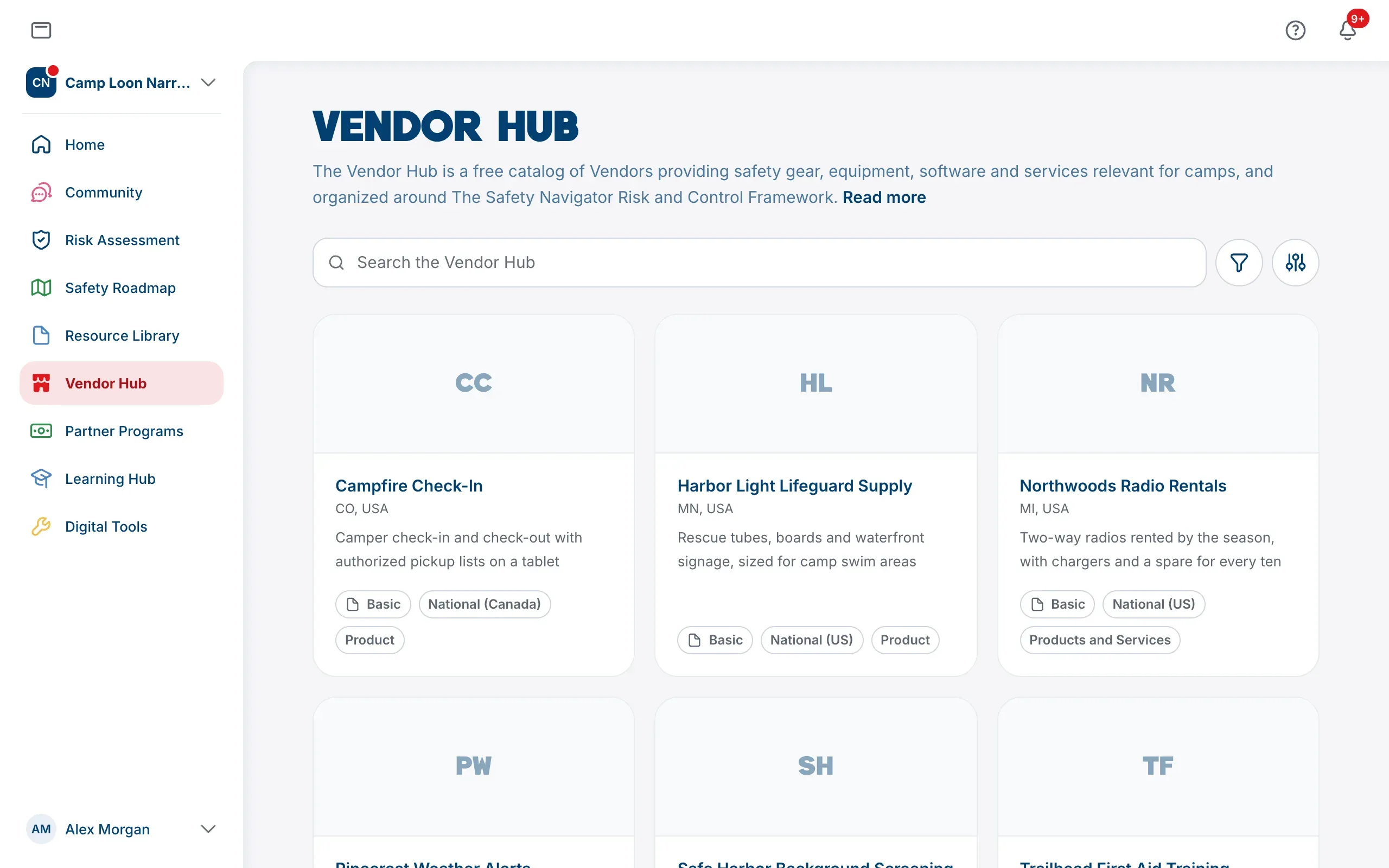
The Vendor Hub is a free catalog of vendors providing safety gear, equipment, software and services relevant to camps, organized around The Safety Navigator’s Risk and Control Framework. Choose Vendor Hub in the sidebar to open it.
Listing information is compiled from each vendor’s own public website and cataloged by The Safety Navigator for relevance against risks and controls. Vendors who unlock the Pro Vendor section of their listing make a financial contribution to The Safety Navigator, and that support is what keeps our safety resources free for every camp.
We don’t endorse any vendor. Nothing is sold through the platform: all transactions happen directly between your camp and the vendor.
The top of the Vendor Hub shows the first line of this introduction. Choose Read more for the rest, and Show less to fold it up again.
Search and filter
Type in Search the Vendor Hub to search names, headlines and what vendors do. Choose Filters (the round button beside the search) to narrow the list. It lists the filters; point at or choose one to open its options in a window beside it, with a count beside every option before you choose it:
- Safety Category and Topic: the parts of the risk assessment a vendor has been matched to, so a gap on your roadmap and the vendors who can help close it sit side by side.
- Vendor Type: Basic, Verified Vendor or Pro Vendor (see below).
- Offers: vendors with Partner Programs or Special Offers for camps.
- Products or Services: what the vendor sells.
- Where They Work: the areas a vendor serves.
A tick applies at once. Each filter you turn on appears as a chip under the search: select the x on a chip to remove it, or choose Clear All to remove every filter.
Once your camp has answered its risk assessment, Filters also has a Supports Your Controls switch. Turn it on to see only the vendors that help with controls in your camp’s plan: any control you answered Have, Partial or Need, so not the ones you marked Not applicable.
Sort the list
The Vendor Hub opens with Pro Vendors at the top. Choose Display (the round button at the end of the search bar) to switch between Grid and List, and to change Sort By:
- Pro First (the default): Pro Vendors at the top, then every other vendor. Within each group, the most complete listings come first.
- Most Complete: the most complete listings first, whatever their badge.
- Name: A to Z.
Your search, filters, sort and view are kept in the page’s web address, so you can bookmark a view or send it to a colleague.
What a listing tells you
Choose a vendor to open their listing. It shows what they do, where they’re based and when they started, and a Get in Touch card with their contact details and links. Where a vendor has no general email or phone, the listing sends you to their website’s contact form.
Supported Risk Assessment Controls says which parts of the risk assessment the vendor helps with. Choose See the Controls to list them, and Open in Assessment to go to your own answers.
Each listing’s badge says where its information came from:
- Basic: compiled by The Safety Navigator from the vendor’s public website.
- Verified Vendor: the vendor has claimed its listing and confirmed the details.
- Pro Vendor: a full profile from the vendor, with their products and services, camp stories and more.
To open a listing as a page of its own, choose Open as a full page at the top of it. Closing a listing takes you back to the Vendor Hub exactly as you left it, with your search and filters in place.
Ask for the full profile
If a vendor hasn’t published a full profile yet, a Camp Admin or Camp Member can choose Ask for the Full Profile on their listing. The Safety Navigator counts which camps want each vendor’s full profile, and that count decides who is asked to publish one next. A vendor that has claimed its listing can see how many camps asked, but never which ones. Asking needs a camp; everything else in the Vendor Hub is open to any account.
Something not right?
If a listing is wrong or out of date, tell us through Get help and send feedback. Vendors can create their own account on the platform to claim their listing, or add a new one, and keep it up to date. See Look after your company’s Vendor Hub listing. Know a vendor who should be listed? Email contact@thesafetynavigator.org.