Invite your team with a camp code
Your camp and teamShare your camp's join code, make a new one if it has spread too far, and create extra codes with a label, a use limit or an expiry date.
People join your camp with a camp code: six capital letters and numbers that a Camp Admin shares. There’s nothing to send from the platform and nobody has to approve a joiner. Whoever has the code can join.
Find your camp’s code
Camp Admins can do this:
- Open the camp menu at the top of the sidebar and choose Camp Settings.
- Open the Access tab.
- The code is on the Join code card. Choose Copy to copy it.
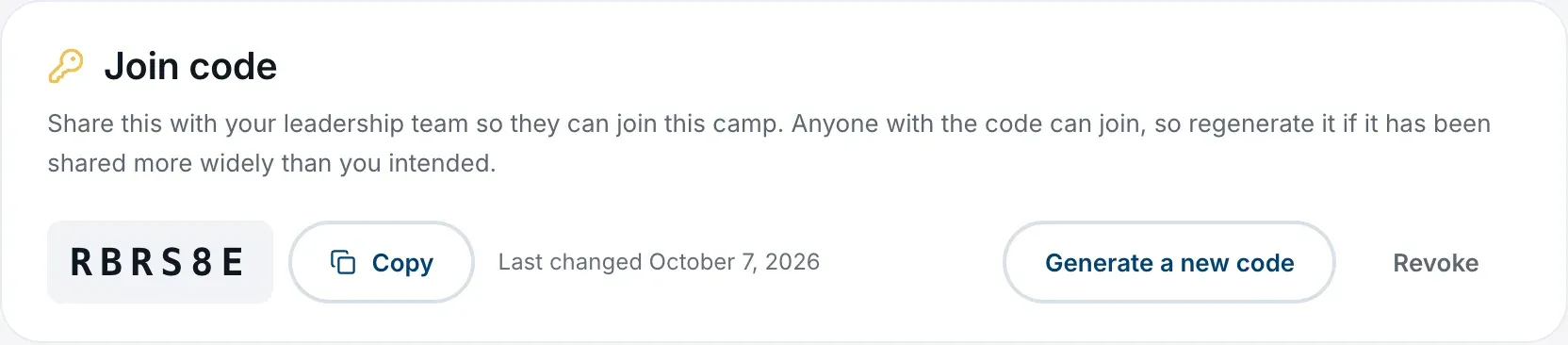
Right after you set up a camp, its Home page also shows the code in a banner, headed Invite your team. at first and then Your camp is set up. Choose Got it to hide the banner. The code stays in Camp Settings.
Camp Members don’t see the code. If they open the Access tab, it tells them to ask a Camp Admin.
Share the code
Read it out at a staff meeting, text it, or put it in an email. Codes leave out I, O, 0 and 1, so nobody mixes up similar characters, and capitals and spaces don’t matter when it’s typed in.
Your team enters it when they sign up, or from the camp menu if they already have an account. Send them Join your camp with a camp code.
When someone joins, your camp’s Camp Admins get a notification saying who joined.
What people join as
Everyone who joins with a code joins as a Camp Member, whichever code they use. No code can make someone a Camp Admin. Once they’ve joined, a Camp Admin can change their role on the Team tab. See Change someone’s role or remove them.
Make a new code
If the code has been shared more widely than you meant, replace it:
- On the Access tab, choose Generate a new code.
It happens straight away, with no confirmation. The old code stops working at once, and you’ll see New code generated. The old one no longer works. Everyone already in the camp stays in it. Share the new code with anyone who still needs to join.
The card shows when the code was Last changed.
Stop anyone joining
Choose Revoke on the Join code card. Nobody new can join with the main code until you choose Generate a new code. The card says Revoked. Nobody can join until you generate a new code.
Revoking the main code doesn’t touch any extra join codes. Revoke those separately.
Extra join codes
An extra code works like the main one, but you can limit it. It’s useful for one season’s intake of staff, or for a code you hand to one person.
- On the Access tab, find the Extra join codes card.
- Fill in what you need. Every field is optional:
- Label: so you can tell your codes apart, such as “Counselors, summer 2027”. Only your team sees it. Up to 80 characters.
- Use Limit: how many people can join with it. Leave it empty for no limit.
- Expires: the code stops working at the end of this day.
- Choose Create code.
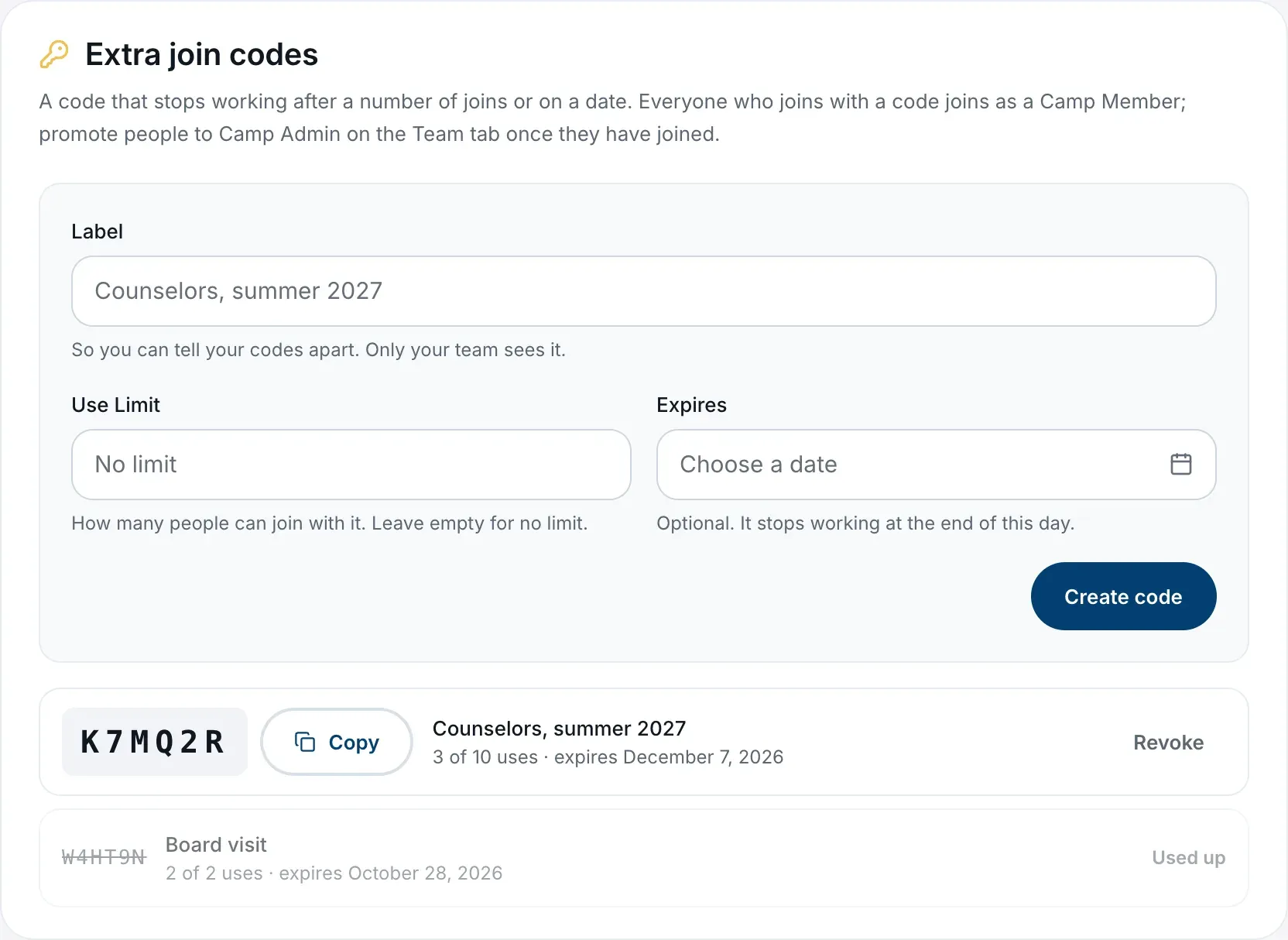
Each code in the list shows its label, how many times it has been used (for example 3 of 10 uses) and when it expires. Choose Revoke on a code to stop it working.
A code that has been revoked, has expired or has run out of uses stays in the list, greyed out and marked Revoked, Expired or Used up, so you can see what went out and when.
If someone can’t join
Most problems are an old or mistyped code, or a code that has expired or run out of uses. The messages people see, and what to do about each, are in Join your camp with a camp code.
Someone you removed from the camp can’t rejoin with any code that existed before you removed them. Make a new one for them. See Change someone’s role or remove them.