Join or create another camp
Your camp and teamOne account can belong to several camps. Join another camp with its code, or create a new one, without leaving the camps you're already in.
You can belong to as many camps as you need with one account: if your organization runs several sites, if you work at more than one camp, or if you advise several camps. Joining or creating another camp doesn’t take you out of the ones you’re in.
Each camp is kept separate. It has its own team, its own Camp Admins, its own Camp Profile, risk assessment and plan, and nothing moves from one camp to another. You can have a different role in each.
Join another camp
You’ll need that camp’s six-character code from one of its Camp Admins.
- Open the camp menu at the top of the sidebar (it shows the name of the camp you have open). On a phone, tap the navigation button at the top left first to open the sidebar.
- Choose Join another camp. If you aren’t in any camp yet, it reads Join a Camp.
- Type or paste the code into Camp Code. Capitals don’t matter, and it joins as soon as the sixth character is in. You can also choose Join camp.
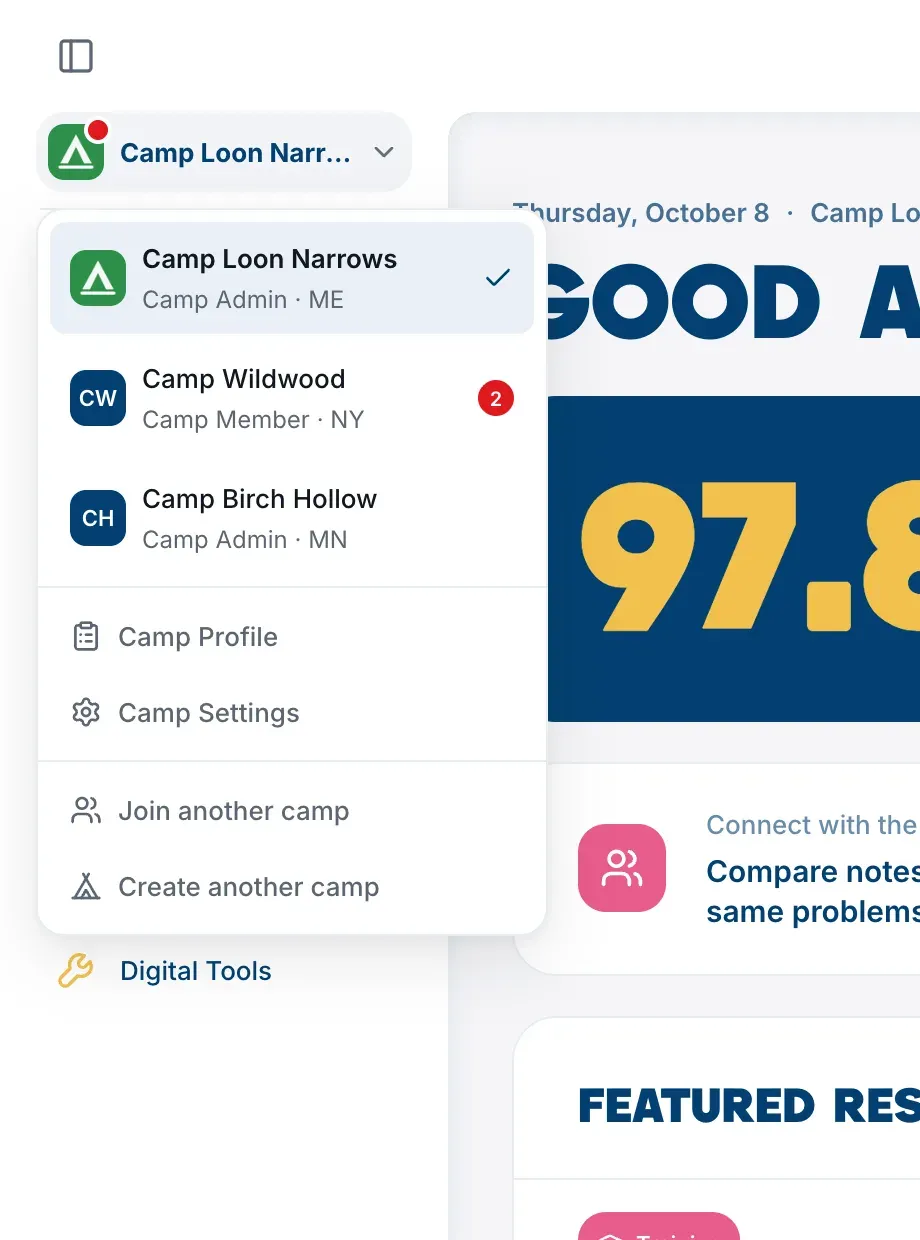
You land on the new camp’s Home page as a Camp Member. Its Camp Admins can change your role. If you enter the code of a camp you’re already in, it simply opens that camp.
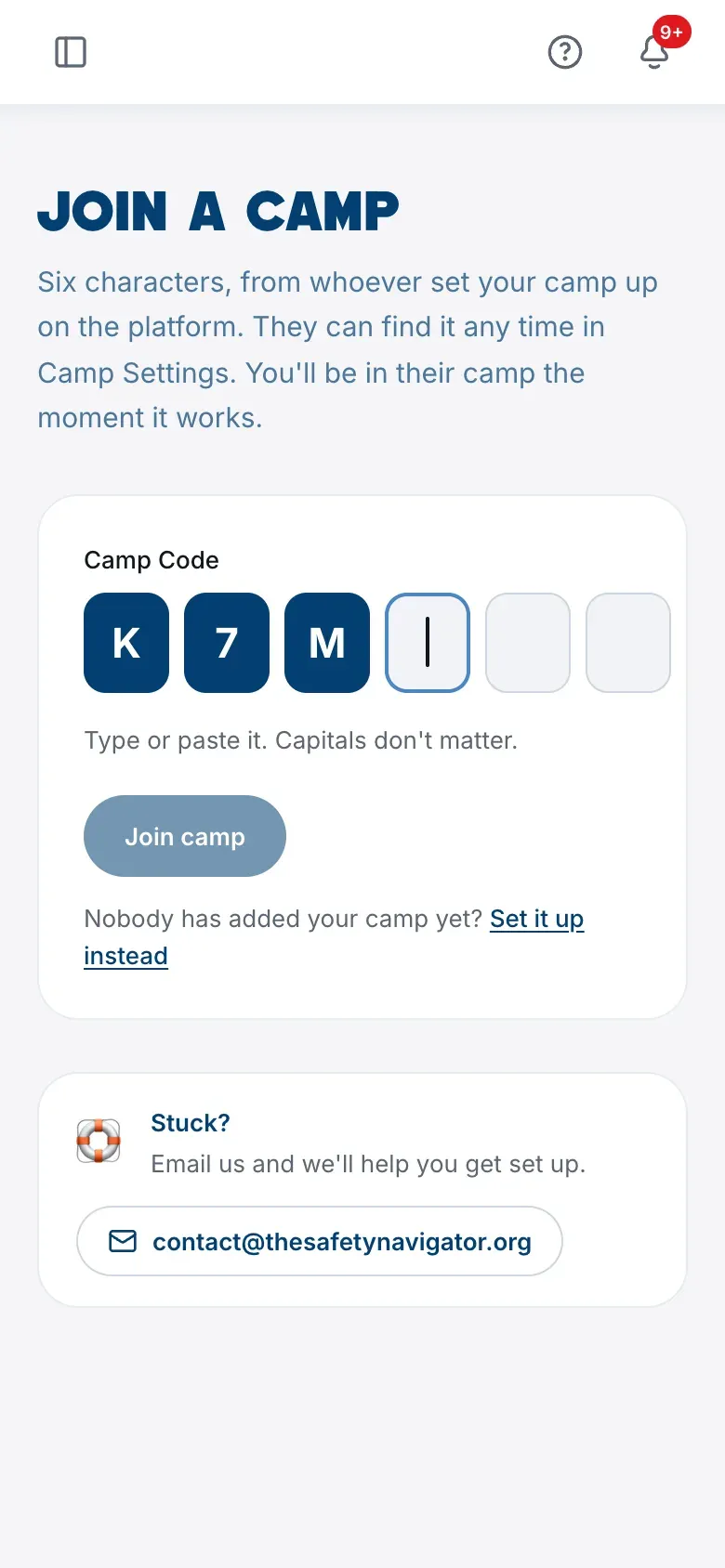
If the code doesn’t work, see Join your camp with a camp code.
Create another camp
Before you create a camp, check that nobody at that camp has already set it up. If they have, ask them for the code and join instead. See Fix a camp that was set up by mistake.
- Open the camp menu at the top of the sidebar.
- Choose Create another camp. If you aren’t in any camp yet, it reads Create a Camp.
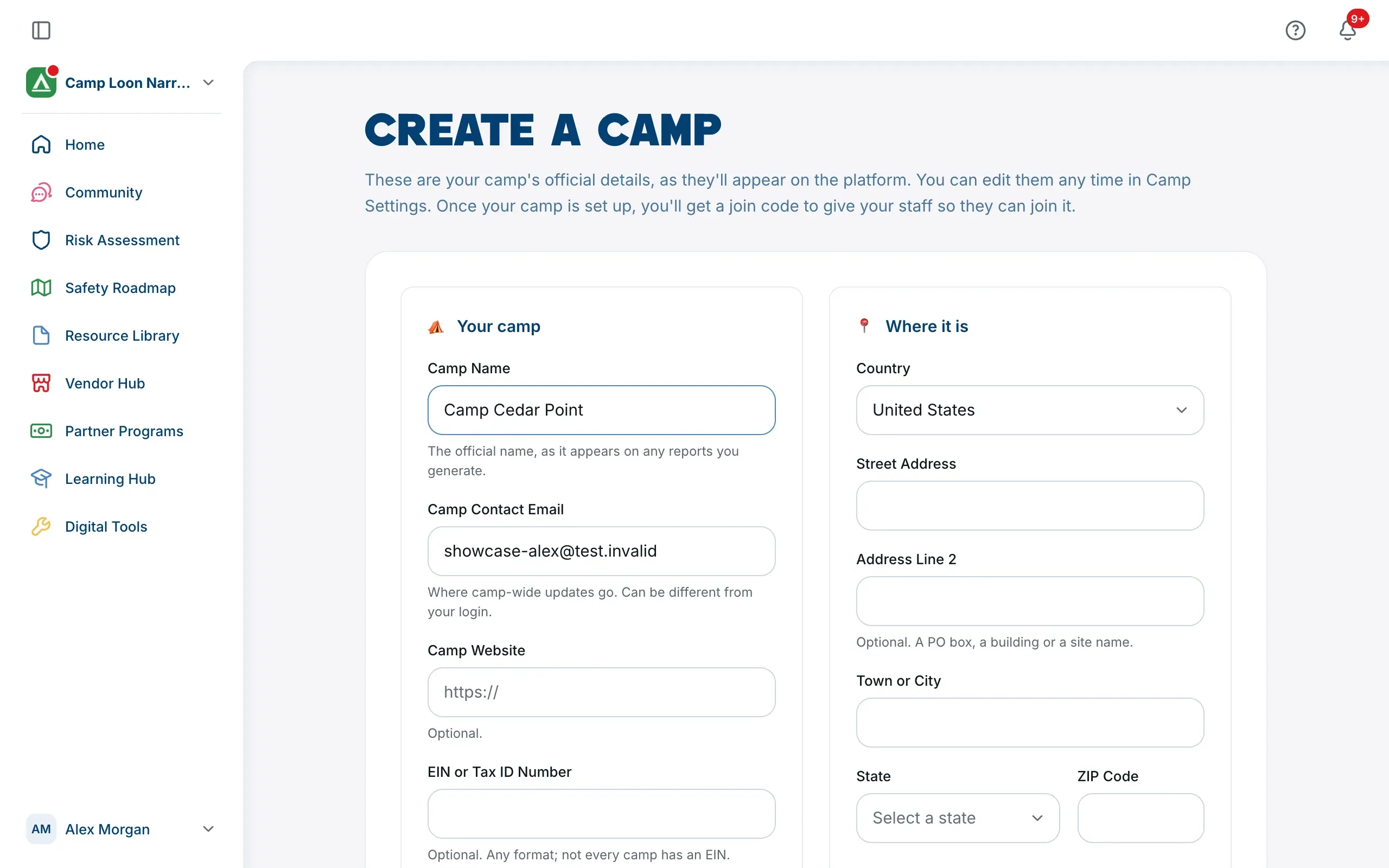
- Under Your camp, fill in the Camp Name and Camp Contact Email. The contact email starts as your own sign-in email, and you can change it. Camp Website, EIN or Tax ID Number and Mission Statement are optional.
- Under Where it is, fill in the camp’s address.
- Choose Create my camp.
You become the new camp’s Camp Admin. After a few seconds of setting up, you land on its Home page, which shows its join code in a banner so you can share it straight away. The banner first reads Invite your team., then Your camp is set up., and stays until you choose Got it. Your other camps are just as you left them.
You can change any of these details later, and add a logo, in Camp Settings. See Change your camp’s name, details and logo. Then fill in the new camp’s profile, which starts empty. See Fill in your Camp Profile.
You can’t create a camp with the same name and postcode as one you’re already in. If you see You’re already in a camp with this name and postcode., open that camp from the camp menu instead.
Anyone can create or join a camp
Join another camp and Create another camp are in the camp menu for everyone, whatever roles your profile lists. Belonging to a camp adds Camp Staff to your profile roles if it isn’t there already. See Your profile.
Move between your camps
The camp menu lists every camp you’re in, with your role in each and a tick beside the one you have open. Choose another camp to open it. See Switch between your camps.