Work in more than one camp
Getting startedOne account can belong to several camps, with a role in each. Switch between them from the camp menu, and join or create another camp from inside the platform.
If you run more than one site, advise several camps, or help out at more than one, you don’t need a separate account for each. One account can belong to as many camps as you need, with its own role in each. Each camp’s work stays with that camp, and its team sees only that camp.
Switch to another camp
- Open the camp menu at the top of the sidebar. It shows the name of the camp you’re in now.
- Your camps are listed at the top, each with your role there (Camp Admin or Camp Member). The one you’re in has a tick.
- Choose another camp.
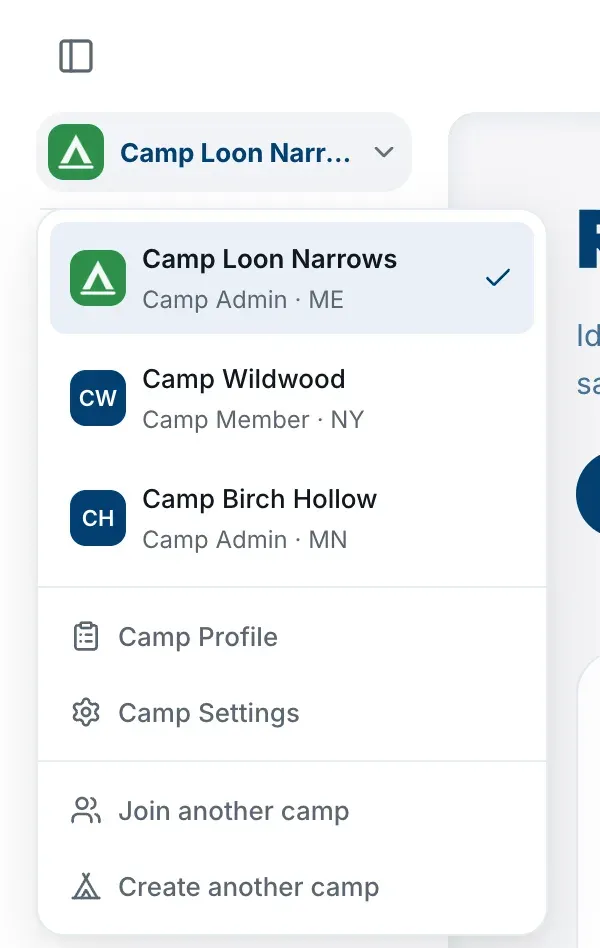
You stay on the same page, in the other camp. If you were on Risk Assessment, you’ll be on the other camp’s risk assessment. Home, your camp’s pages and the bell all switch with it.
If you’ve typed something that hasn’t saved yet, the platform asks before it switches.
Which camp am I in?
The camp menu at the top of the sidebar always names it. Your camp’s Home page also shows the camp’s name above the greeting.
Different camps in different tabs
Each browser tab keeps its own camp, so you can have one camp open in one tab and another camp in a second tab. A new tab opens the camp you last used.
The web address of a camp’s pages includes that camp, so a link you copy and send to a colleague opens that same camp for them. If they aren’t in it, they’ll see This camp isn’t available to you.
Notifications from your other camps
The bell shows notifications for the camp you have open, plus the ones that are just for you. If another of your camps has something new, a red dot appears on the camp badge at the top of the sidebar, and the camp menu shows a count beside that camp. See Notifications.
Join or create another camp
Open the camp menu and choose:
- Join another camp, and enter the code from that camp’s Camp Admin. See Join your camp with a camp code.
- Create another camp, if nobody has added it yet. See Set up your camp.
The new camp opens once you’ve joined or created it. Your other camps stay exactly as they were.
See all your camps
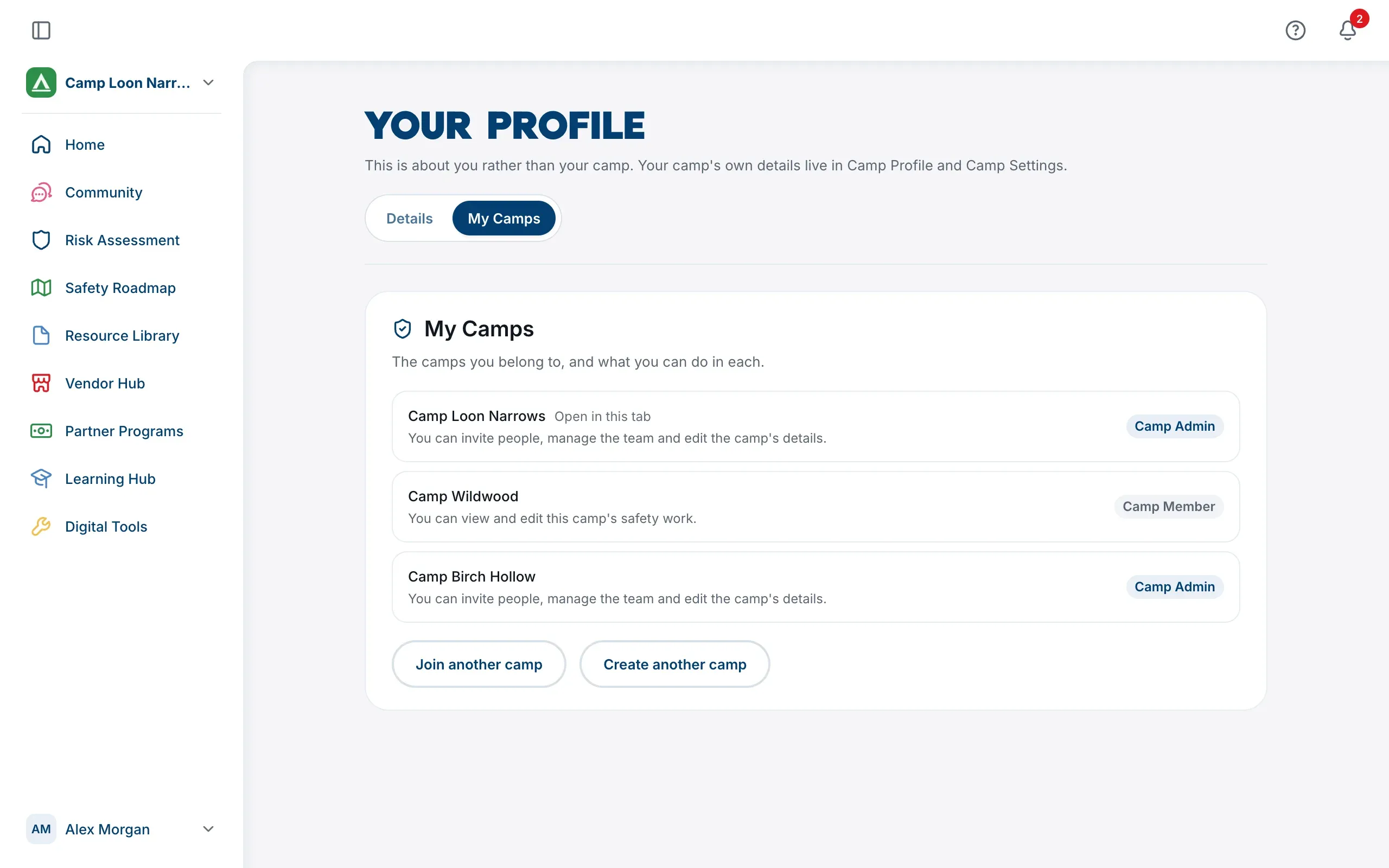
Open your name at the foot of the sidebar, choose Profile, then the My Camps tab. It lists every camp you’re in, your role in each, and which one is Open in this tab. Choose a camp’s name to open it. Join another camp and Create another camp are there too.
Leave one camp
Leaving one camp doesn’t affect your others. Open that camp, go to Camp Settings, then the Team tab, and use the Leave this camp card. See Leave a camp for the details, including what happens if you’re its last Camp Admin.
If you leave or are removed from the camp you have open, the platform opens another of your camps.