Your profile and roles
Account and sign-inChange your name, reset your password, add or remove roles like Camp Staff, choose your Home color, and see every camp you're in.
Your profile is about you rather than your camp. Your camp’s own details live in Camp Profile and Camp Settings, in the camp menu at the top of the sidebar.
Open your profile
Open your name at the foot of the sidebar and choose Profile. The page is called Your Profile and has two tabs: Details and My Camps.
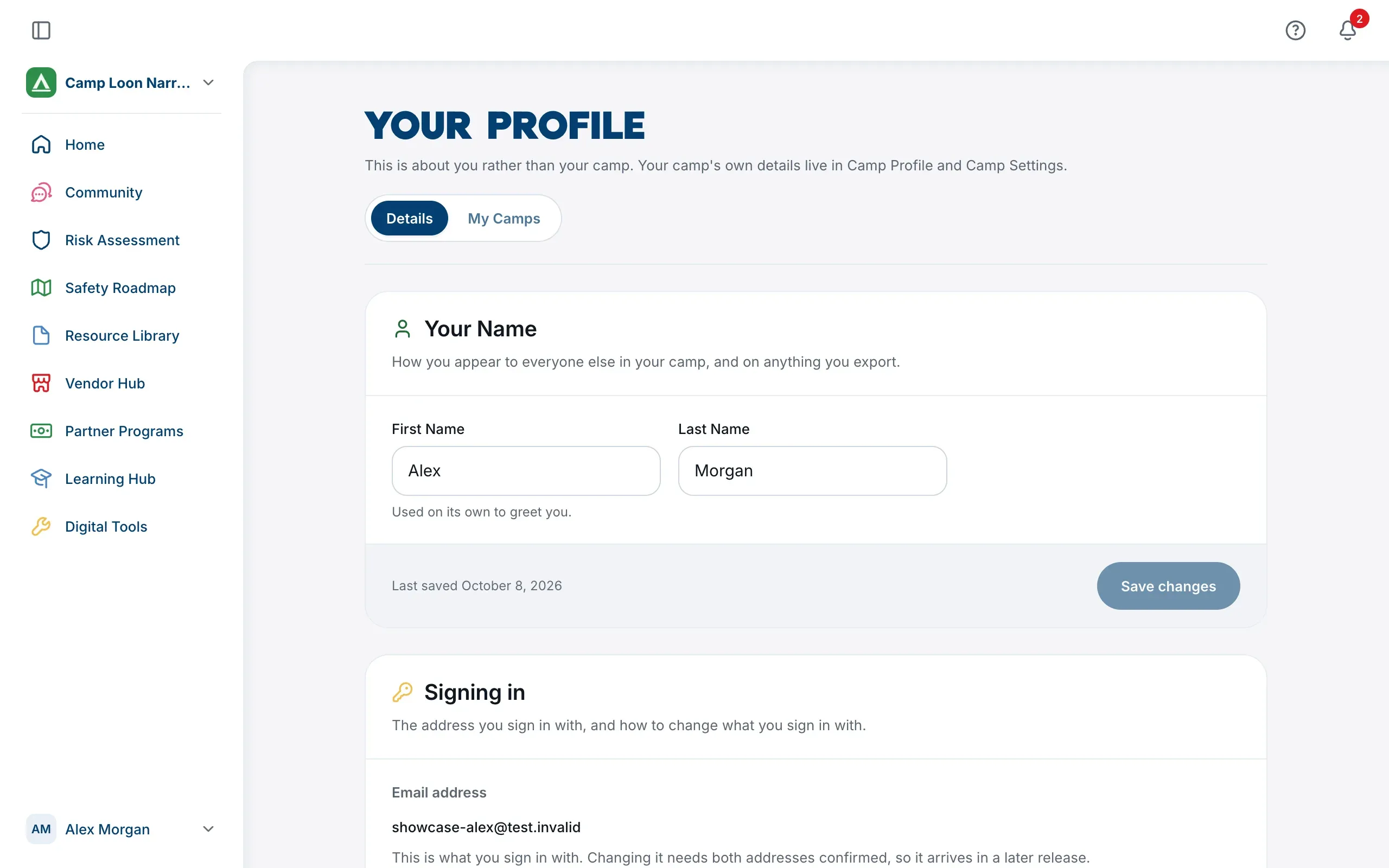
Change your name
- On the Details tab, edit First Name and Last Name in the Your Name card.
- Choose Save changes.
Your name is how you appear to everyone in your camps, and on anything you export, so neither part can be left blank. Your first name is also what the platform greets you with.
Your password and email address
The Signing in card shows the email address you sign in with, and has Email me a reset link to set a new password. See Signing in, your email and your password.
Your roles
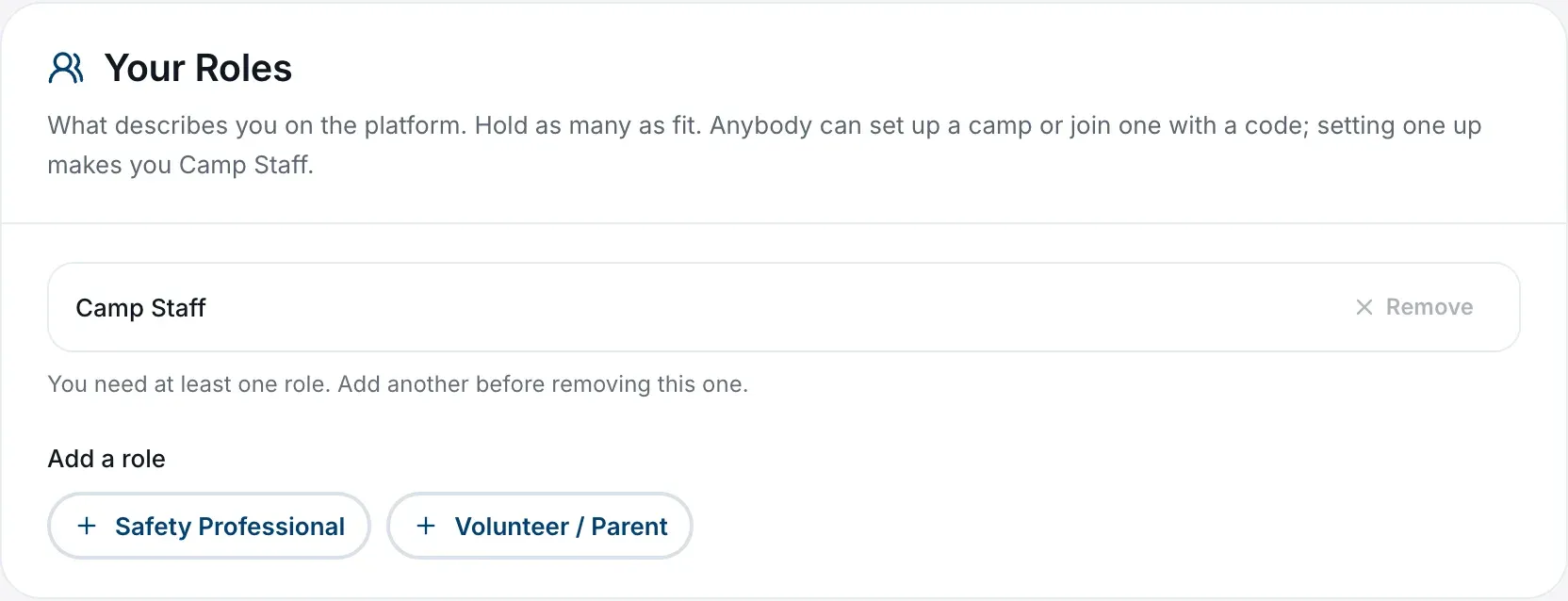
The Your Roles card shows what describes you on the platform. There are three, and you can hold as many as fit:
- Camp Staff: you run or work at a camp or program.
- Safety Professional: you advise camps or programs on safety, risk or compliance.
- Volunteer / Parent: you volunteer with a camp, or you’re a parent looking into one.
To add one, choose it under Add a role. To take one away, choose Remove beside it, then Remove again to confirm (or Keep it to change your mind). You always need at least one role.
What your roles change, and what they don’t
Your roles describe you. They don’t decide what you can do inside a camp: that’s your camp role, Camp Admin or Camp Member, which each camp gives you. See Who can do what in your camp.
What they do change:
- Being in a camp makes you Camp Staff. Anyone can set up a camp or join one with a code, whatever their roles, and doing either adds Camp Staff to your roles.
- What you see while signing up. Picking Camp Staff takes you to Let’s Find Your Camp, to join or set up your camp. The other roles go straight into the platform.
- Your Home page, when you aren’t in a camp. Without a camp, your Home page is shaped around your role. Once you’re in a camp, you get that camp’s Home.
Removing Camp Staff takes you out of your camps
Camp Staff is the role that says you work at camps, so removing it also takes you out of every camp you’re in. Before you confirm, the platform lists the camps you’d leave. Everything you did in each camp stays with that camp.
If you’re the only Camp Admin of a camp, or the only person in it, the platform won’t let you remove Camp Staff yet. Make someone else a Camp Admin there first, or close the camp from its Camp Settings.
Home Color
The Home Color card sets the background behind the welcome on your Home page. Choose a swatch and it changes straight away. Only you see it.
My Camps
The My Camps tab lists every camp you’re in, with your role in each and a line saying what that role can do. The camp open in this tab is marked Open in this tab; choose another camp’s name to open it. Join another camp and Create another camp are underneath.
If you aren’t in a camp yet, the tab says so and offers Join a camp and Create a camp. See Work in more than one camp.