Export your reports
Safety Roadmap and reportsThe three reports you can make from your Safety Roadmap, who each is for, and how to print one or save it as a PDF.
Your Safety Roadmap can be turned into three ready-made reports, for your board, your staff or your families. Each is built from your risk assessment as it stands, and you print it or save it as a PDF from your browser.
Everyone in your camp can export them.
The three reports
| Report | For | What’s in it |
|---|---|---|
| Safety Snapshot | A board, an insurer, or your own file | Where you stand and which way it’s moving, with your top five risks, your top five opportunities, and how many open actions fall due when. |
| Leadership & Staff Safety Report | Your leadership team and staff | The full reference: every rated risk, every control you’ve answered, the whole action plan, your trend, and how the numbers are worked out. |
| Parent Report | Families | What you look after, what’s in place today and what you’re working on next. It doesn’t list individual risks. |
Read a report through before you send it, so you know exactly what the reader will see.
Open a report
- Choose Safety Roadmap in the sidebar.
- Choose Export, beside the tabs.
- In Export your Safety Roadmap, choose the report you want. It opens in a new browser tab.
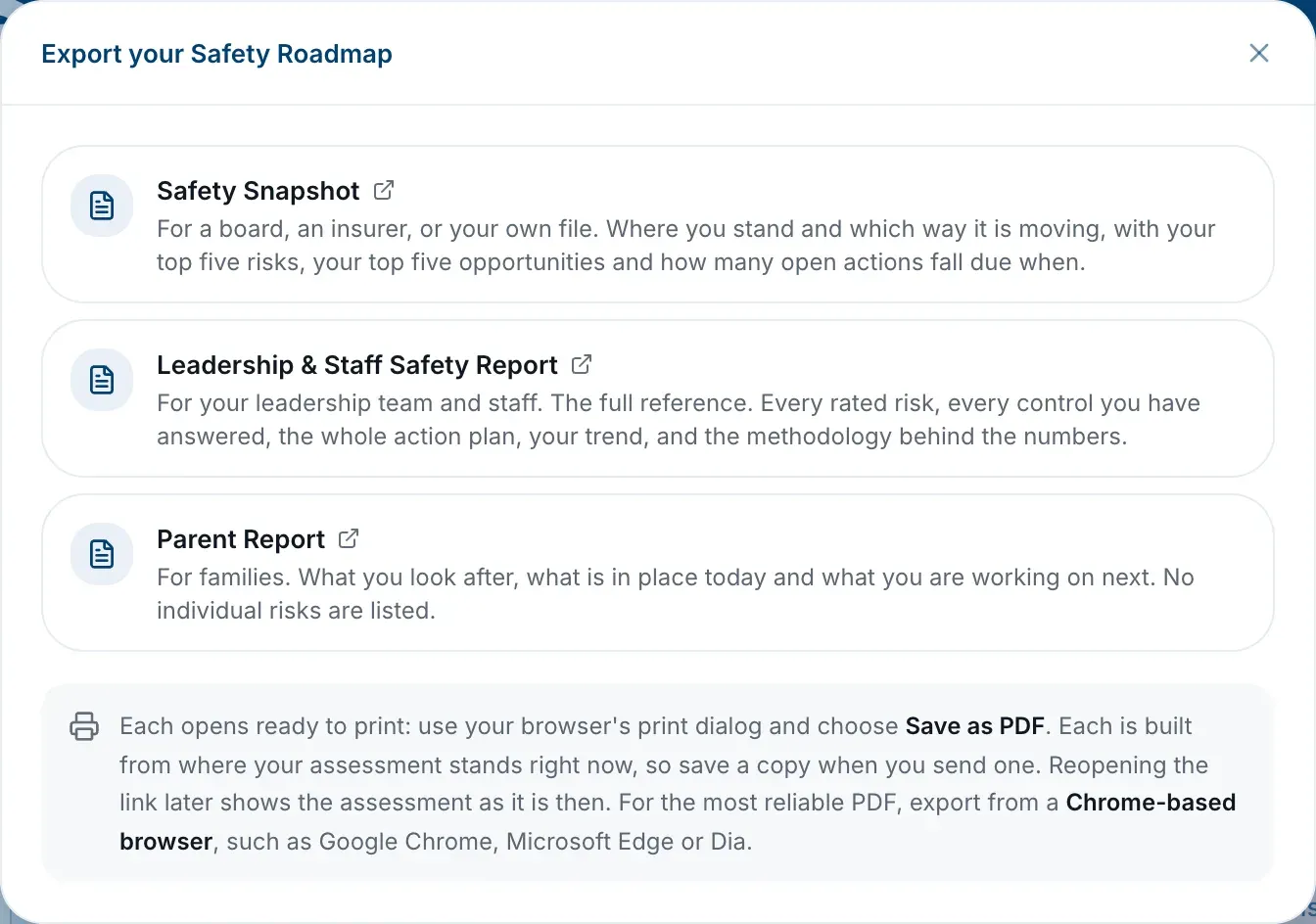
The Export button appears once your camp’s risk assessment has been started.
Print it or save it as a PDF
- At the top of the report, choose Print or save as PDF. Your browser’s print window opens.
- To print, pick your printer. To save a file, choose Save as PDF as the destination.
- Print or save.
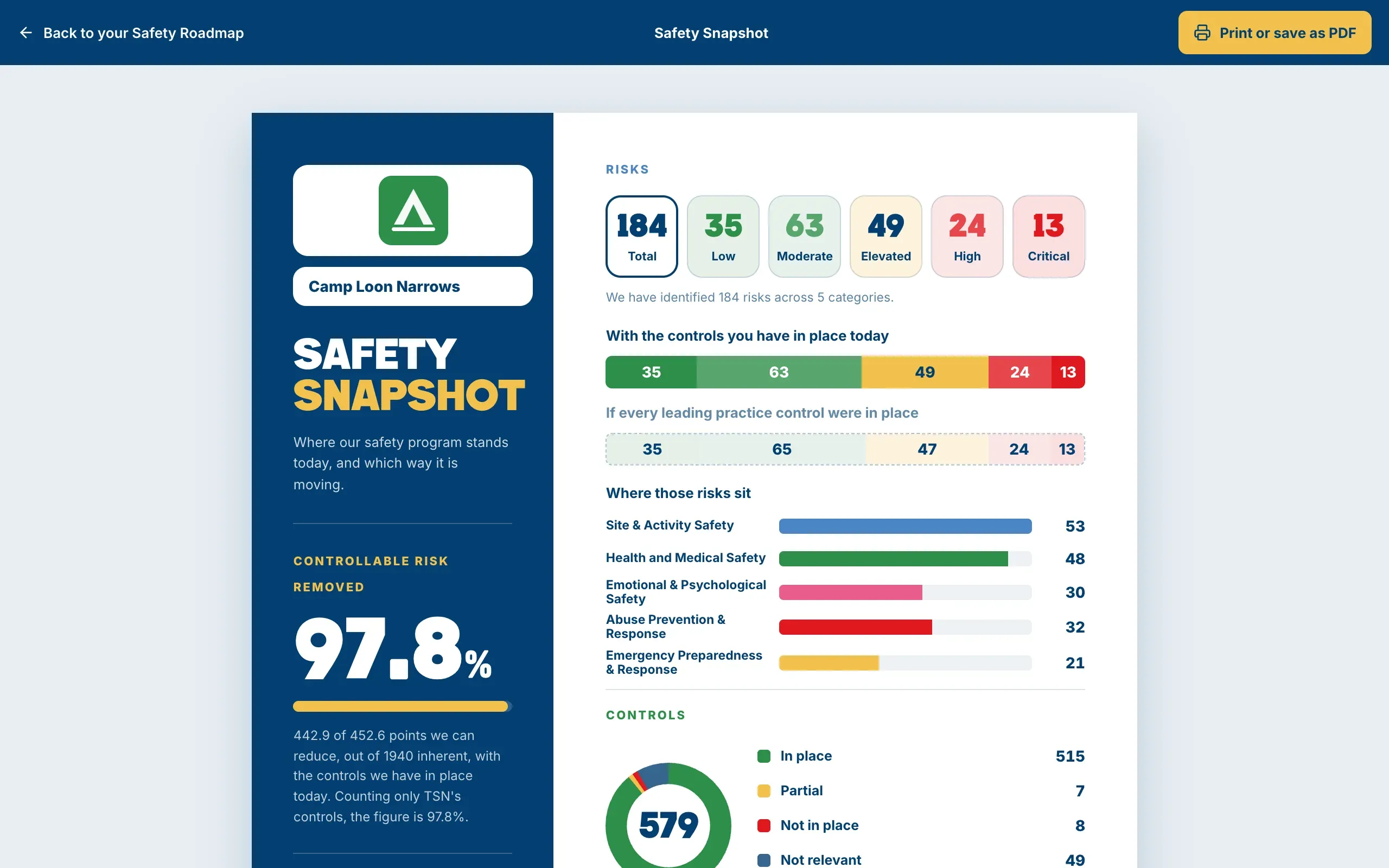
For the most reliable PDF, use a Chrome-based browser, such as Google Chrome, Microsoft Edge or Dia. In Safari, clicking somewhere else while the print window is open can leave you with a blank page.
To go back, choose Back to your Safety Roadmap at the top of the report, or close its tab.
Save a copy when you send one
A report isn’t stored anywhere. It’s built fresh each time you open it, from where your assessment stands at that moment, so opening the same link next month shows next month’s picture. If you’re sending a report to someone, or keeping one for your records, save it as a PDF and send or file that.
Nothing is sent to anyone from the platform. Sharing a report is up to you.